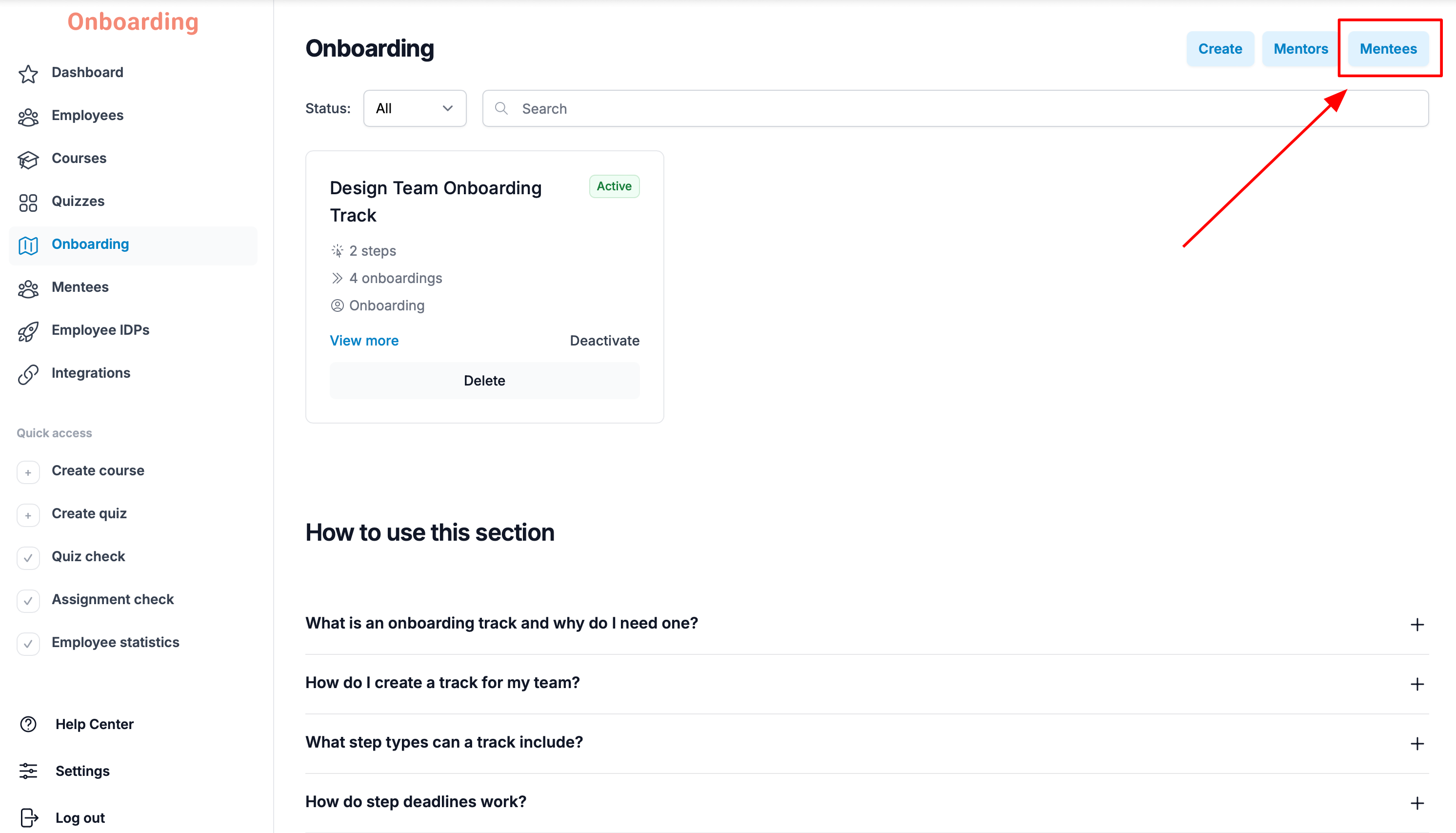
To open the mentees page, go to the «Onboarding» section and click the «Mentees» button.
You can also get there by clicking «Mentees» in the sidebar menu.
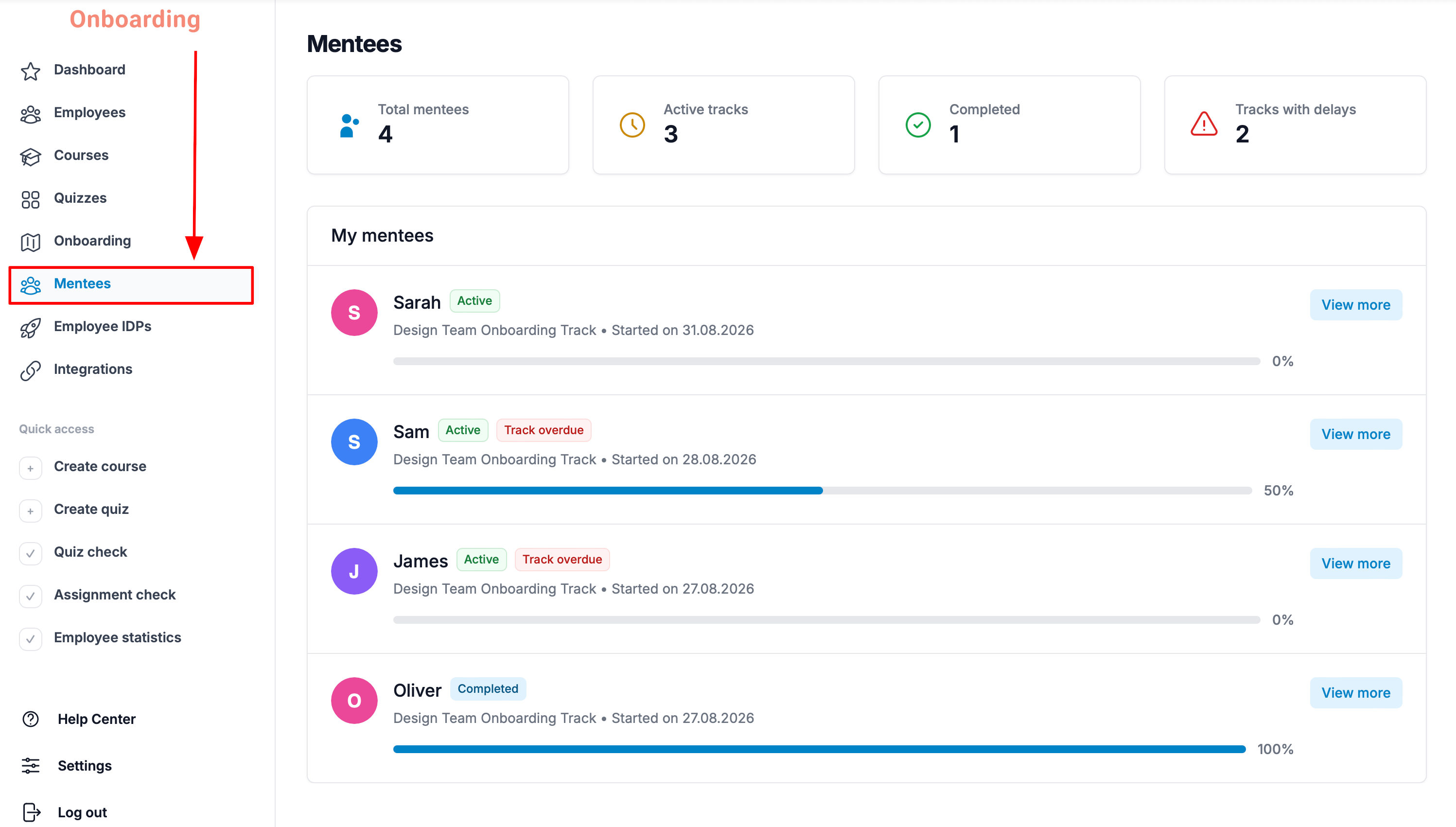
The «Mentees» section is only available to mentors. If a user is not a mentor, this section is hidden from them.
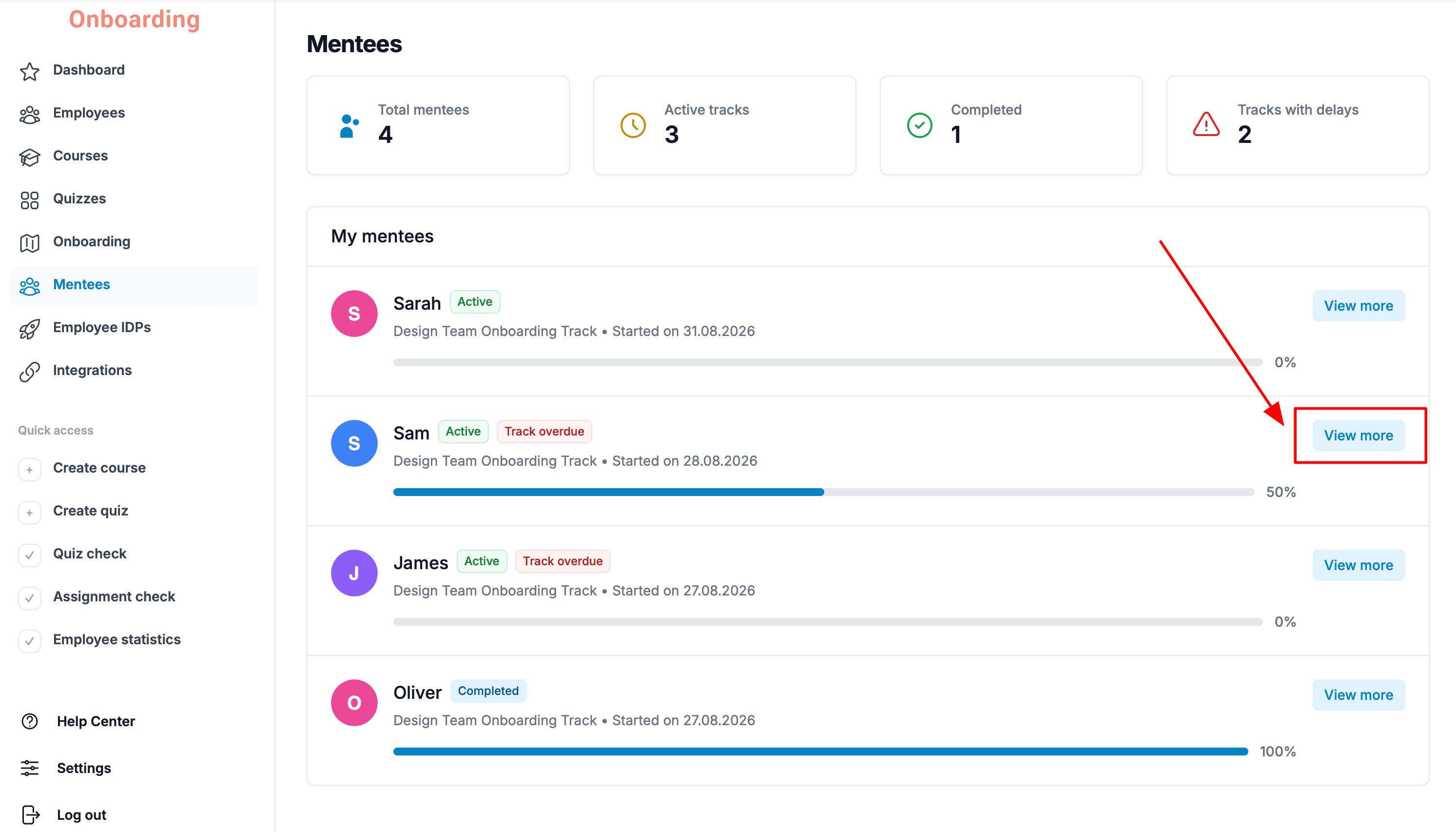
This page shows the employees assigned to mentors within onboarding tracks.
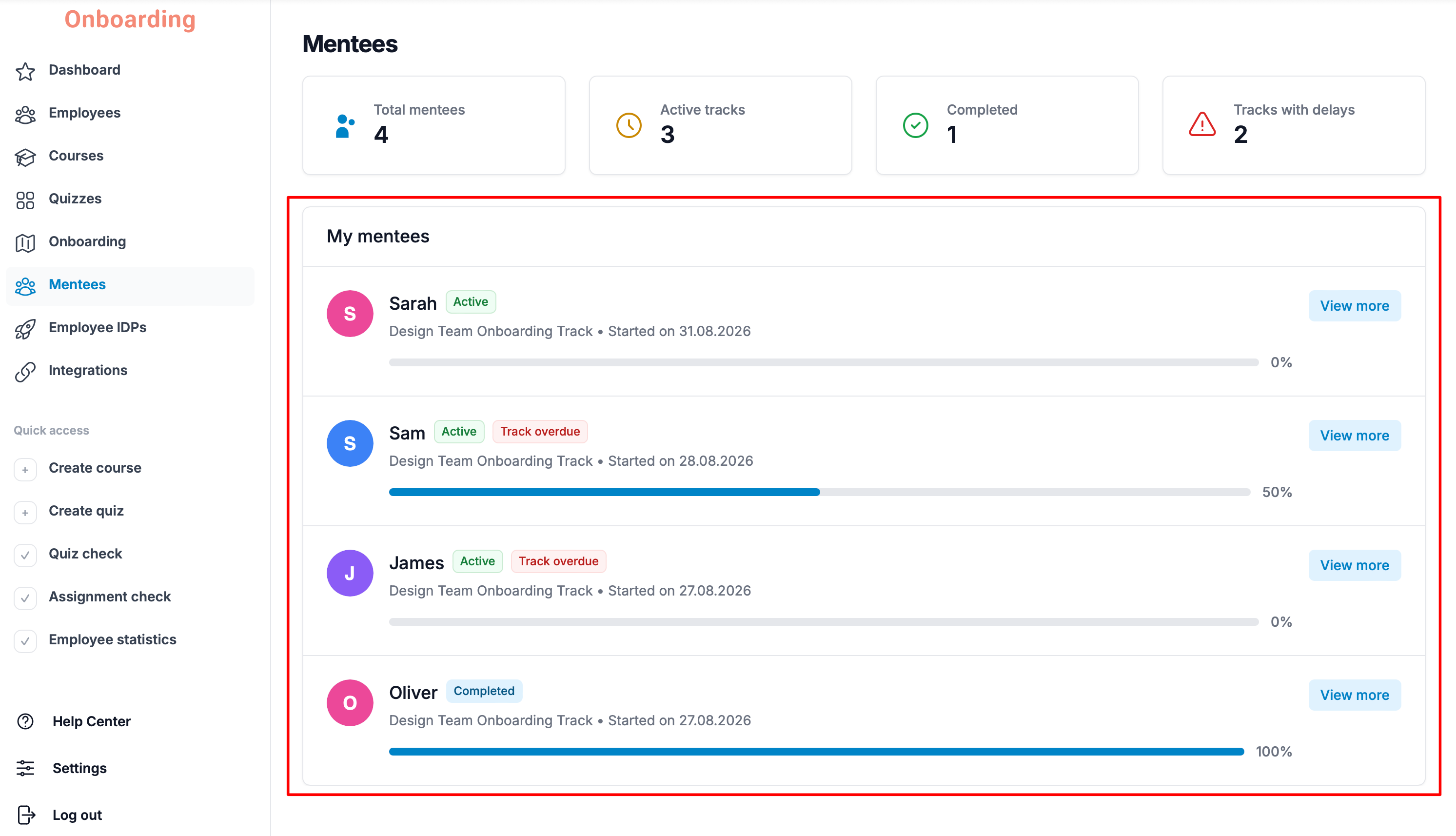
Here a mentor can see all the employees assigned to them, along with their current progress through their onboarding tracks:
- total mentees;
- active tracks;
- completed tracks;
- tracks with delays.
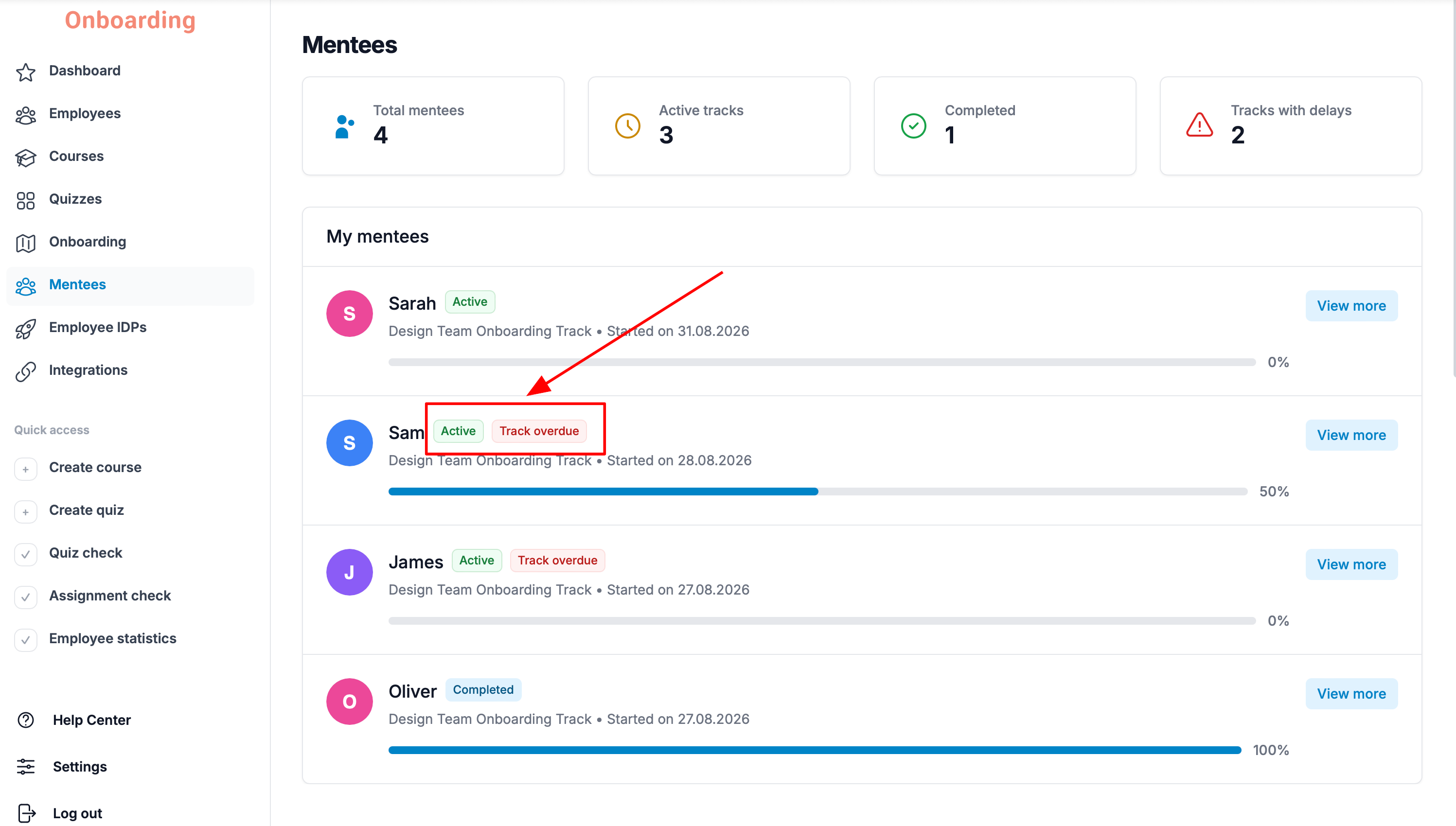
The status of each track is displayed next to the employee's name. If a track is overdue, a corresponding label will appear.
To see the details for an employee, click «View more».
The mentee's page shows the following information:
- the employee's name;
- the title of their onboarding track;
- the completion status of the onboarding track and each individual step;
- the track's start date.
It also shows onboarding progress:
- which steps the employee has already completed;
- how many steps are done;
- how many steps are left.
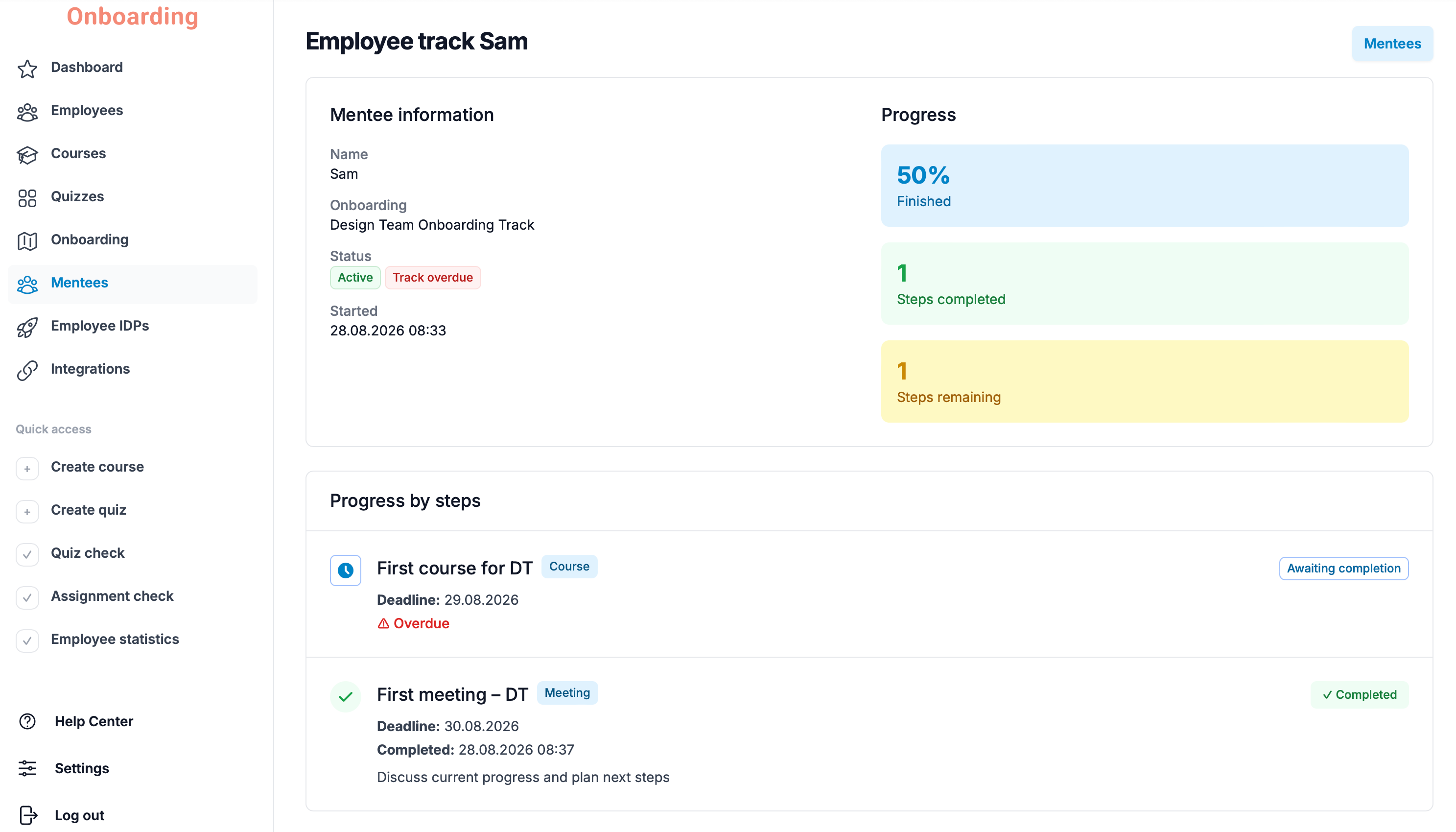
This information helps the mentor track their mentees' progress, see where each employee is in their onboarding, and step in early for anyone who needs extra help or attention.
This page shows the information exactly as the mentor sees it in the platform interface.