After training, some employee results need to be reviewed manually by an administrator.
These include:
- answers to assignment lessons;
- answers to open-ended questions in quizzes.
The platform collects employees' answers automatically and gives you the tools to review and grade them.
Who can review homework assignments and quizzes?
Only the platform administrator — the user the organization's account is registered to — can review homework assignments and open-ended quiz questions.
The administrator is the one who sees employees' answers, awards grades, and re-reviews assignments after a retake.
Reviewing assignments
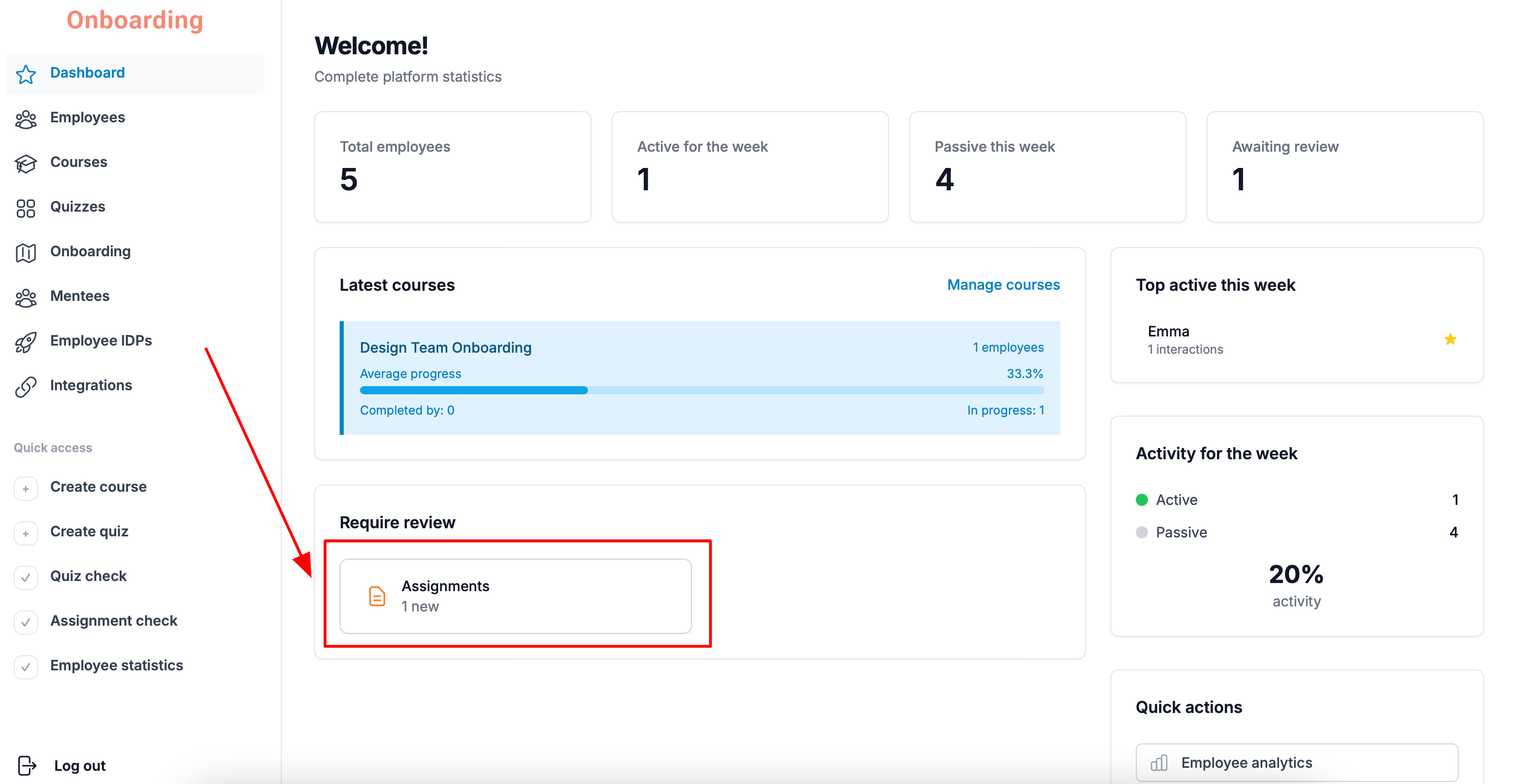
When an employee submits an assignment for review, it shows up on the main Dashboard page.
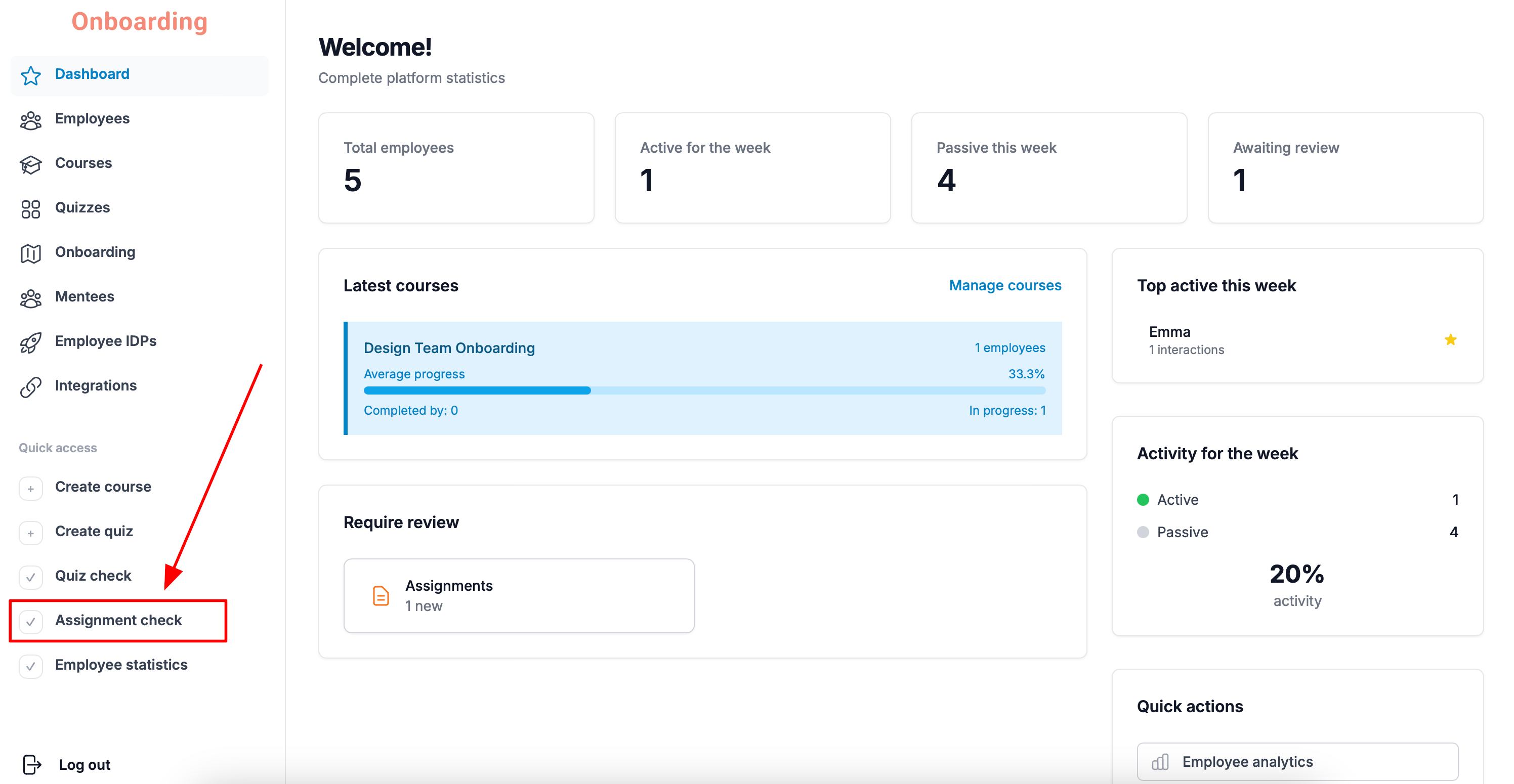
You can also get to assignment review via the «Assignment check» button in the «Quick access» block of the sidebar menu.
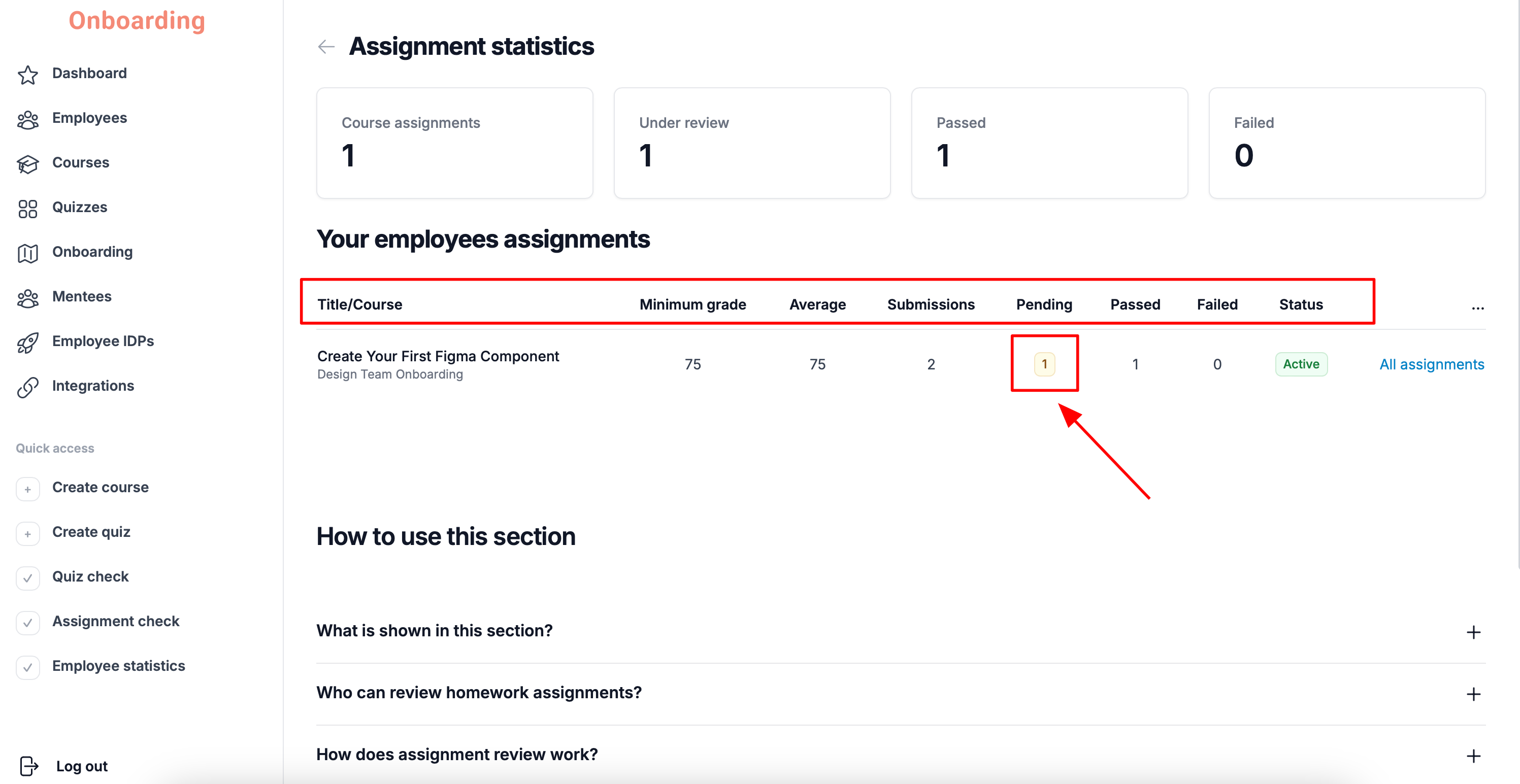
You'll see a list of assignments attached to courses. For each assignment, the list shows:
- Title/Course – the assignment's name and the course it belongs to.
- Minimum grade – the passing score for the assignment.
- Average – employees' average score on the assignment.
- Submissions – the total number of employee submissions.
- Pending – the number of submissions waiting for review.
- Passed – the number of submissions graded at or above the passing score.
- Failed – the number of submissions graded below the passing score.
- Status – whether the assignment is available to employees.
If an assignment has submissions waiting for review, the number in the «Pending» column is highlighted to catch the reviewer's eye.
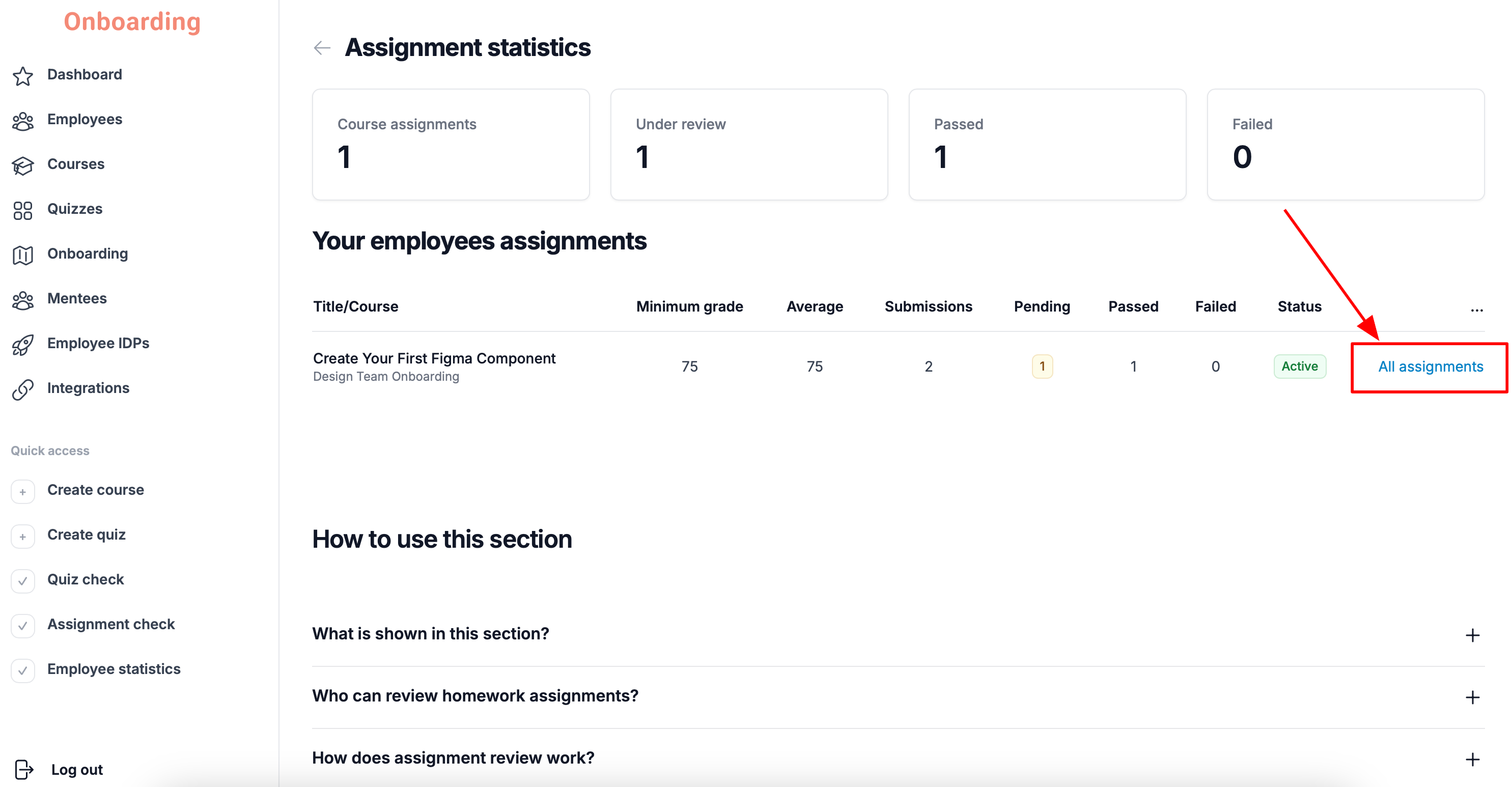
To start reviewing employees' answers, click «All assignments».
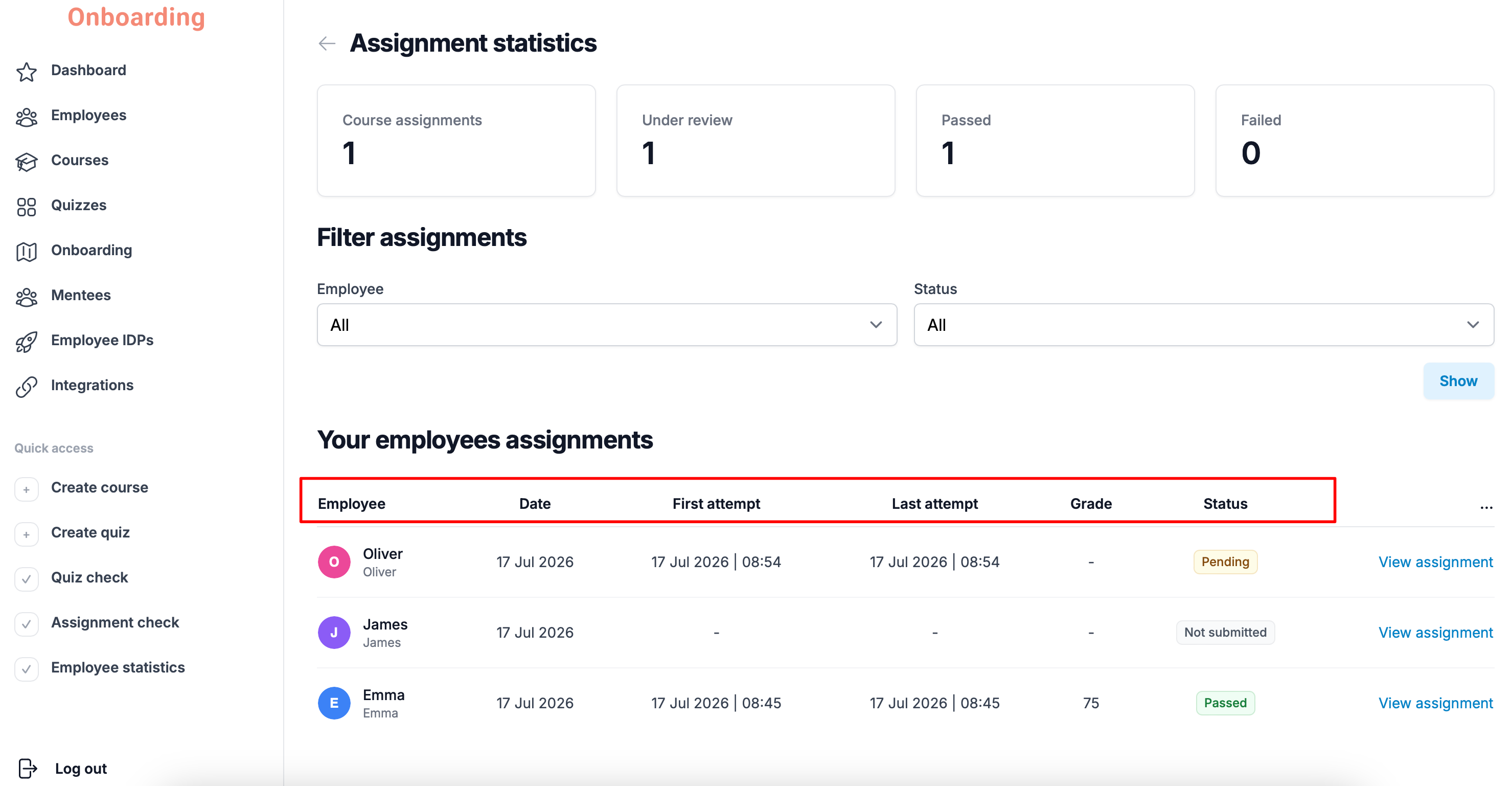
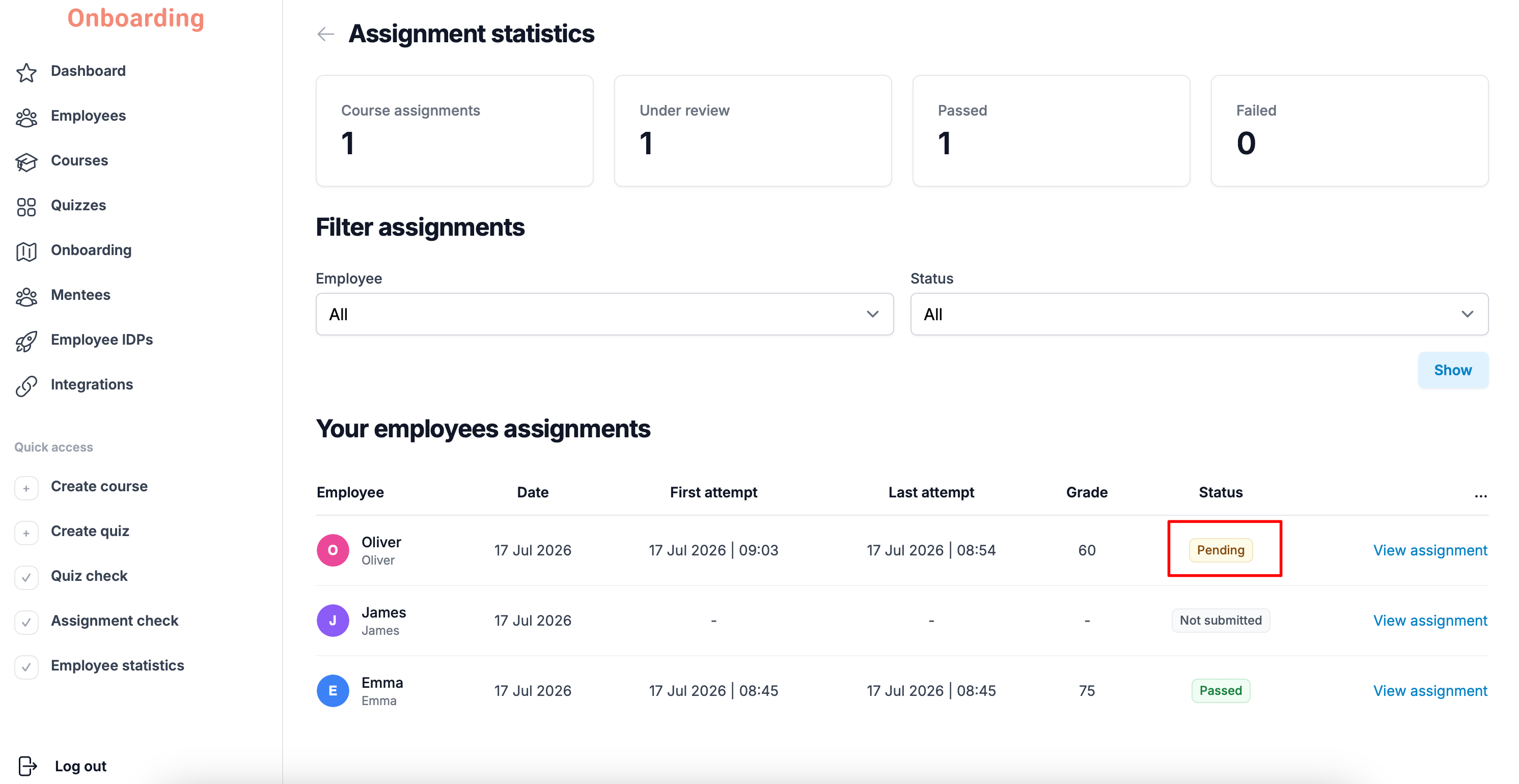
A list of employee submissions opens, showing:
- Employee – the employee's name on the platform.
- Date – when the employee opened the assignment.
- First attempt – the date of the first submission.
- Last attempt – the date of the most recent submission.
- Grade – the points the employee earned for a successfully completed assignment.
- Status – the assignment's current status.
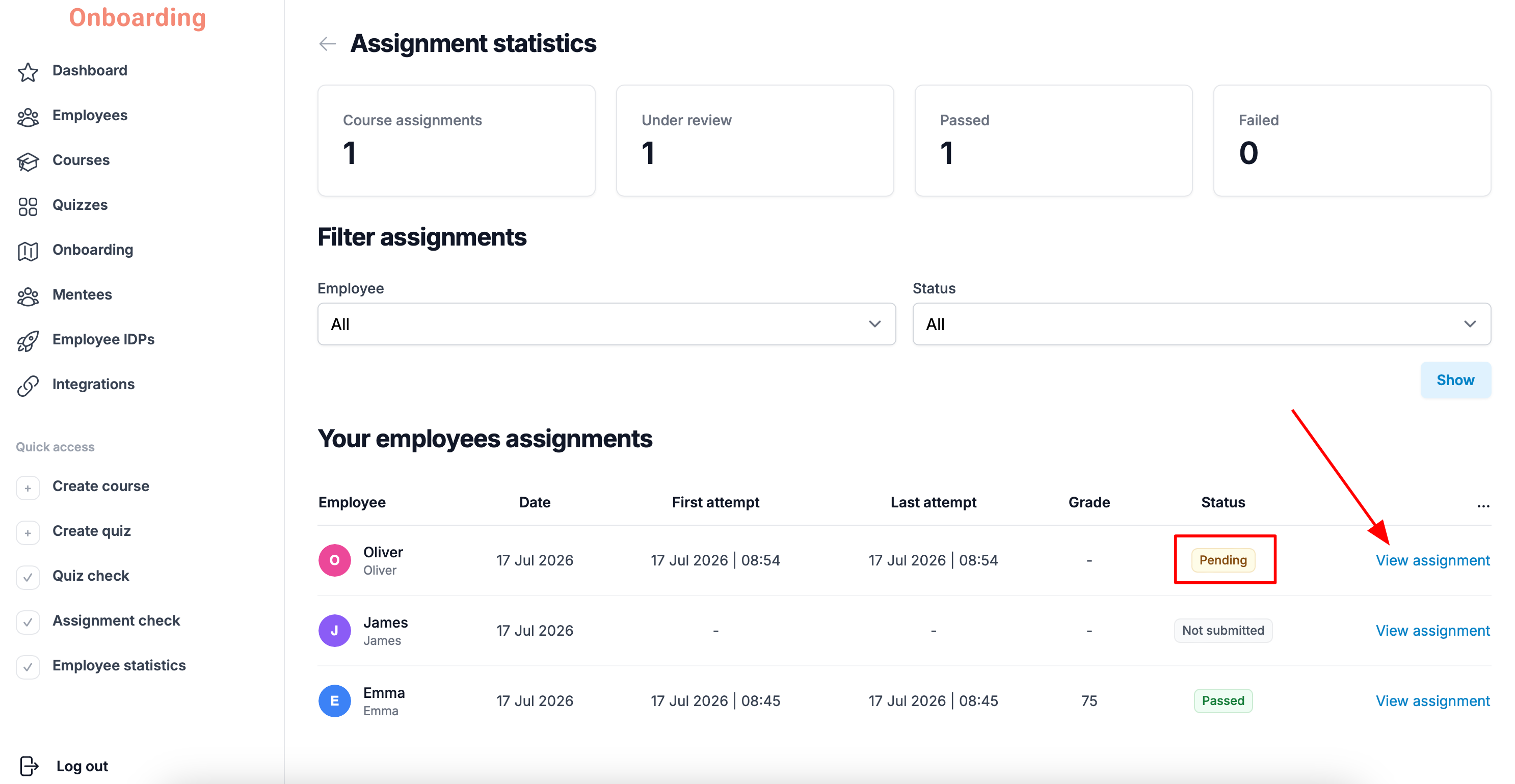
Assignments can have the following statuses:
- Pending – the assignment has been submitted and is waiting for review.
- Passed – the assignment has been completed successfully.
- Failed – the assignment has been reviewed, but the employee didn't reach the passing score.
- Not submitted – the employee hasn't submitted an answer yet.
To review a submission with the «Pending» status, click «View assignment».
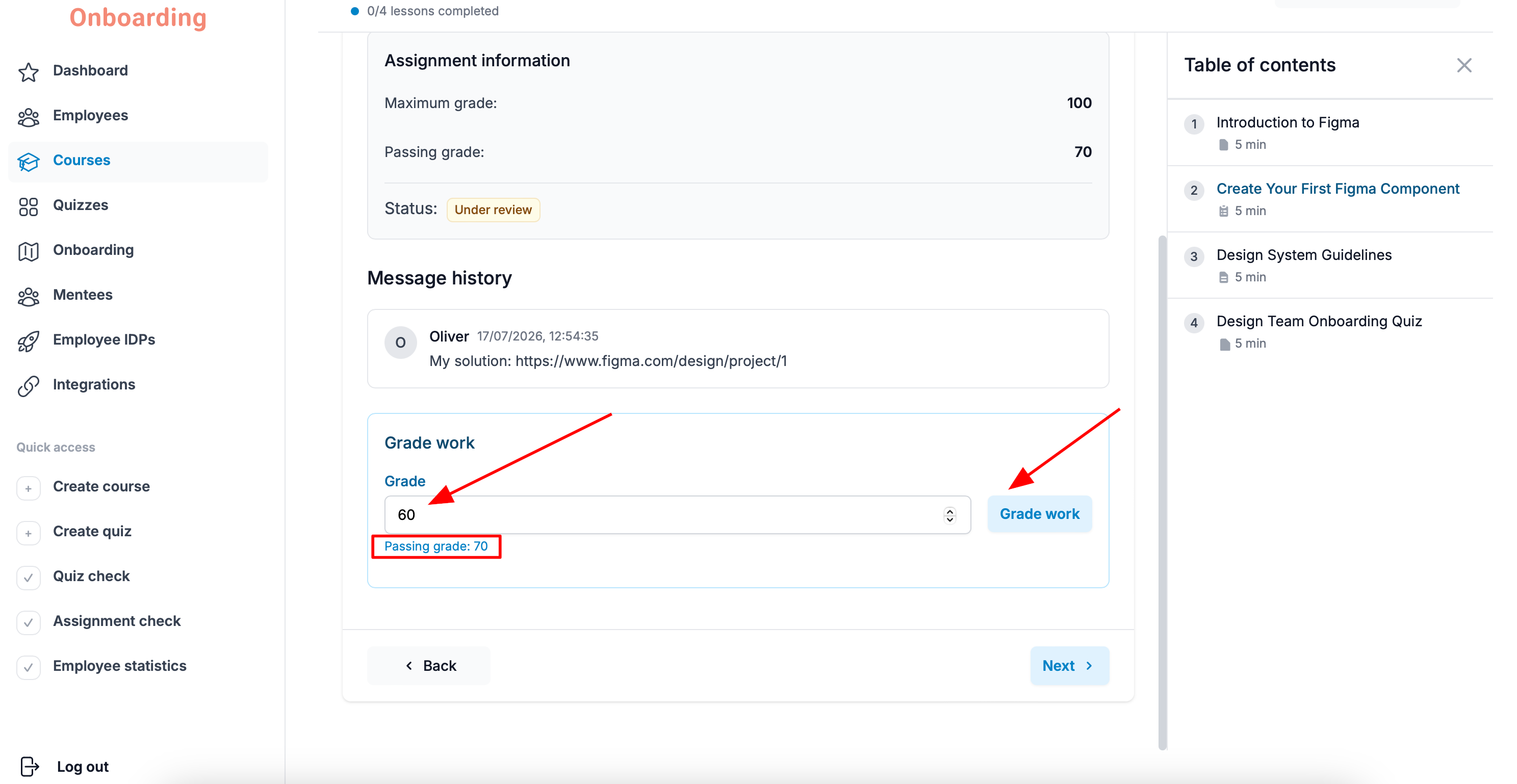
The assignment page opens with the employee's answer and the grading criteria, including the maximum and passing grades.
After reviewing, enter the grade in the «Grade» field and click «Grade work».
If the grade is below the passing score
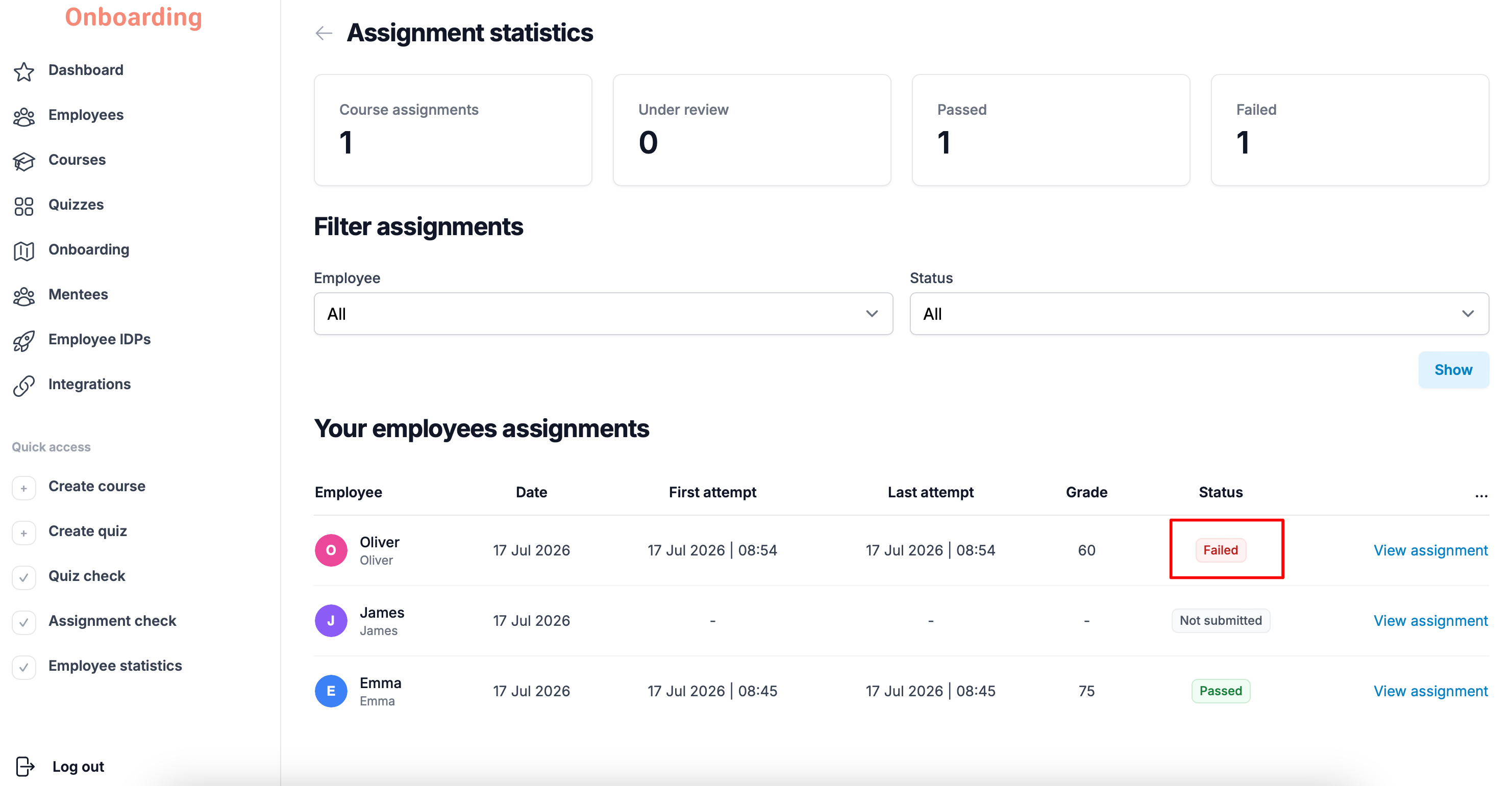
If the employee's grade is below the passing score, the assignment counts as not completed and is sent back for a retake.
In the assignment list, the submission gets the «Failed» status.
Once the employee resubmits, the status changes back to «Pending», meaning the assignment is ready for another review.
If the grade is at or above the passing score
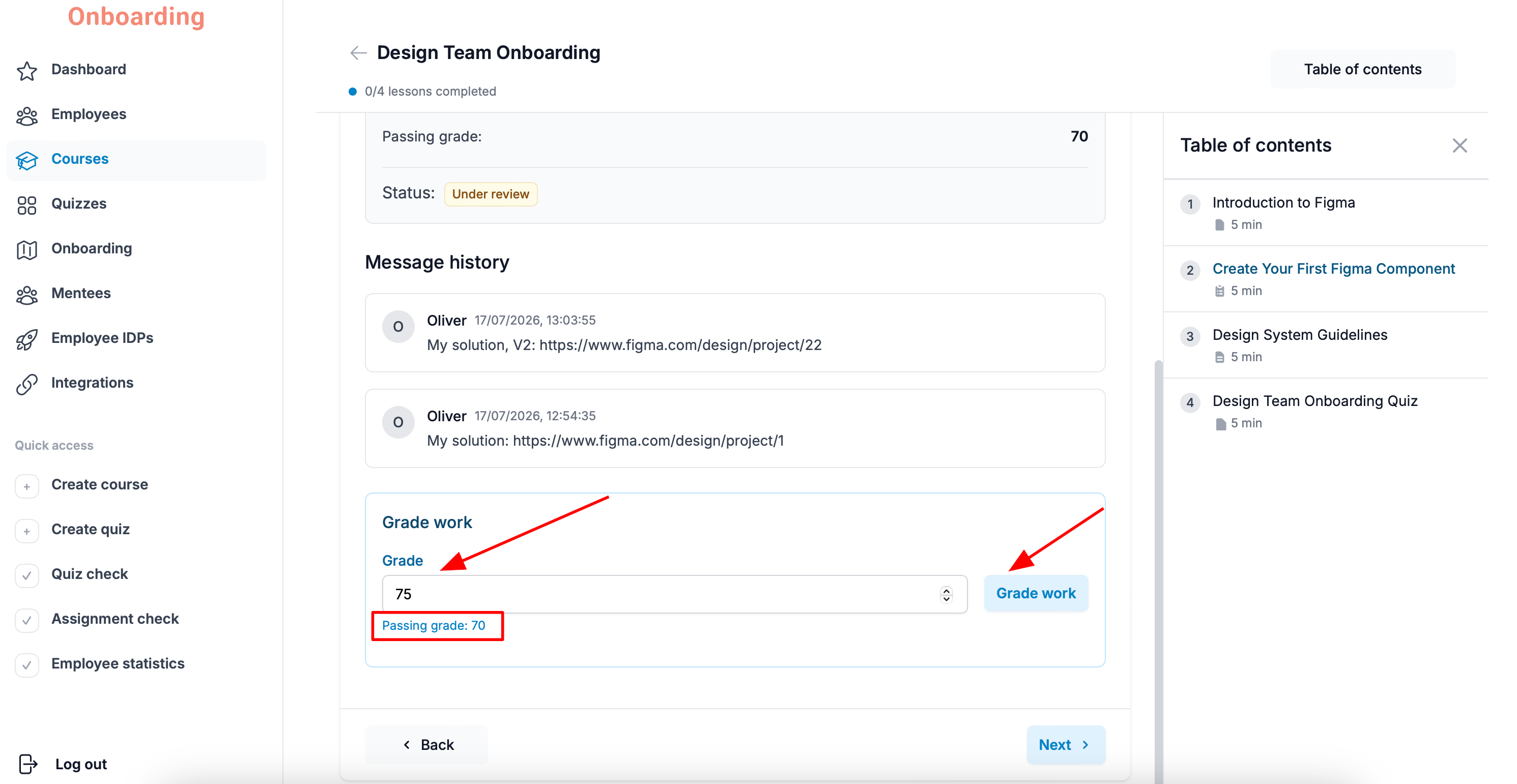
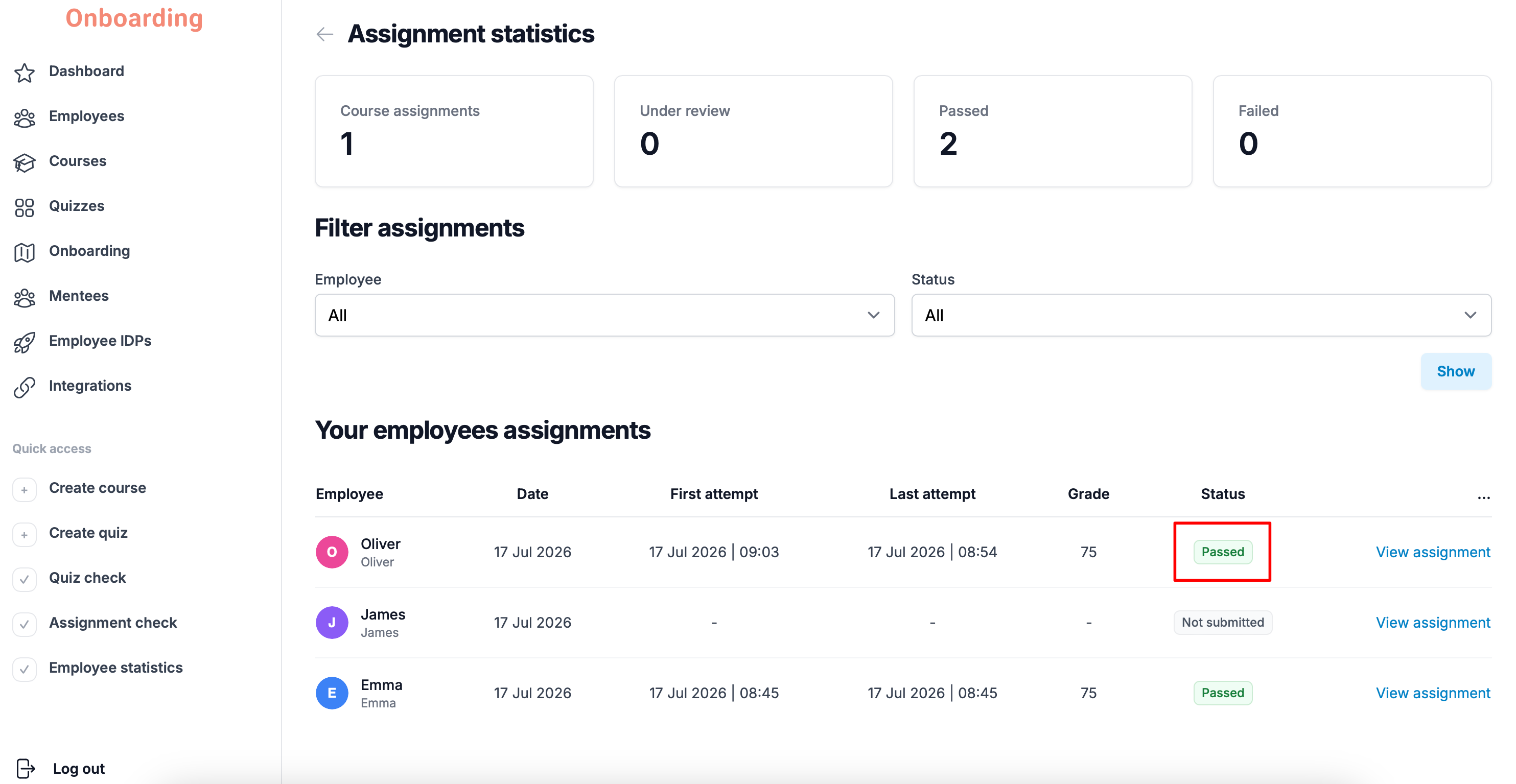
If the employee's grade is equal to or higher than the passing score, the assignment counts as successfully completed.
In the assignment list, the submission gets the «Passed» status.
Reviewing quizzes
Quizzes use both automatically and manually graded questions.
Most question types are graded automatically. The platform compares the employee's answers with the correct ones and awards points for each correct answer on its own.
If the employee answers correctly, they receive the number of points set when the question was created. If they answer incorrectly, no points are awarded for that question.
Automatically graded question types are:
- multiple choice question;
- true or false;
- fill in the blanks;
- matching.
Only open-ended questions require manual review. Once the administrator reviews the answer, the employee receives points that also count toward the quiz's final result.
When an employee submits a quiz for review, it shows up on the main Dashboard page.
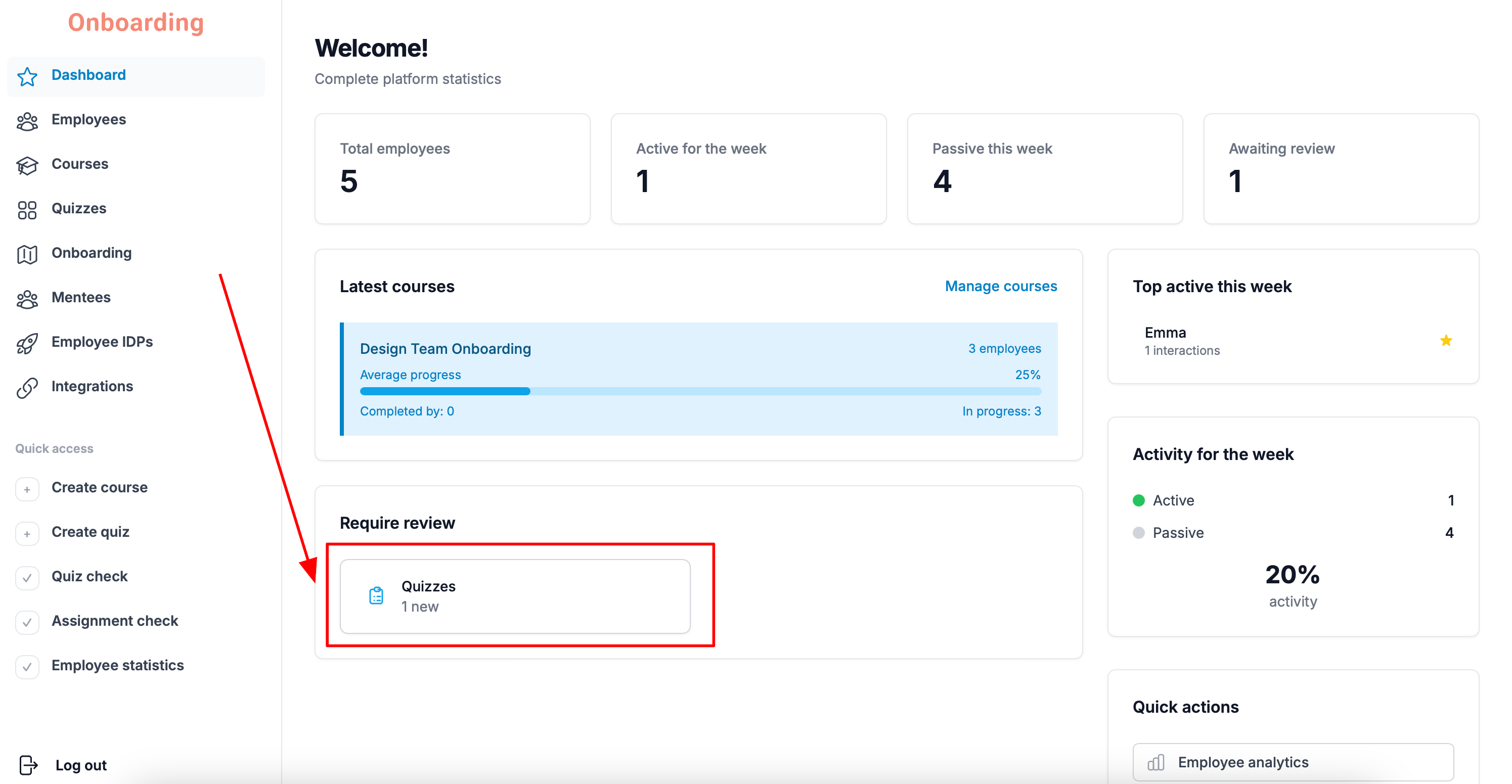
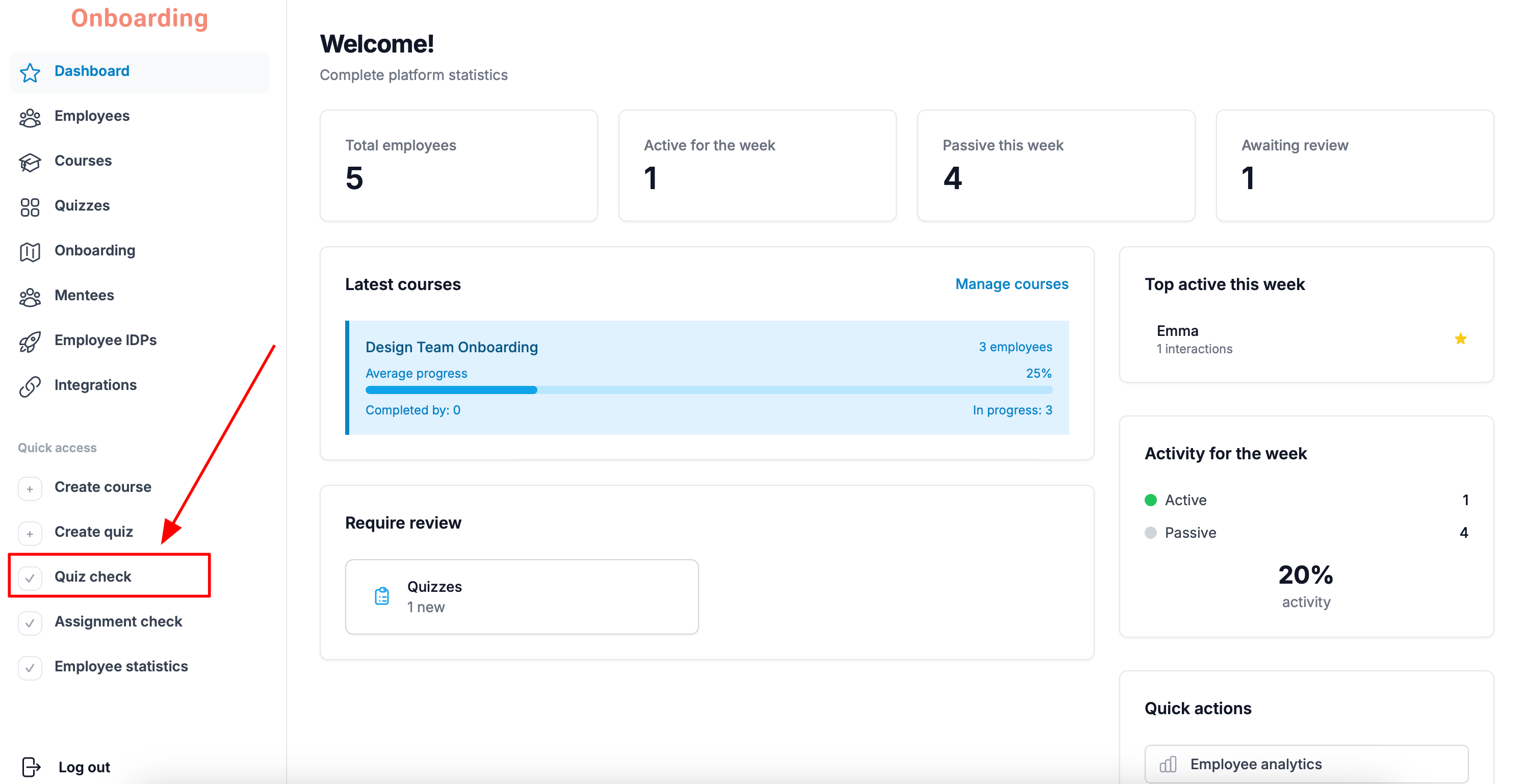
You can also get to quiz review via the «Quiz check» button in the «Quick access» block of the sidebar menu.
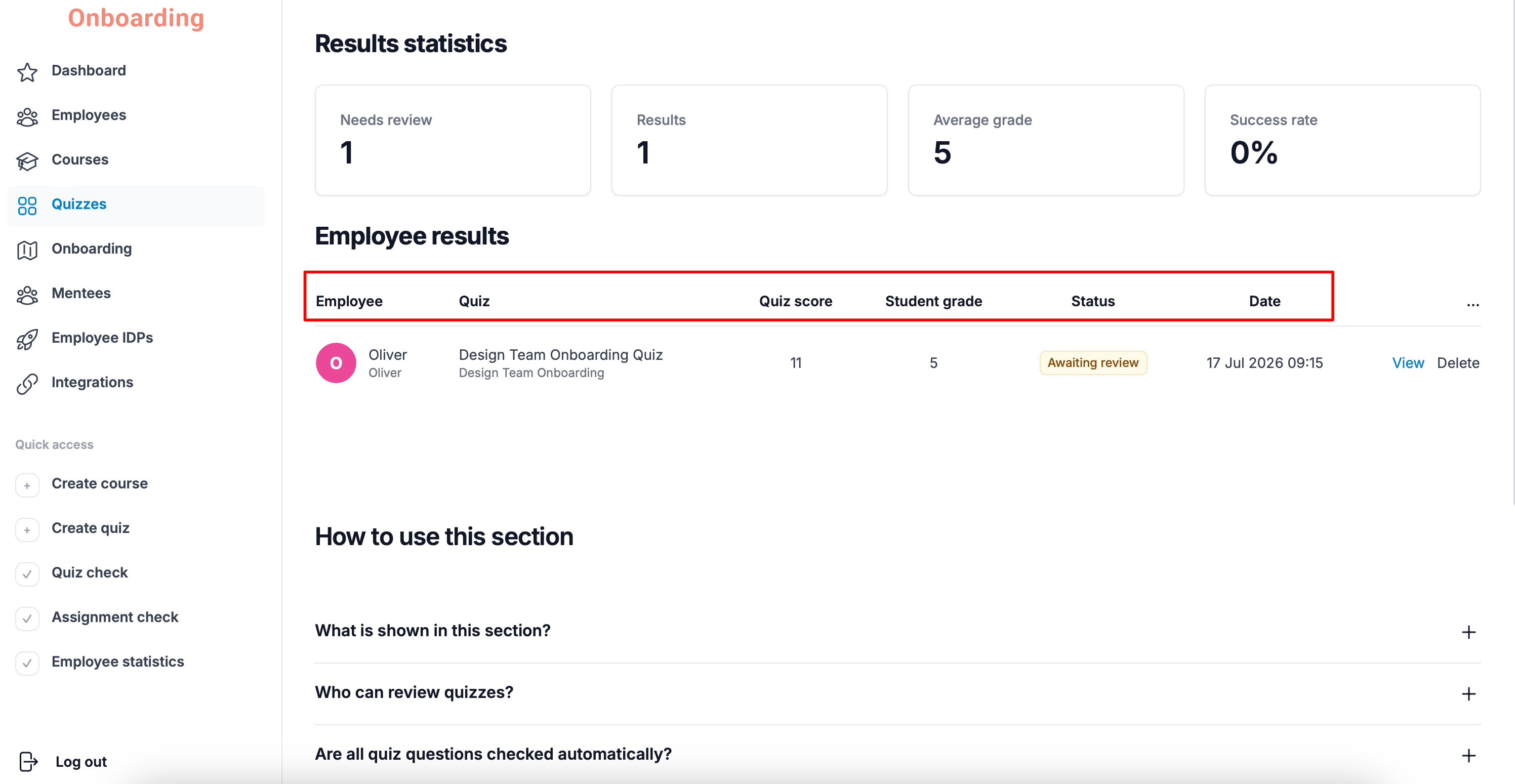
A list of employee results opens, showing:
- Employee – the employee's name on the platform.
- Quiz – the quiz's name and the course it's attached to.
- Quiz score – the current total number of points the quiz is worth.
- Student grade – the points the employee has already earned on automatically graded questions.
- Status – the quiz's current status.
- Date – when the quiz was taken.
Quizzes can have the following statuses:
- Awaiting review – the quiz has been submitted and is waiting for review.
- Passed – the quiz has been completed successfully.
- Failed – the quiz has been reviewed, but the employee didn't reach the passing score.
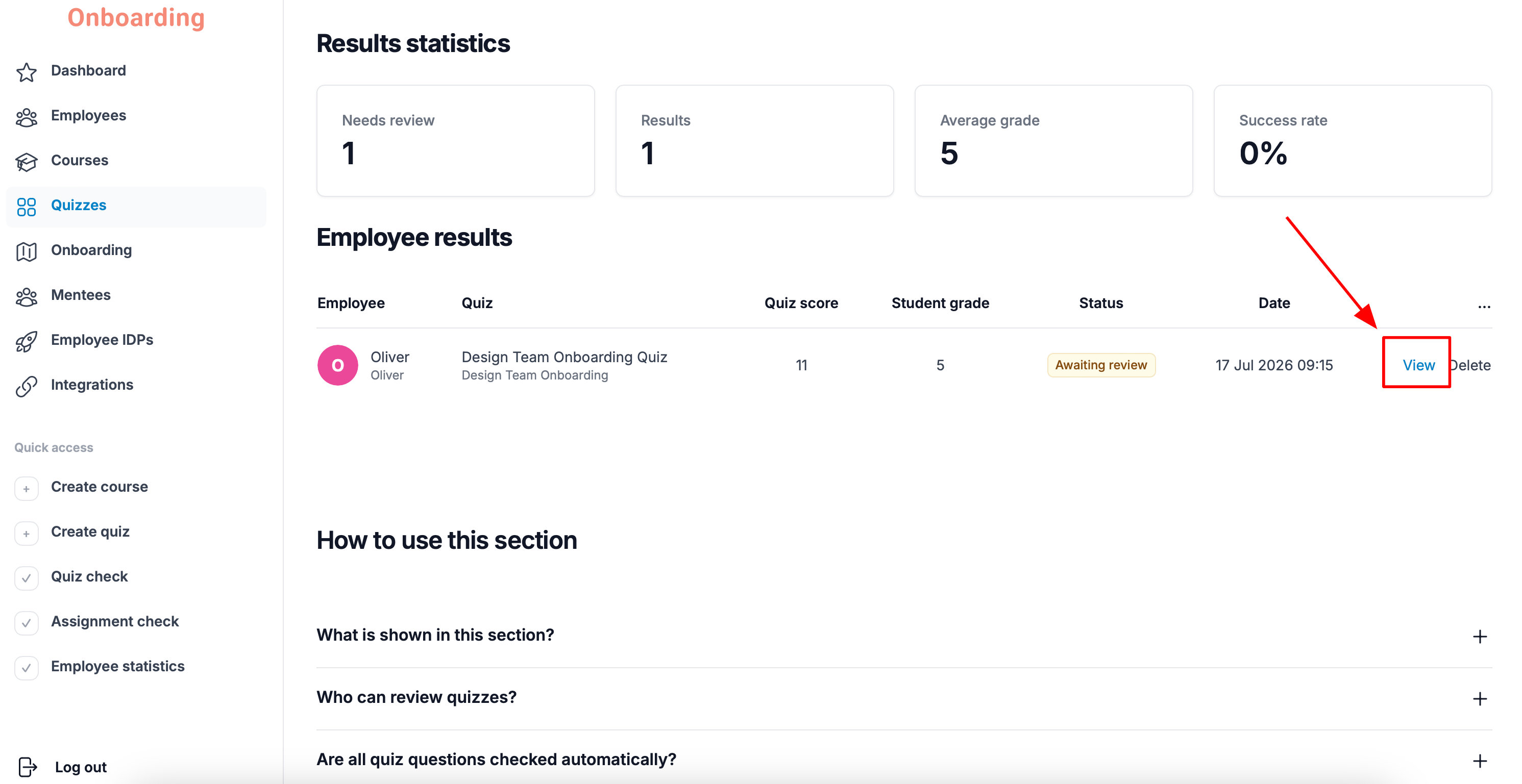
To review a submission with the «Awaiting review» status, click «View».
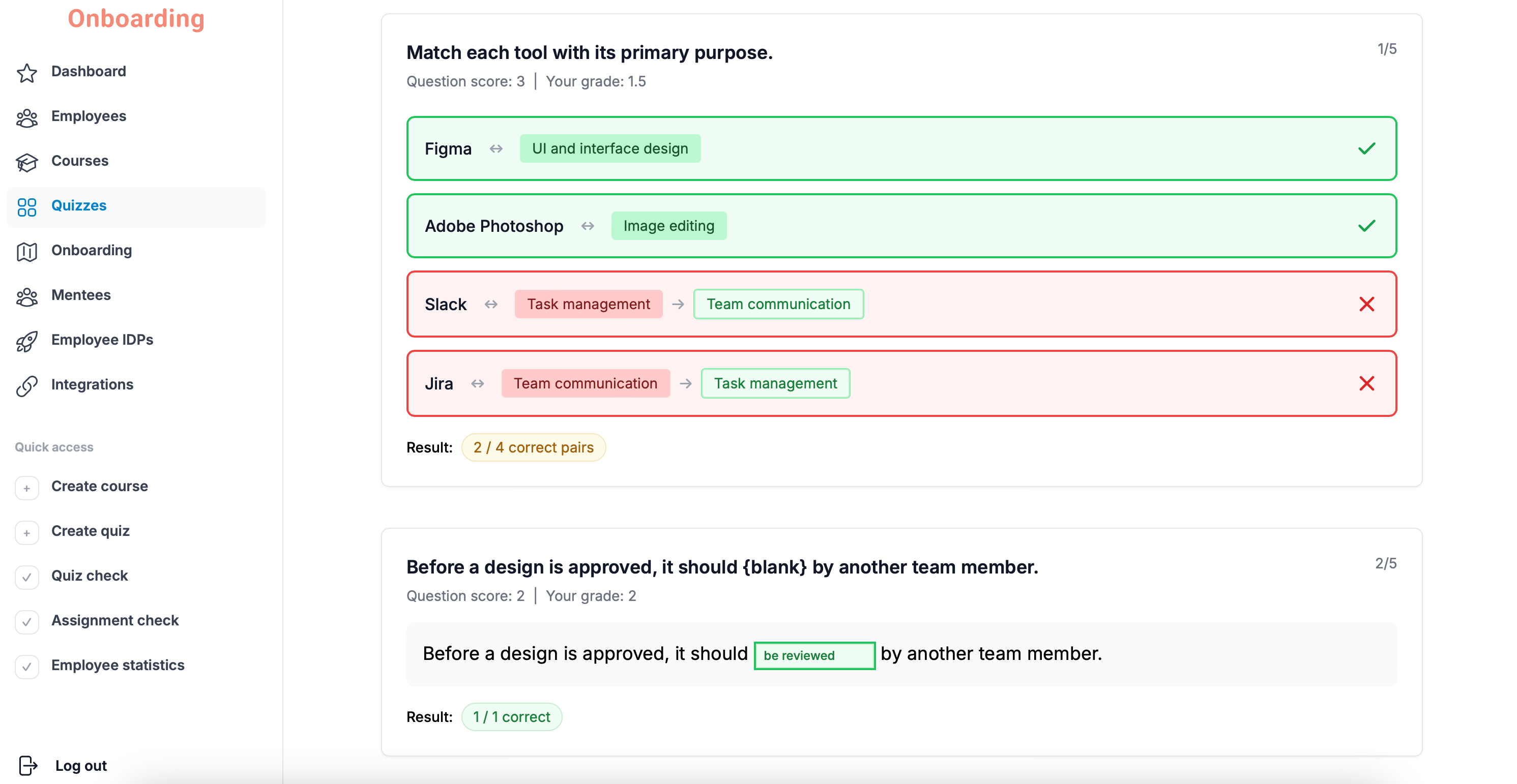
The quiz page opens with all of the employee's answers. Here you can see not only the answer to the open-ended question, but also the answers to the automatically graded ones.
Points calculated by the platform automatically can't be changed.
You can see which questions the employee got right and where they made mistakes, but you can only grade the open-ended question.
To grade the open-ended question, find it in the list, compare the employee's answer with the one in the «Correct answer» field, and enter the points in the «Grade» field.
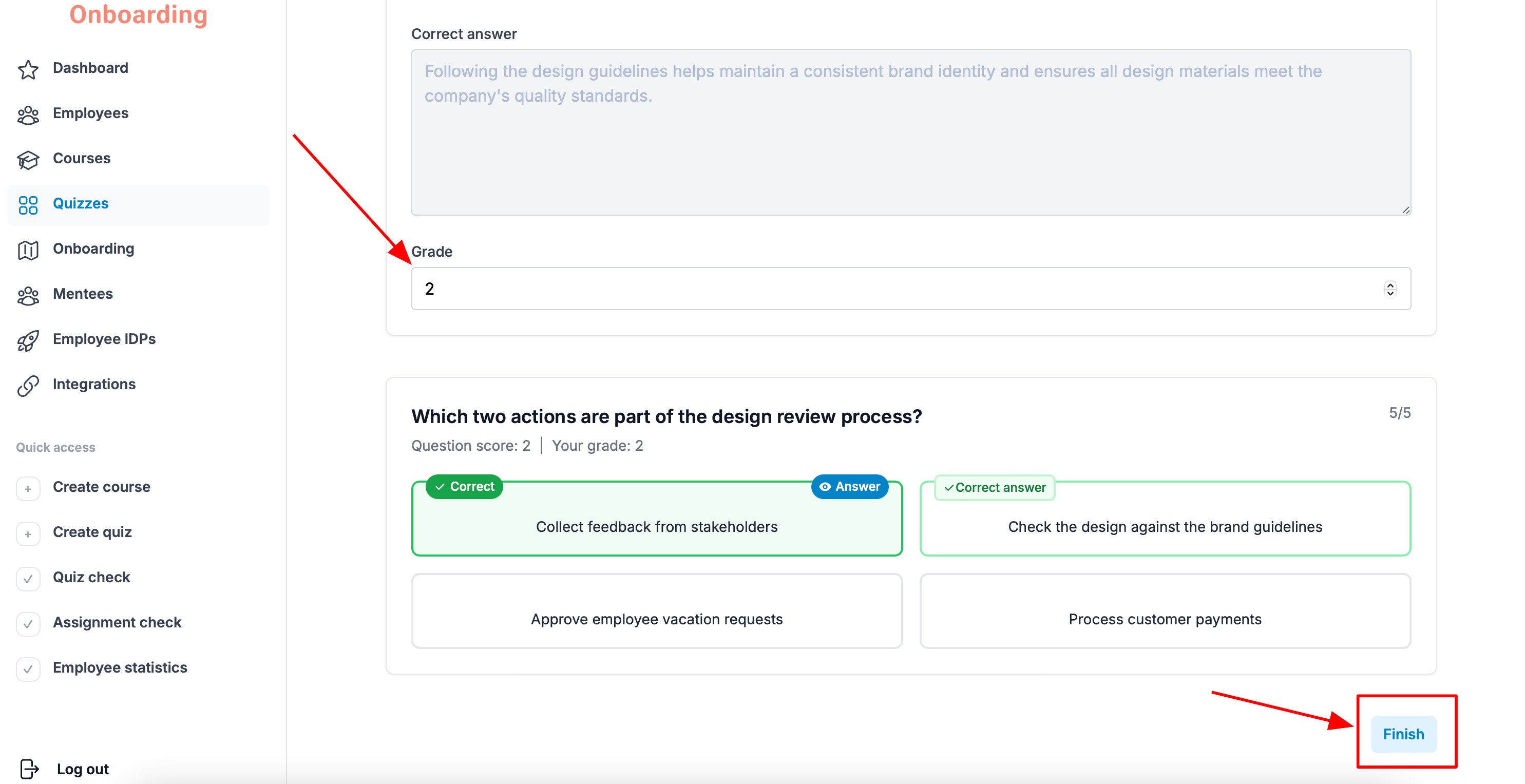
By default, this field shows the number of points set when the question was created. Depending on the quality of the employee's answer, you can award fewer or more points.
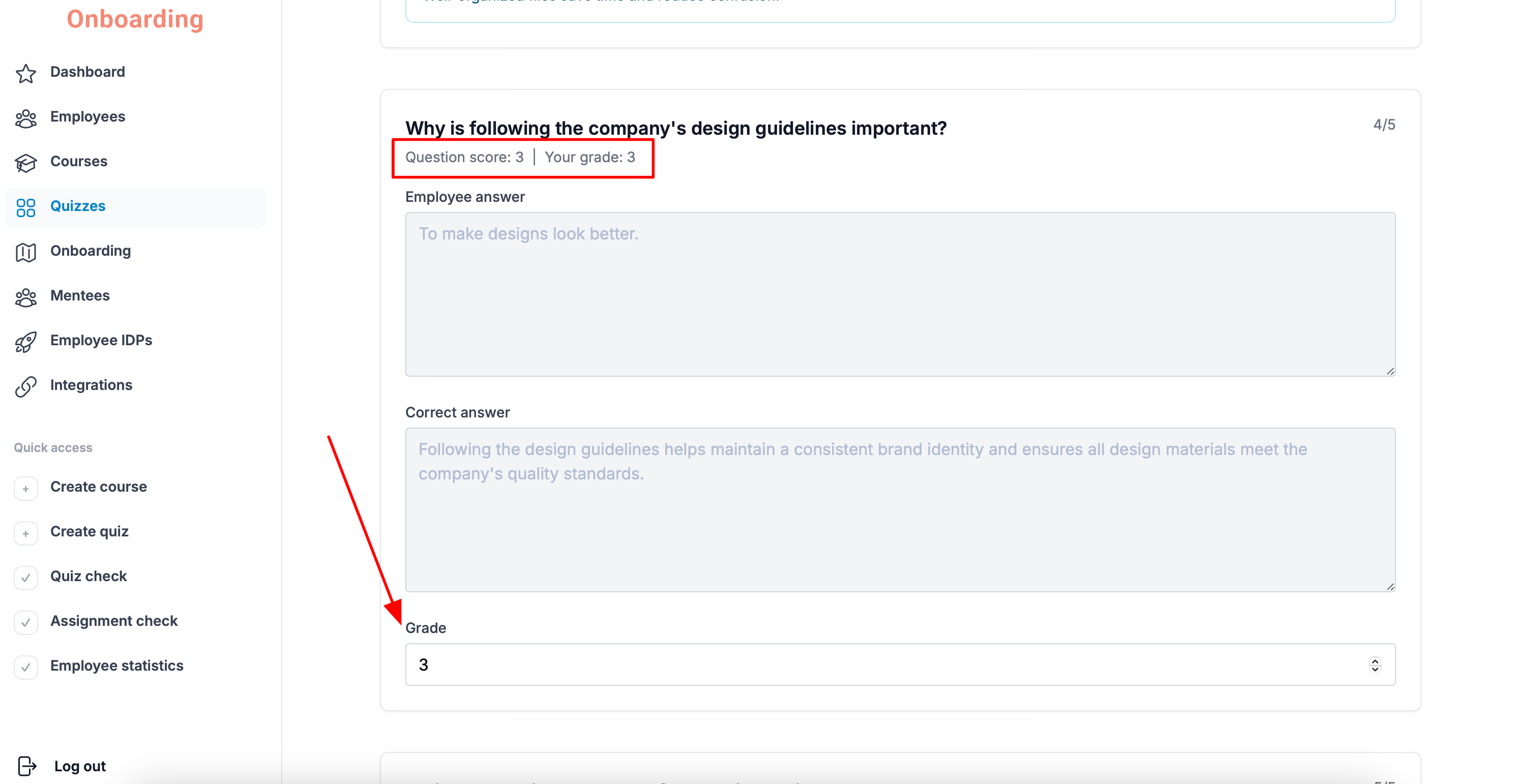
When you're done, click «Finish».
If the grade is below the passing score
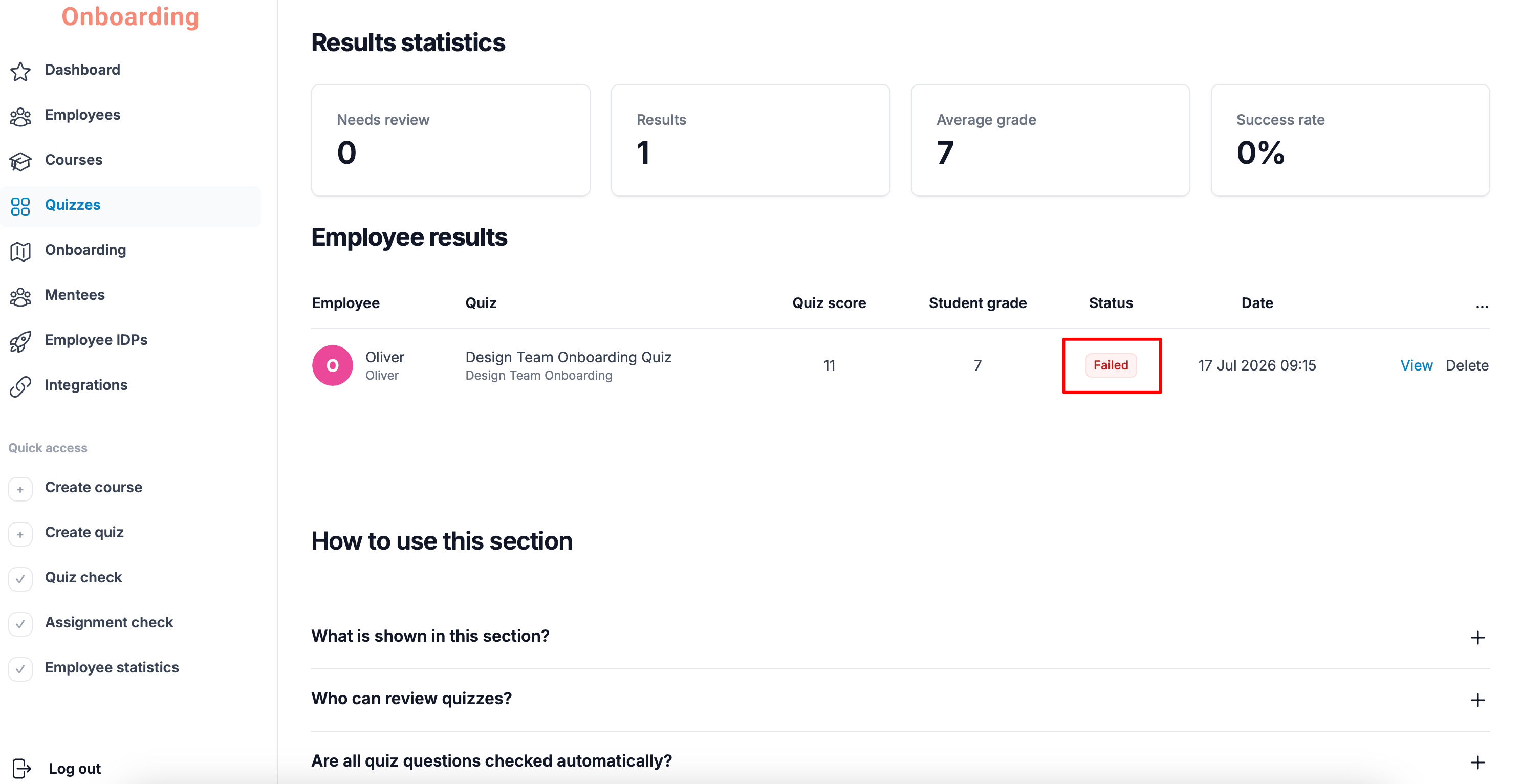
If the employee's final grade is below the passing score, the quiz counts as not passed and is sent back for a retake.
On the employee results page, the submission gets the «Failed» status.
The employee can retake the quiz if they have attempts left. The number of attempts is set in the quiz's settings when it's created or edited.
If the employee uses up all their attempts without reaching the passing score, the quiz stays in the «Failed» status.
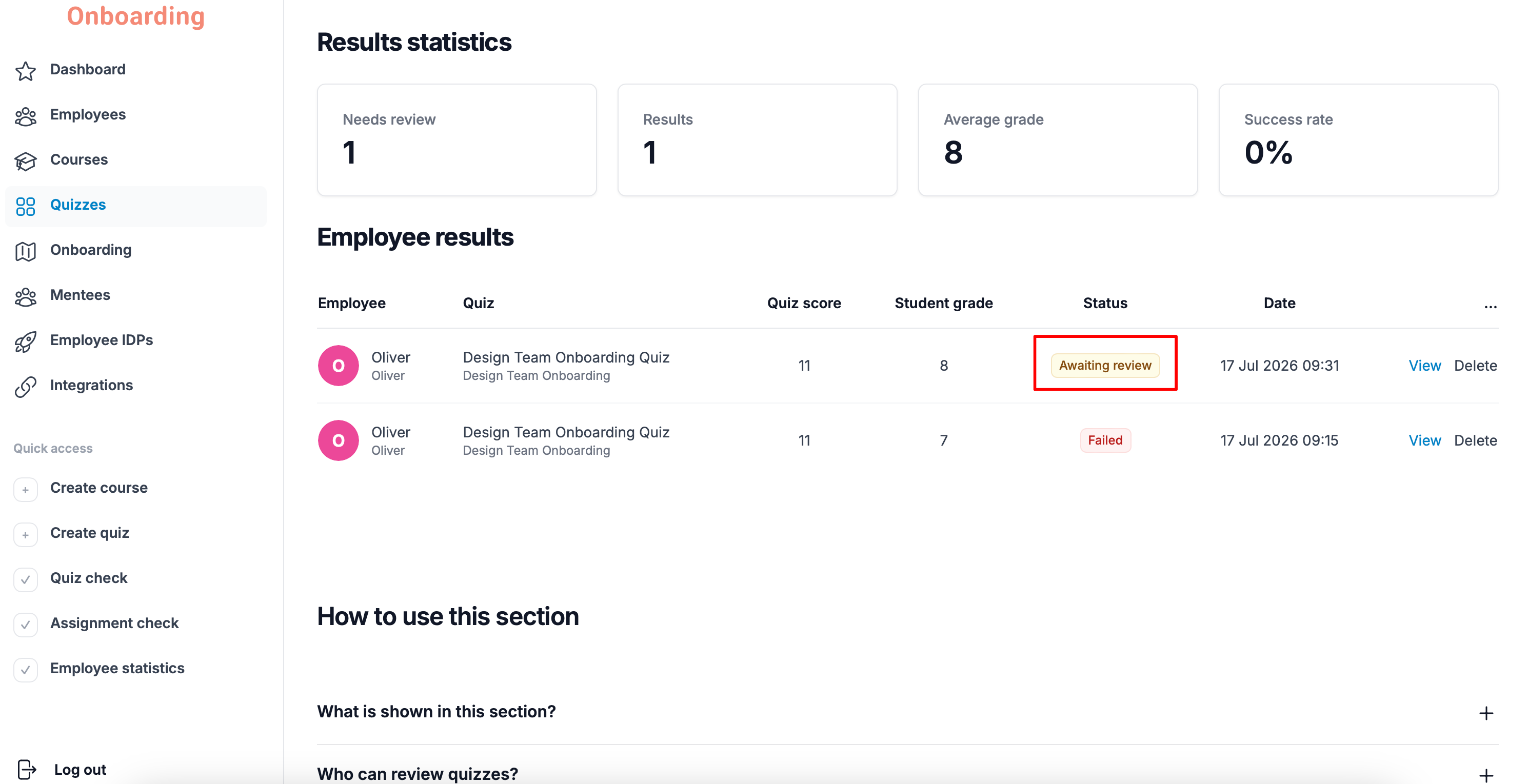
Once the employee retakes the quiz, the result returns to the «Awaiting review» status — provided the quiz contains an open-ended question.
If the grade is at or above the passing score
If the employee's final grade is equal to or higher than the passing score, the quiz counts as successfully passed.
On the employee results page, the submission gets the «Passed» status.
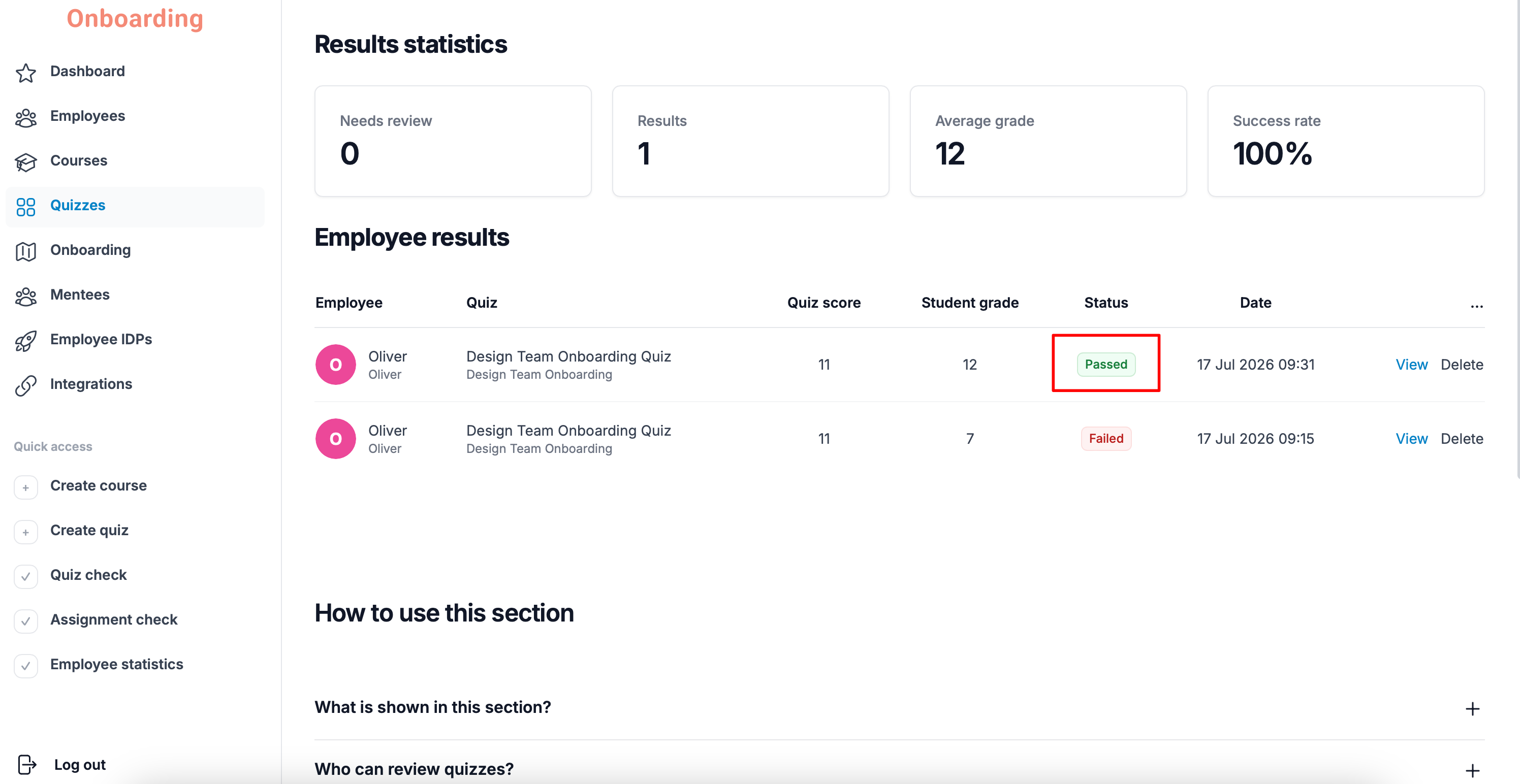
An employee doesn't have to answer every question correctly to pass a quiz. The quiz counts as passed as long as the employee scores at or above the passing score.
For example, a high grade on the open-ended question can make up for mistakes on the automatically graded ones.
Keep this in mind when setting the passing score and distributing points across questions.
Deleting an employee's quiz results
If needed, you can delete a specific employee's quiz result — for example, to give them an extra attempt after they've used up all the available ones.
To do that, find the result in the «Quiz check» section and click «Delete».
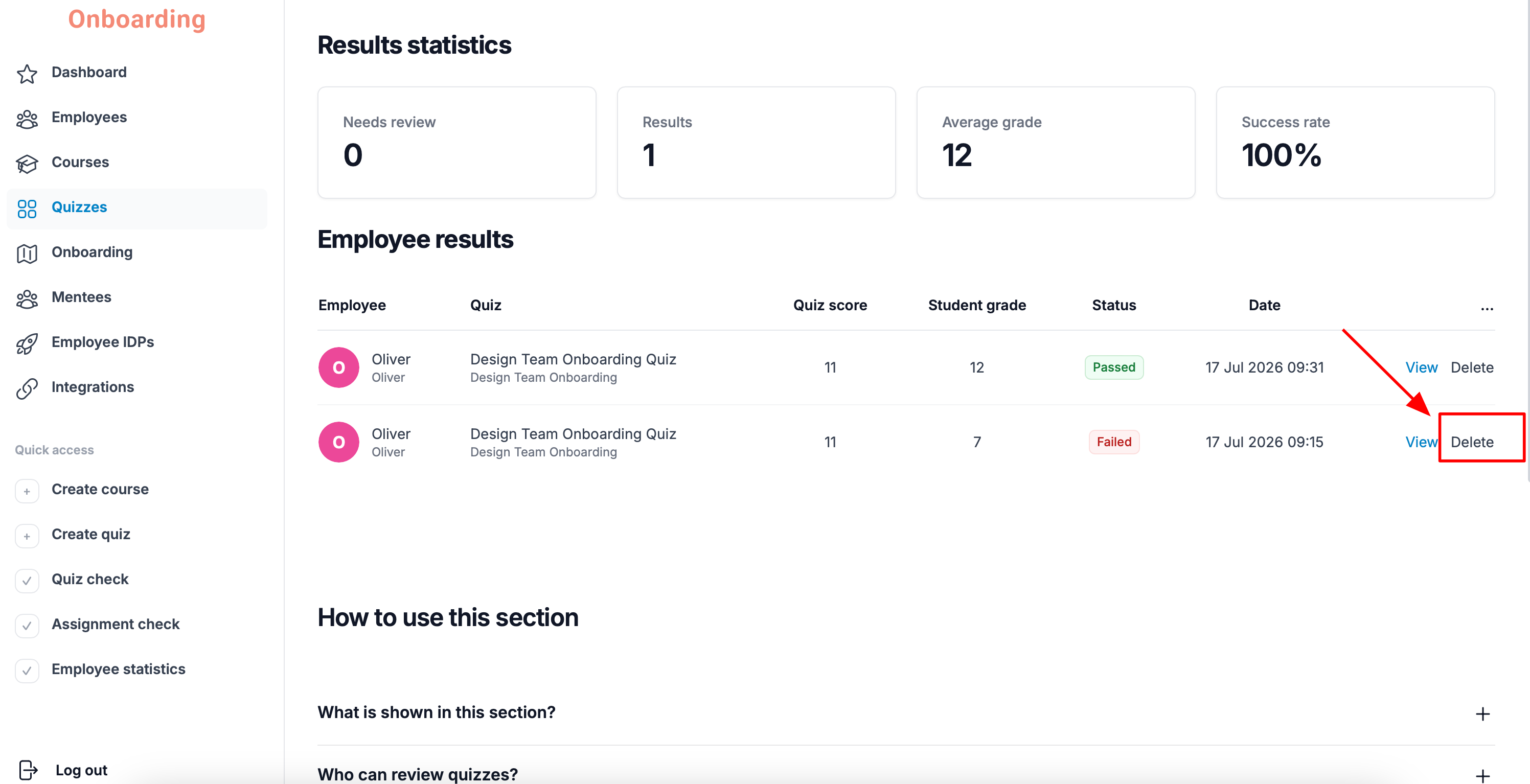
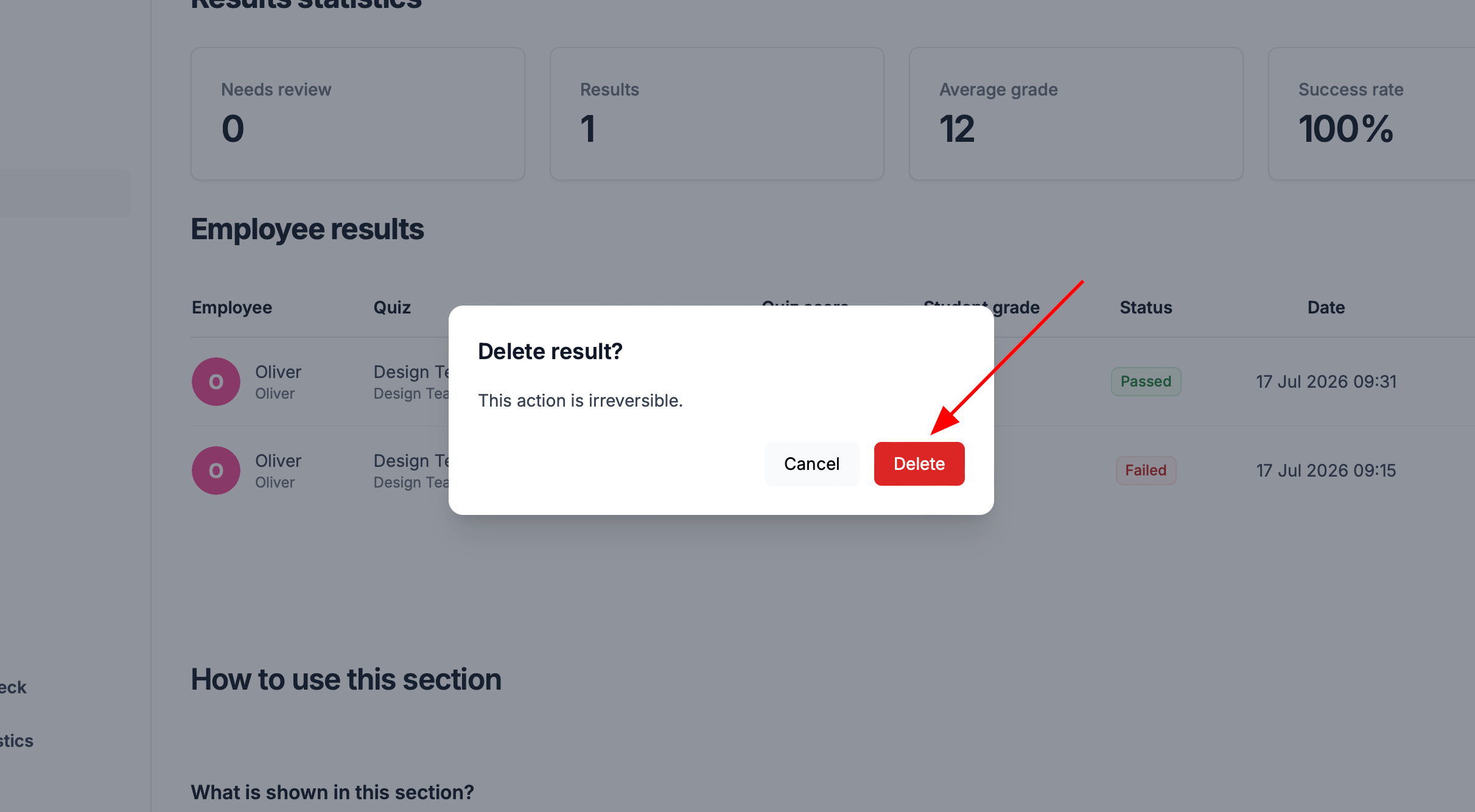
Confirm the action by clicking «Delete» again in the window that appears.
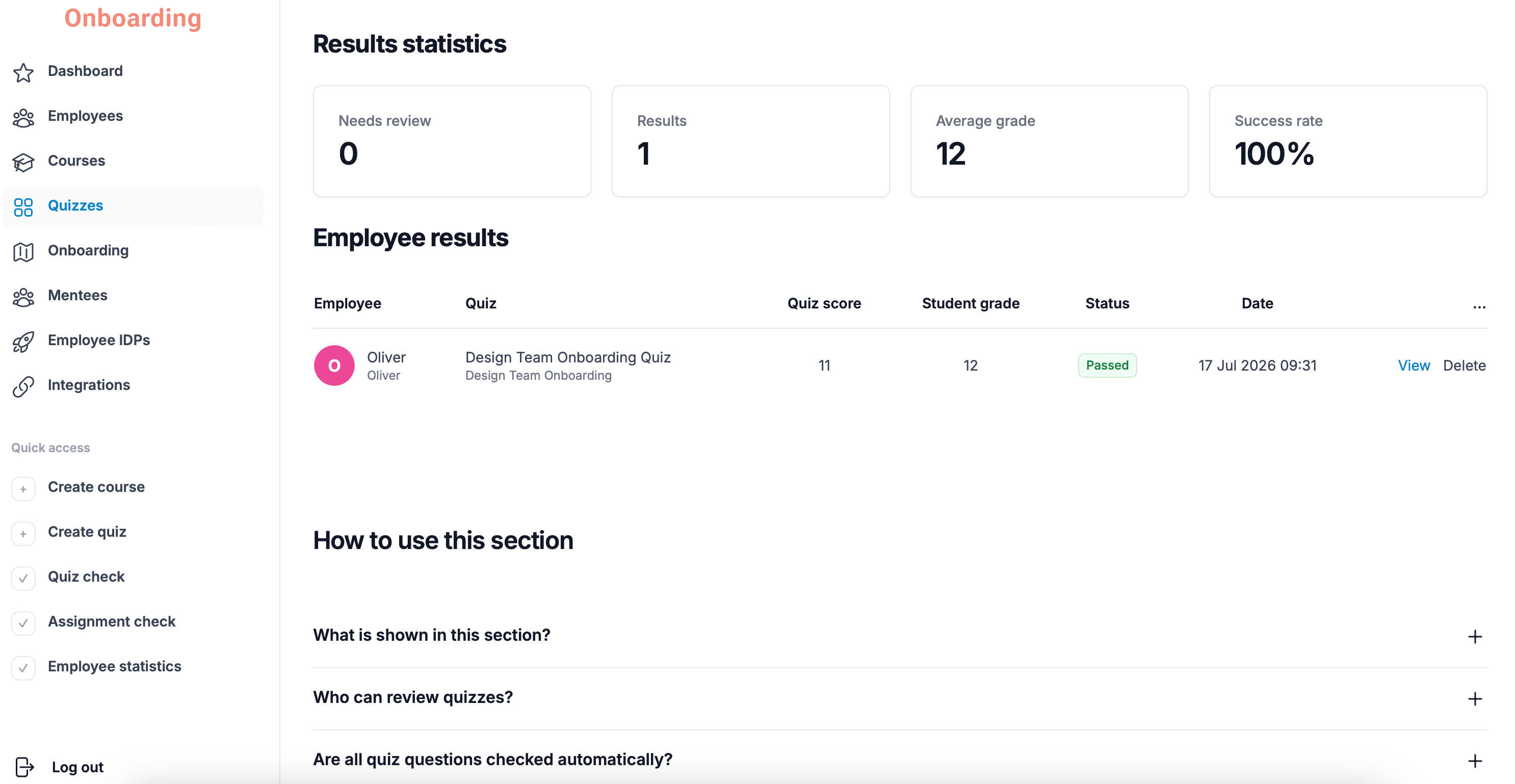
The quiz result has been deleted and no longer appears in the results list.
Deleting a quiz result cannot be undone. Once confirmed, the result cannot be restored.
Deleting a result also affects the employee's progress and the quiz's statistics.
For example:
- if the employee passed the quiz on the first attempt and that result is deleted, the quiz will count as not taken and the employee will need to take it again;
- if the employee passed the quiz on the second attempt and you delete the successful result, the system keeps the earlier failed one. In that case, the employee will need to retake the quiz;
- if the employee passed the quiz on the second attempt and you delete the failed result, the successful pass is preserved and the employee won't need to retake the quiz.
Still have questions?
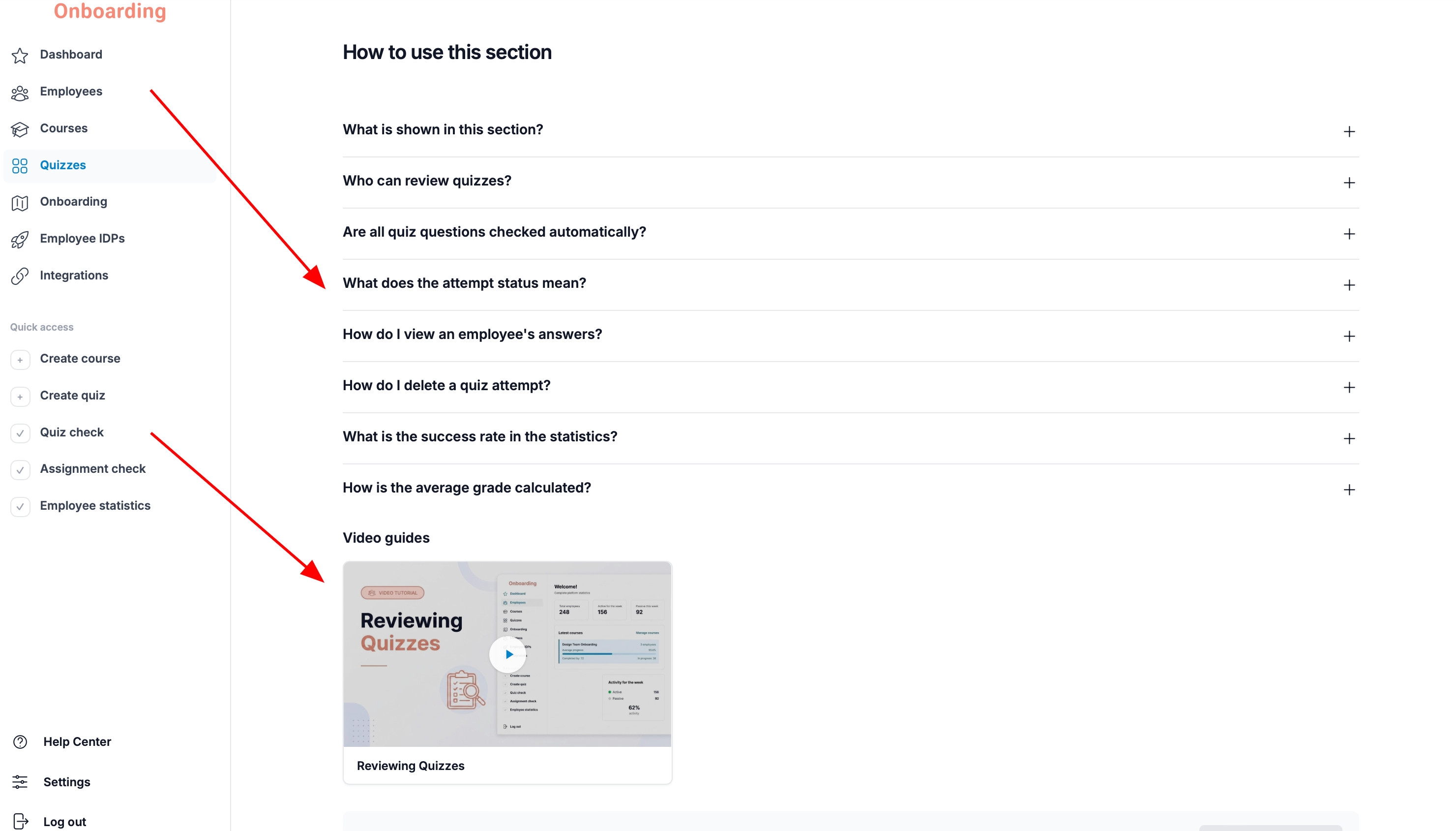
For your convenience, every section of the platform includes a built-in «How to use this section» block with answers to the most common questions and short how-to guides. You'll also find quick links to the Help Center and step-by-step video tutorials covering the section's features.
If you've forgotten how to do something, check there first — chances are the answer is already waiting for you.
If you've hit a technical issue or can't find the answer in the Help Center, write to us at hello@onboarding.team.
We'll look into your request carefully and do our best to help as quickly as possible.