Editing an employee's details
Only a platform administrator can edit employee details. Employees can't change their own registration details.
To edit an employee's details, open the «Employees» section.
Click «Edit» next to the employee whose details you want to change.
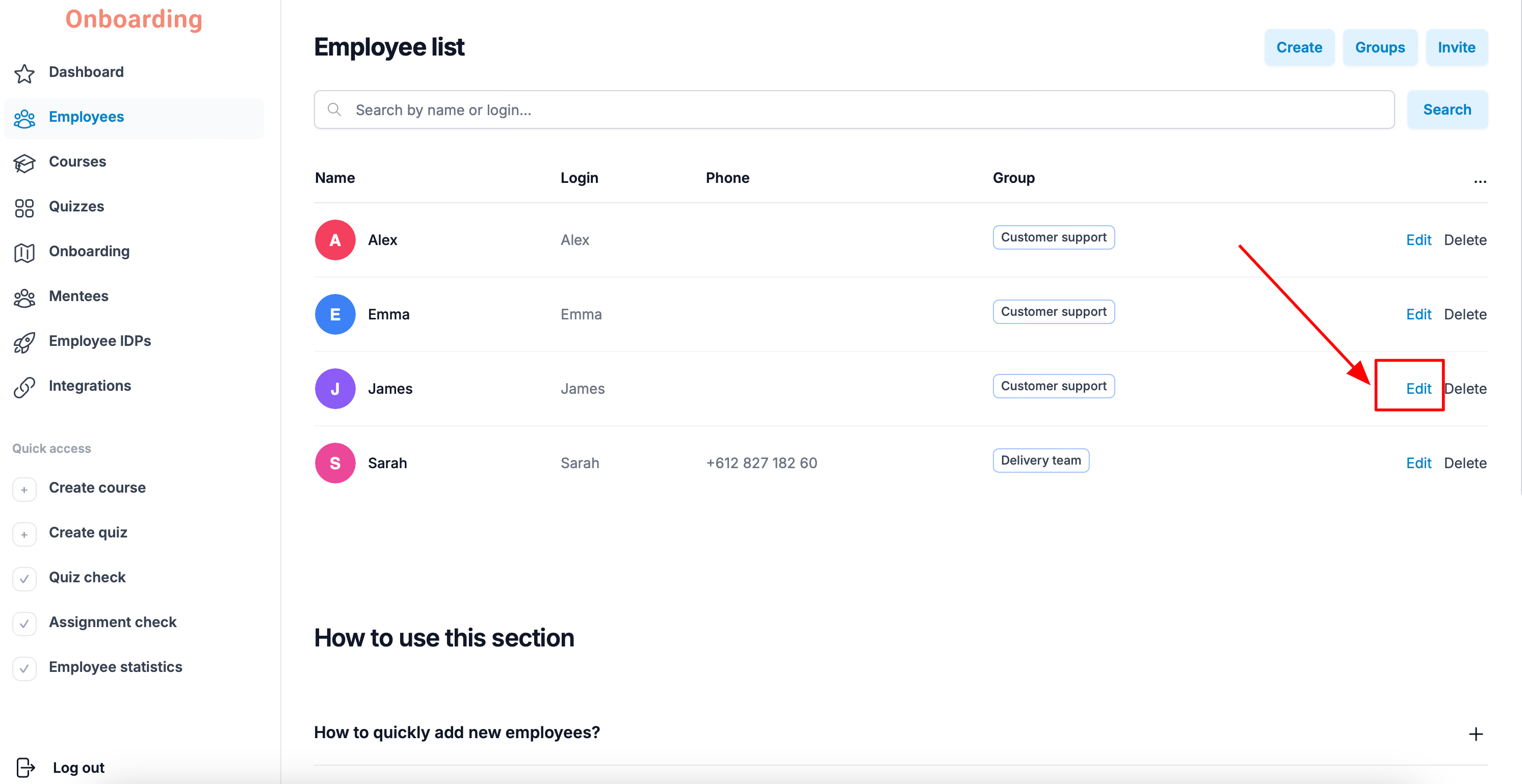
The «Manage employees» window opens.
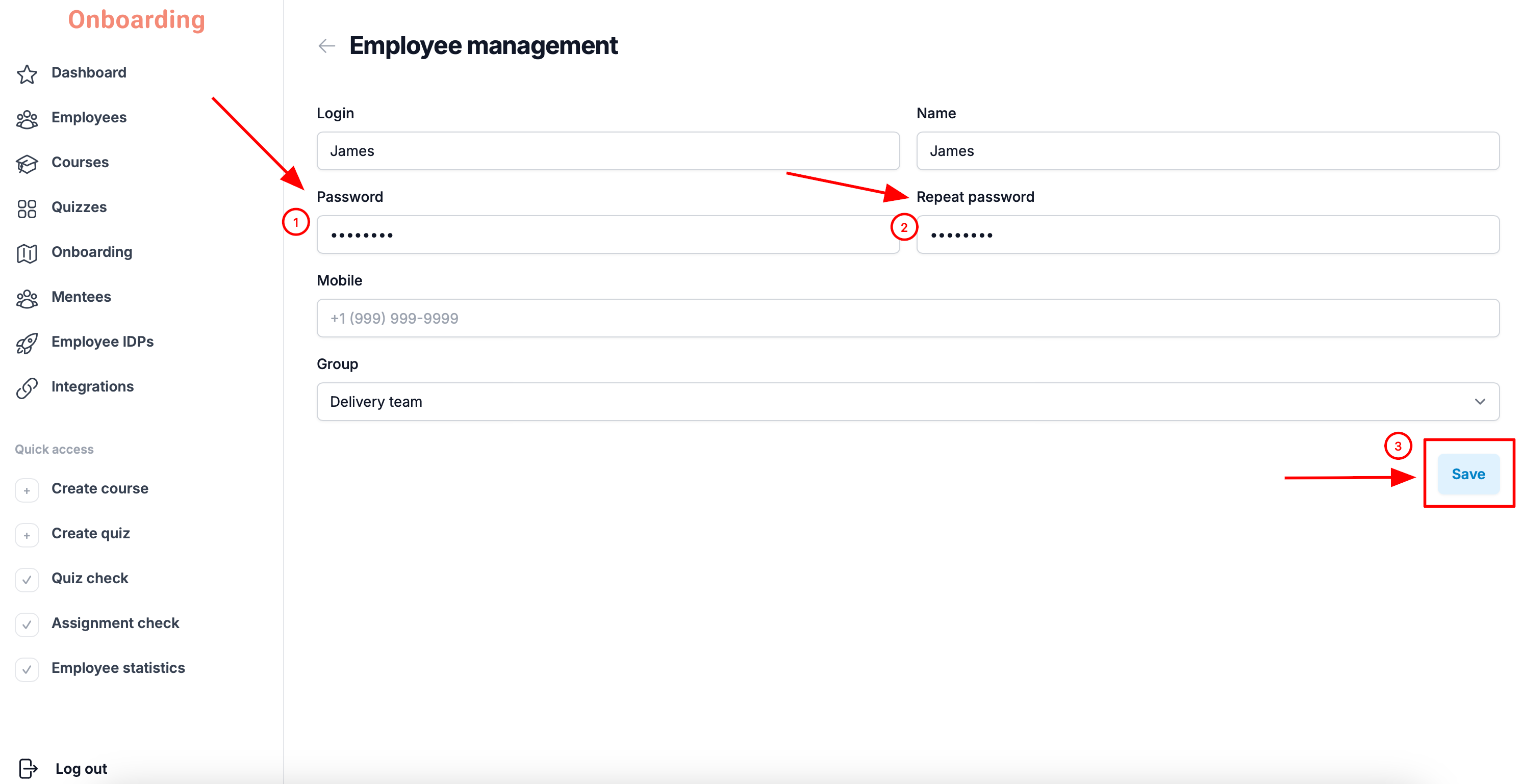
Make your changes — for example, move the employee to a different group. When saving, the system will ask you to re-enter the employee's password in the corresponding fields.
Once you're done, click «Save».
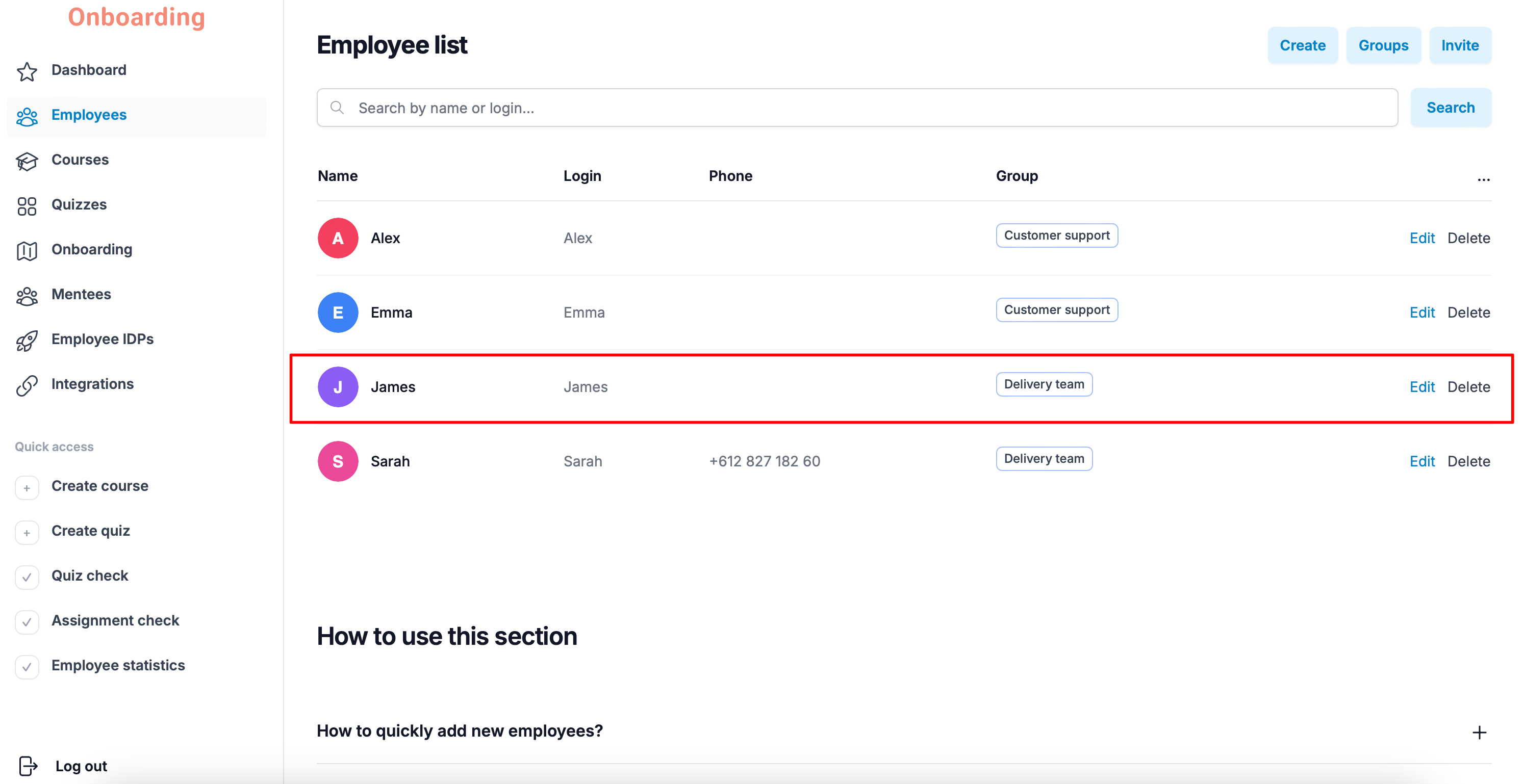
The changes are saved and show up correctly in the employee list 🎉
We recommend editing employee details only when there's a real need — a change of role, a move to another department, or fixing a mistake in the profile.
Please note: an employee's group determines their access to courses, onboarding tracks, and other training materials. After a group change, the employee may gain access to new training programs — or lose access to ones assigned earlier.
Managing an employee's group
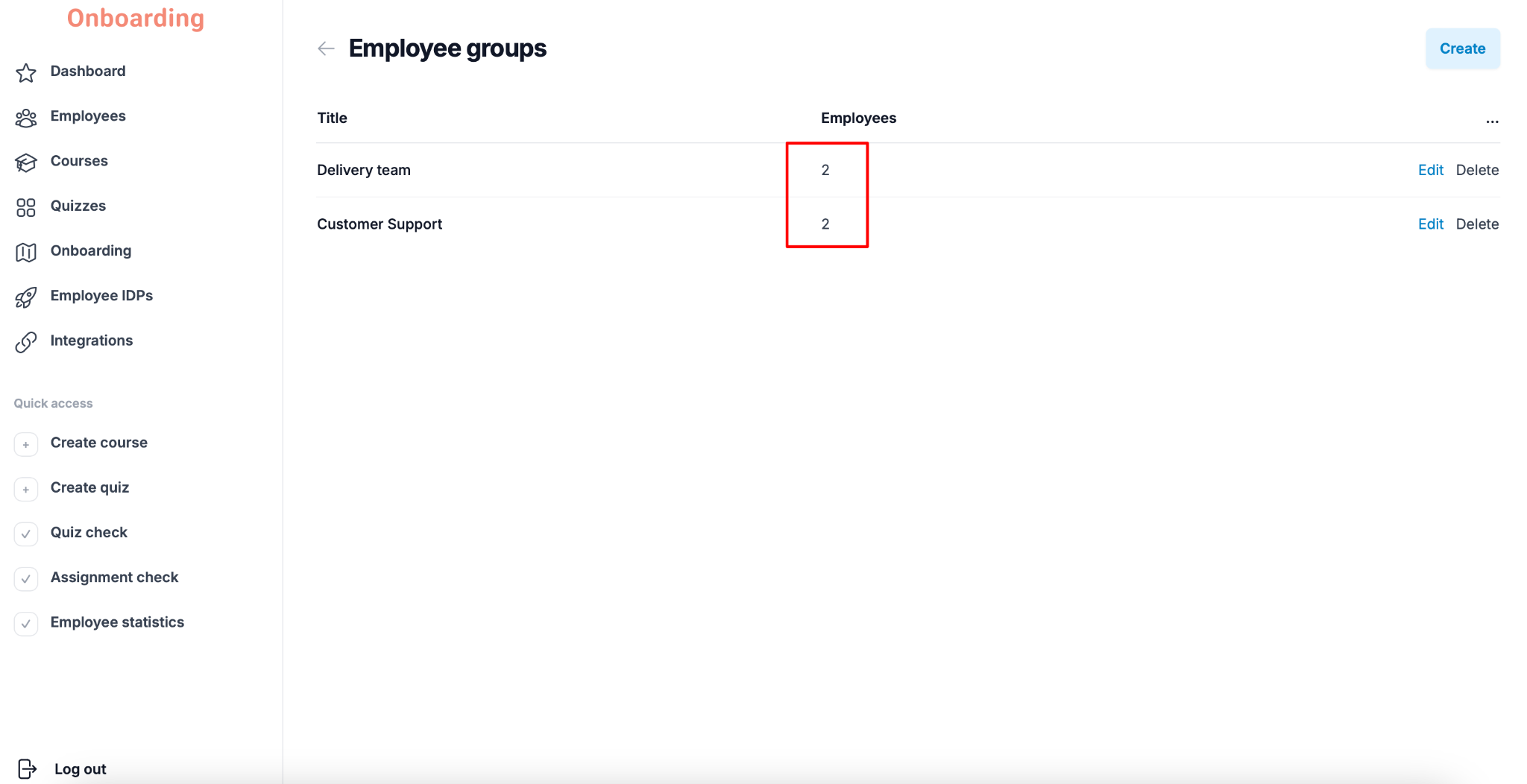
Once employees have been added to the system, the number of users in each group is shown in the «Groups» section.
This gives you a quick view of how employees are distributed across departments and lets you confirm everyone is assigned to the right group.
If a group is deleted, the employees who were in it stay registered on the platform but no longer belong to any group.
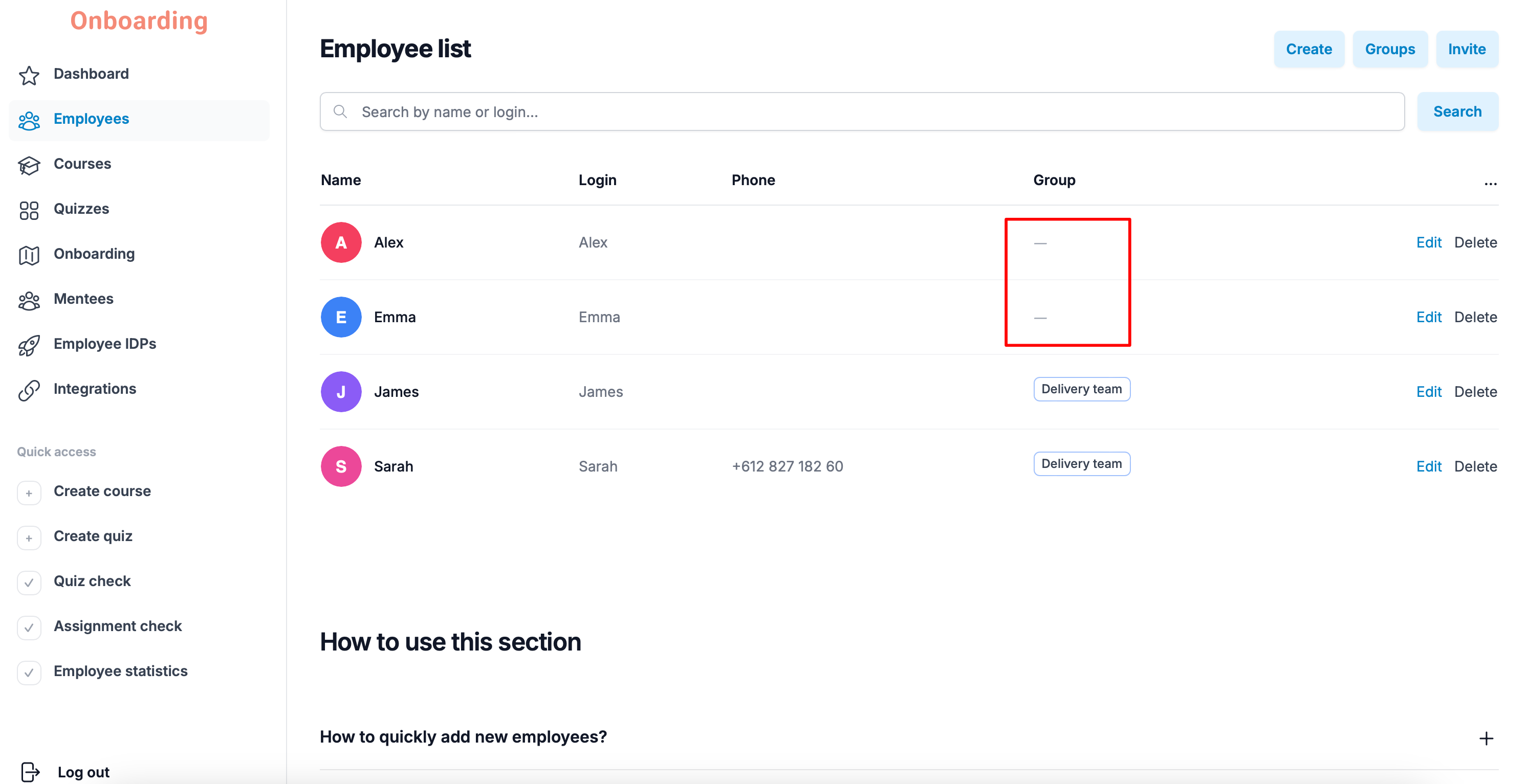
To assign a group, click «Edit» next to the employee's name.
Employees without a group won't automatically receive courses, onboarding tracks, or other training materials assigned through groups.
After deleting a group, we recommend reviewing the employee list and assigning those employees to new groups.