There are three ways to add employees in Onboarding.team:
Adding manually – best when you need to create one or a few employees and hand them their login credentials.
Adding via an invitation link – best for onboarding employees in bulk. Users register through the link on their own and are automatically placed in the group you chose.
Adding via SSO sign-in – best for companies that use a corporate Single Sign-On (SSO) system. Employees sign in with their corporate account and are created on the platform automatically, with no manual work from an administrator.
Which method should you choose?
| Adding manually | Invitation link | SSO sign-in |
|---|---|---|
| You need to add 1–5 employees | You need to add a large number of employees | Your company uses a corporate Single Sign-On (SSO) system |
| The administrator creates the accounts | Employees register on their own | Accounts are created automatically at first sign-in |
| The administrator hands over the username and password | Employees set their own login credentials | Employees sign in with their corporate account |
| Good for adding employees one by one | Good for mass hiring and launching new teams | Good for companies with centralized authentication |
Adding an employee manually
Adding an employee manually works well when you need to register one or a few employees without an invitation link.
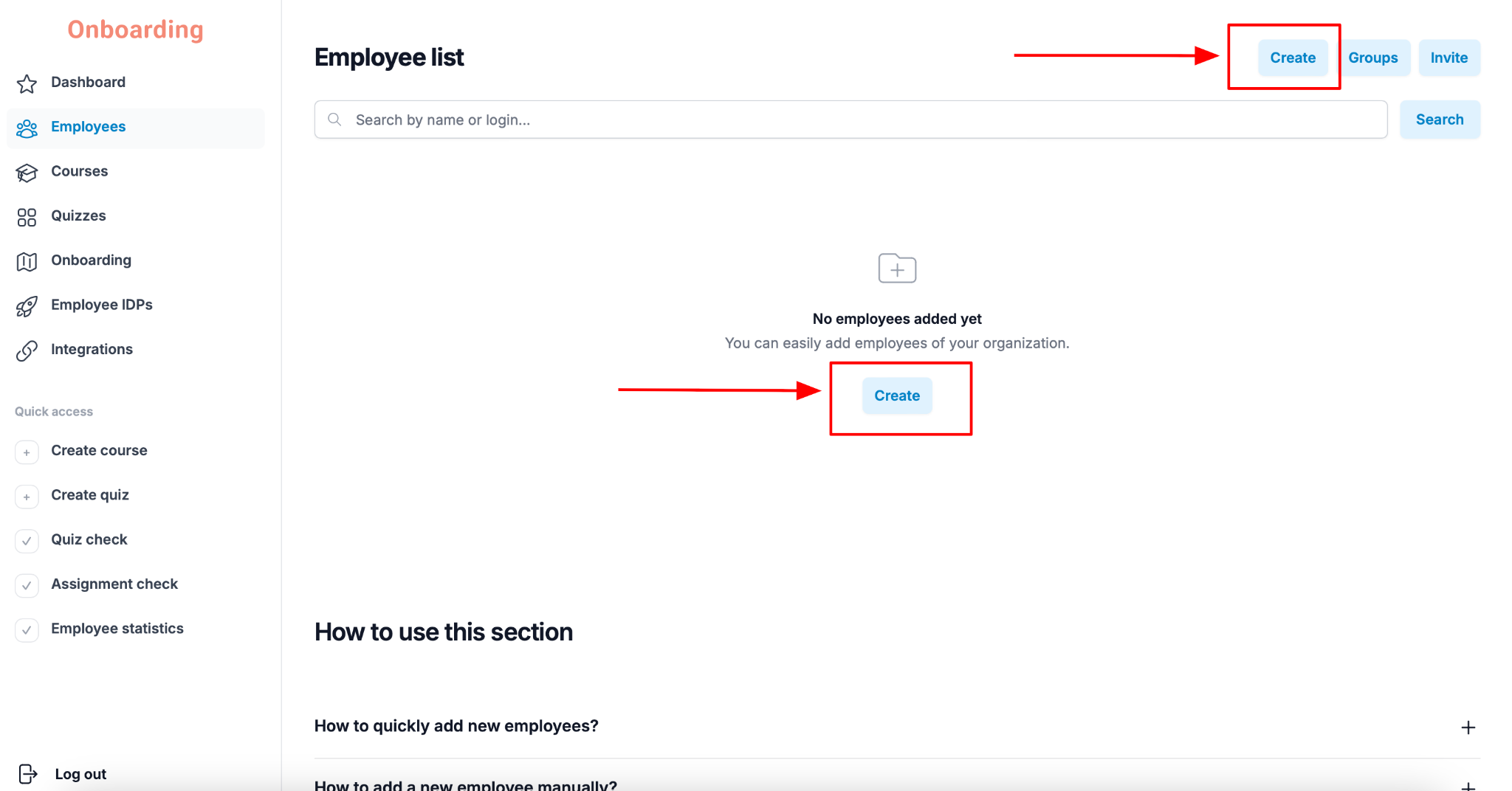
To add a new employee manually, open the «Employees» section.
You'll land on the employee list. If this is your first employee, the list will be empty.
Click «Create» in the middle of the page, or the same button in the top-right corner.
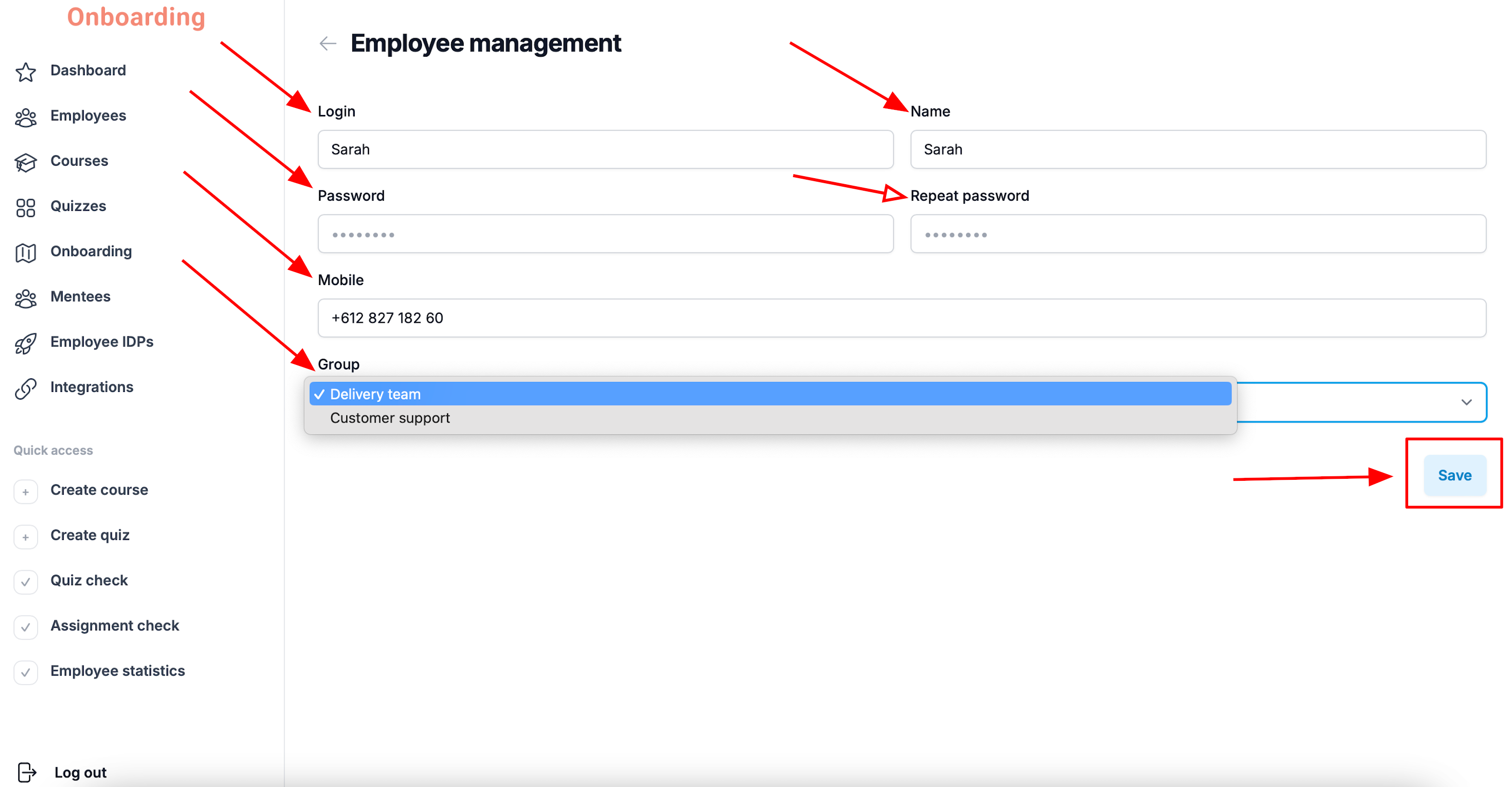
The «Manage employees» window opens with the following fields:
- Login – the employee will use it to sign in to the platform;
- Name – the name the employee will appear under on the platform;
- Password and Repeat password – set a password of 6 to 16 characters for signing in;
- Mobile (optional) – an extra field for storing the employee's contact number;
- Group – pick the group the employee will belong to from the drop-down list.
An employee can belong to only one group.
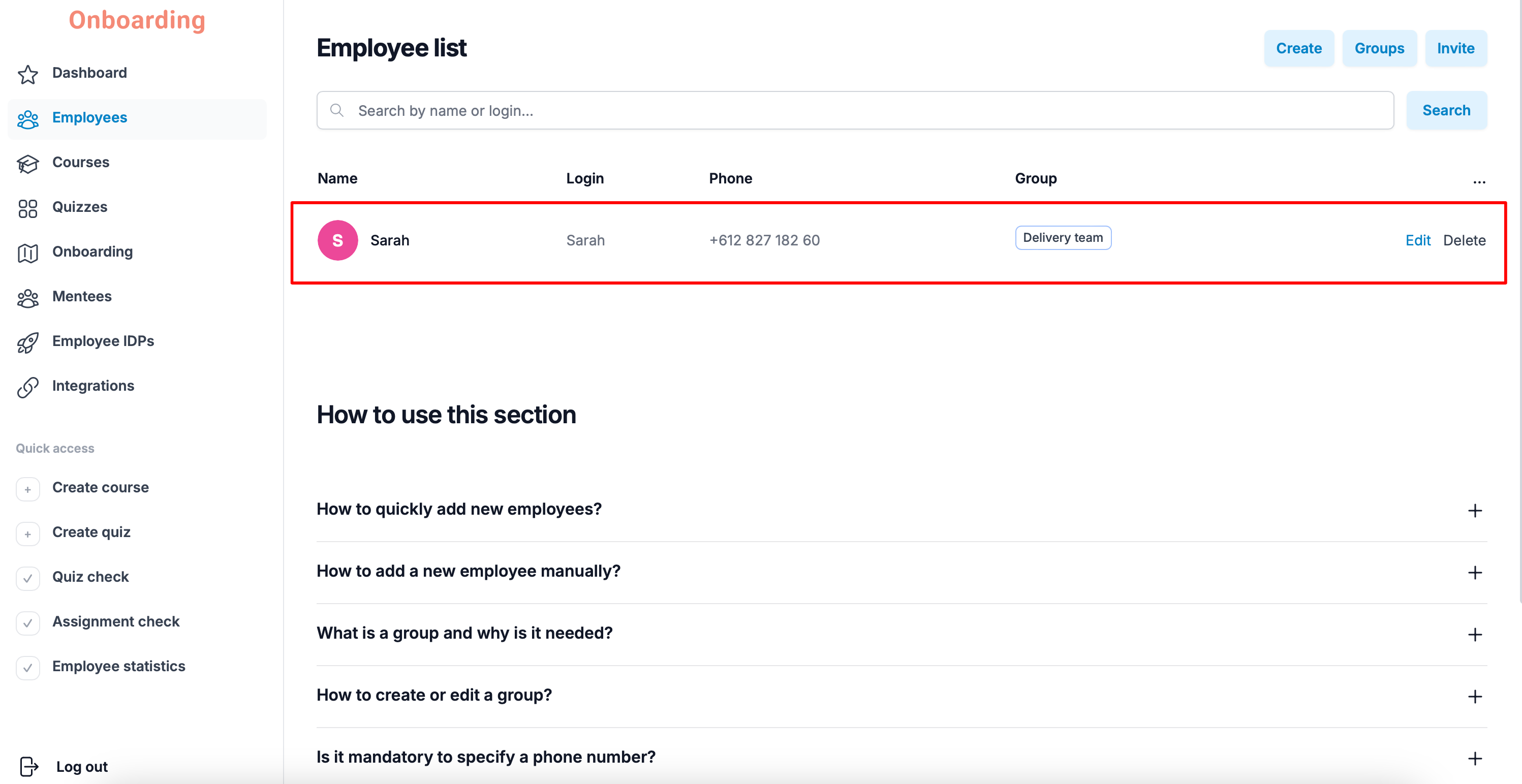
The new employee now appears in the employee list and can sign in to the platform with the username and password you set 🎉
After creating an employee, make sure you pass their login credentials on to them.
Onboarding.team doesn't automatically email usernames and passwords to new users, and it doesn't store these details in email notifications. Getting the credentials to the employee is the platform administrator's responsibility.
Adding employees in bulk
Bulk adding is done with an invitation link.
This method works best when you need to register a large number of employees in the same group at once — for example, everyone on the sales team.
The process looks like this:
Create an invitation link → Send it to your employees → Employees register on their own → They're automatically placed in the chosen group
To add employees in bulk, open the «Employees» section. You'll land on the employee list. If this is your first time inviting employees, the list will be empty.
Click the «Invite» button in the top-right corner.
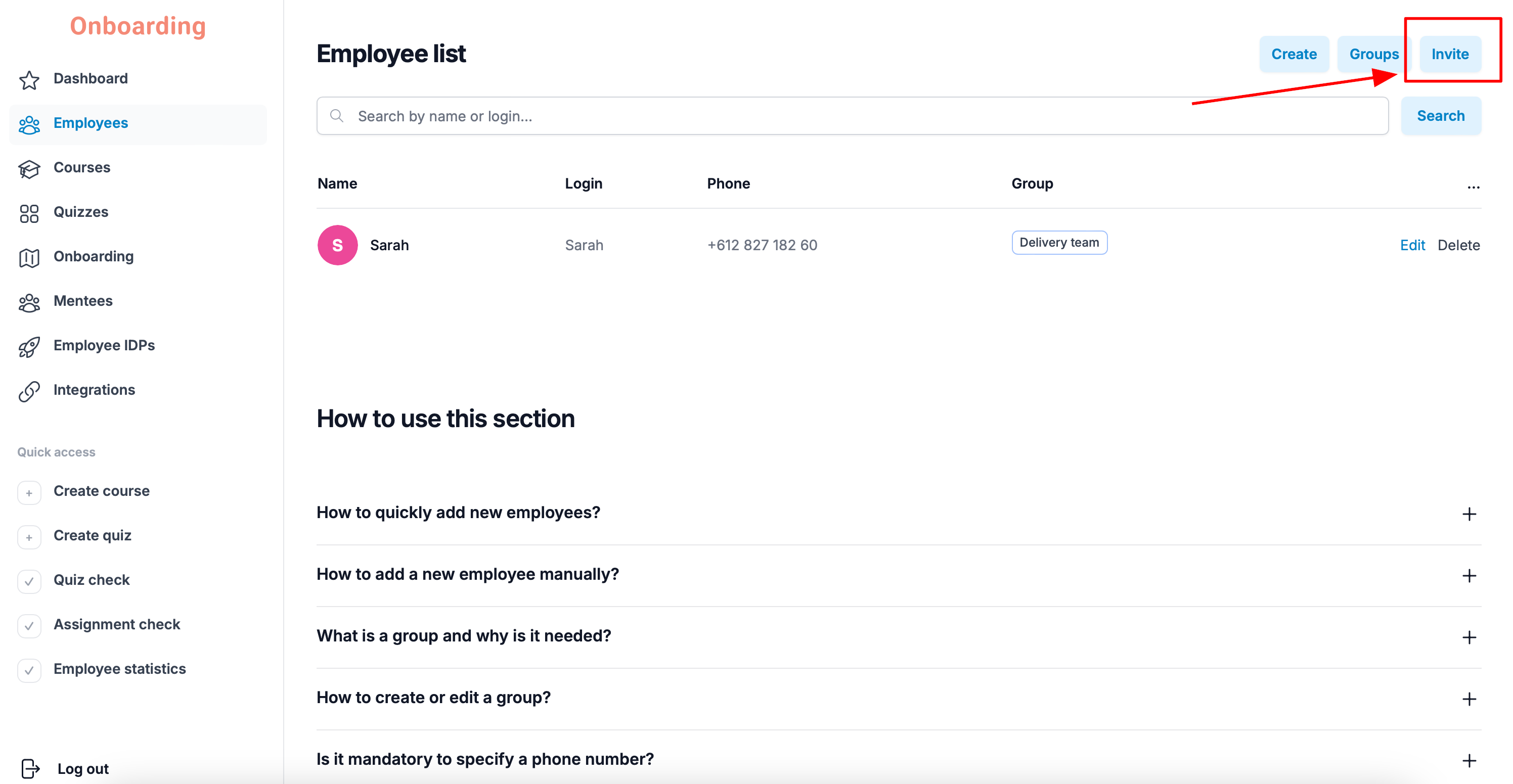
You'll be taken to the invitation management page.
To create an invitation link:
- pick a group from the drop-down list;
- click «Create».
An employee can belong to only one group.
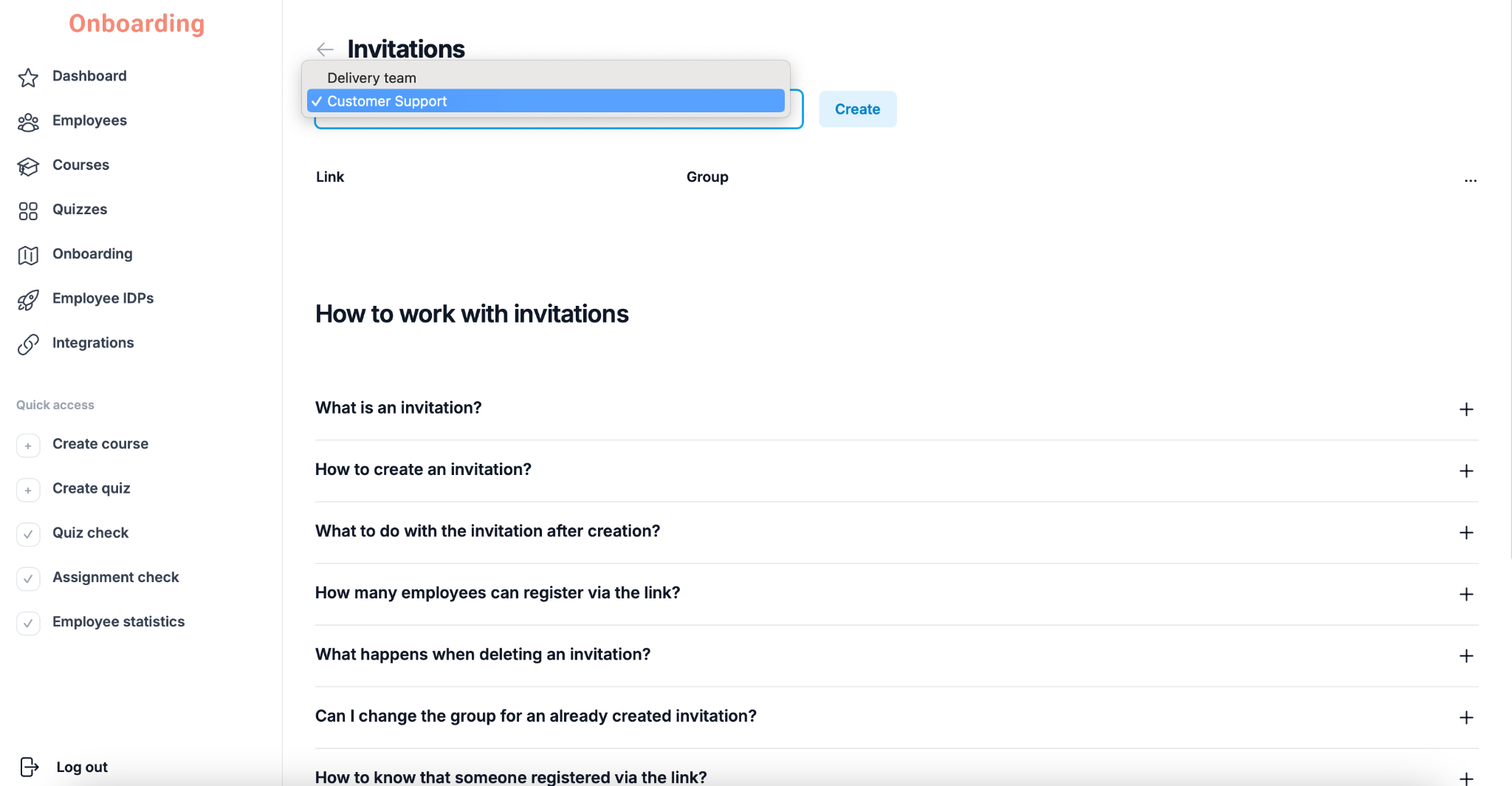
Once created, the link appears in the list below.
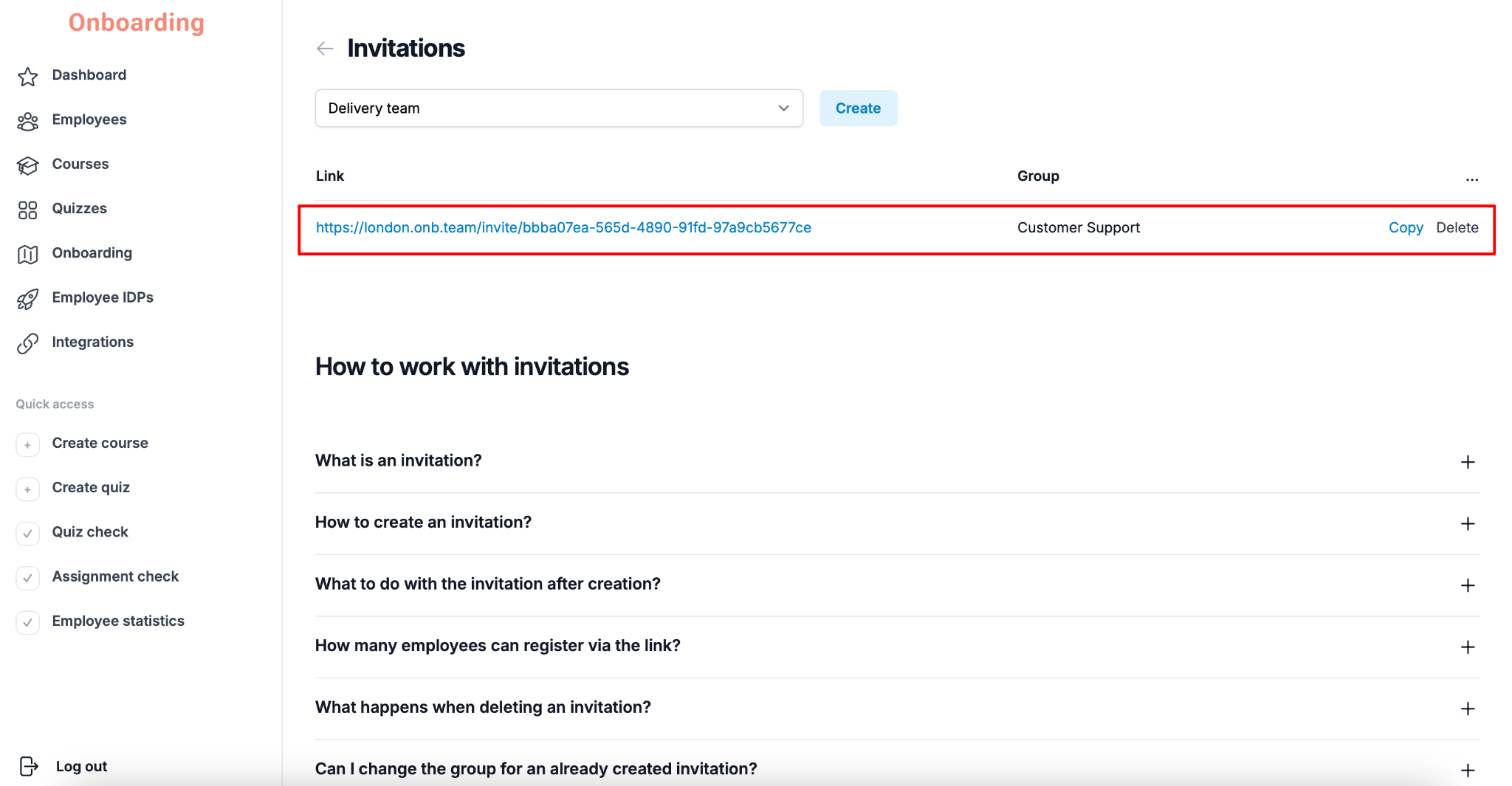
Click «Copy» next to the link and send it to the employees you want to add to the chosen group.
After registering through the link, employees automatically appear in the employee list in the «Employees» section, already assigned to the chosen group.
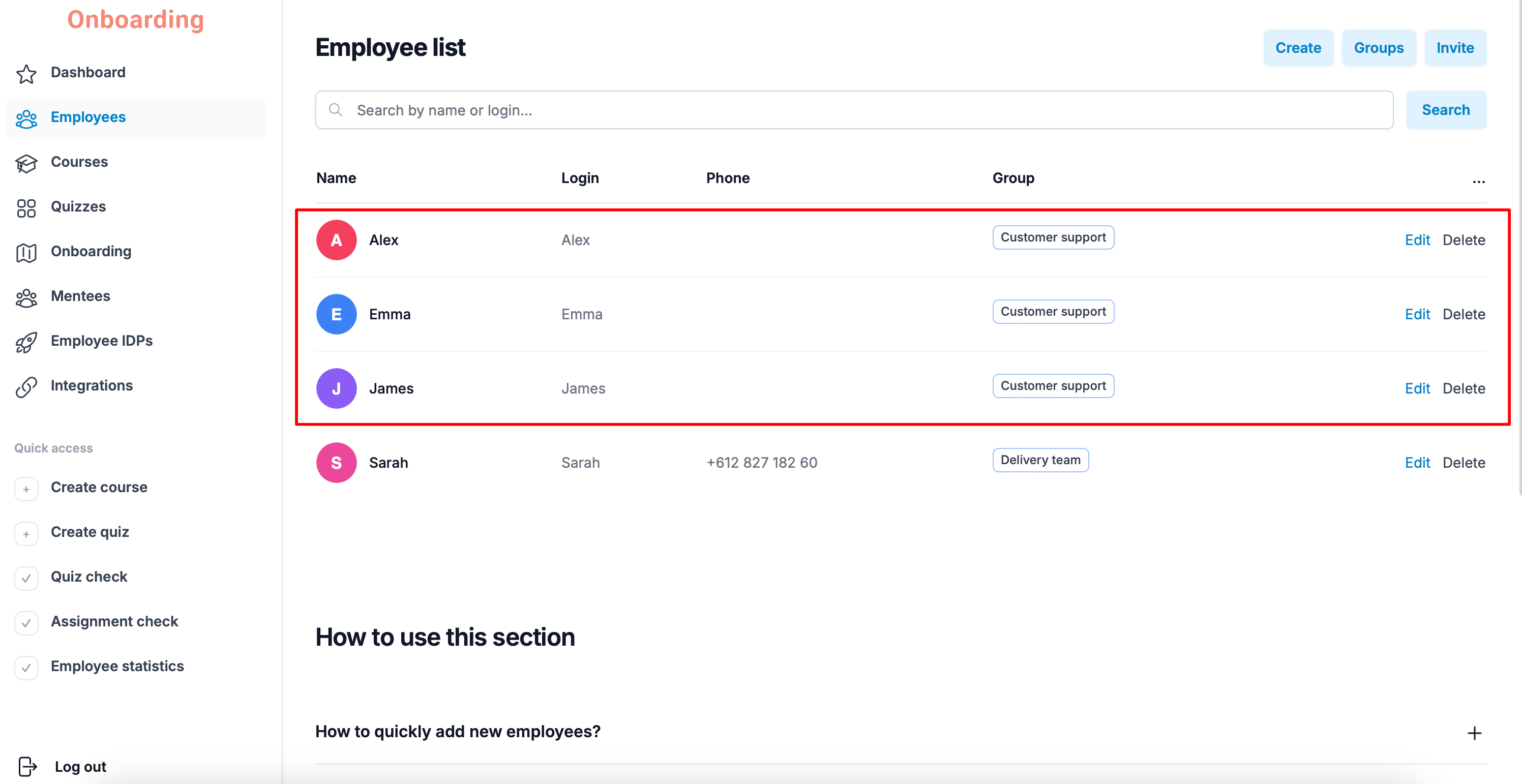
You can create a separate invitation link for each group — one for «Servers», another for «Cooks», a third for «Managers», and so on.
This routes new employees into the right groups at registration and assigns them the right training and onboarding programs from the start.
Any number of employees can register through a single invitation link while it stays active. The only limit is the number of users allowed by your plan.
Once an invitation is deleted, the link stops working. Anyone who tries to open it will see an error message.
Please note: you can't change the group on an existing invitation. If you need to invite employees to a different group, delete the current invitation and create a new one.
Adding employees via SSO sign-in
With Single Sign-On (SSO), new employees can register on the platform themselves using their corporate account.
After their first sign-in, the employee is created on the platform automatically, receives the «Student/Employee» role, and is added to the group chosen in your SSO settings.
This way, employee accounts are created automatically — no manual work from an administrator required.
For detailed setup instructions, see "Single Sign-On (SSO) Integration".