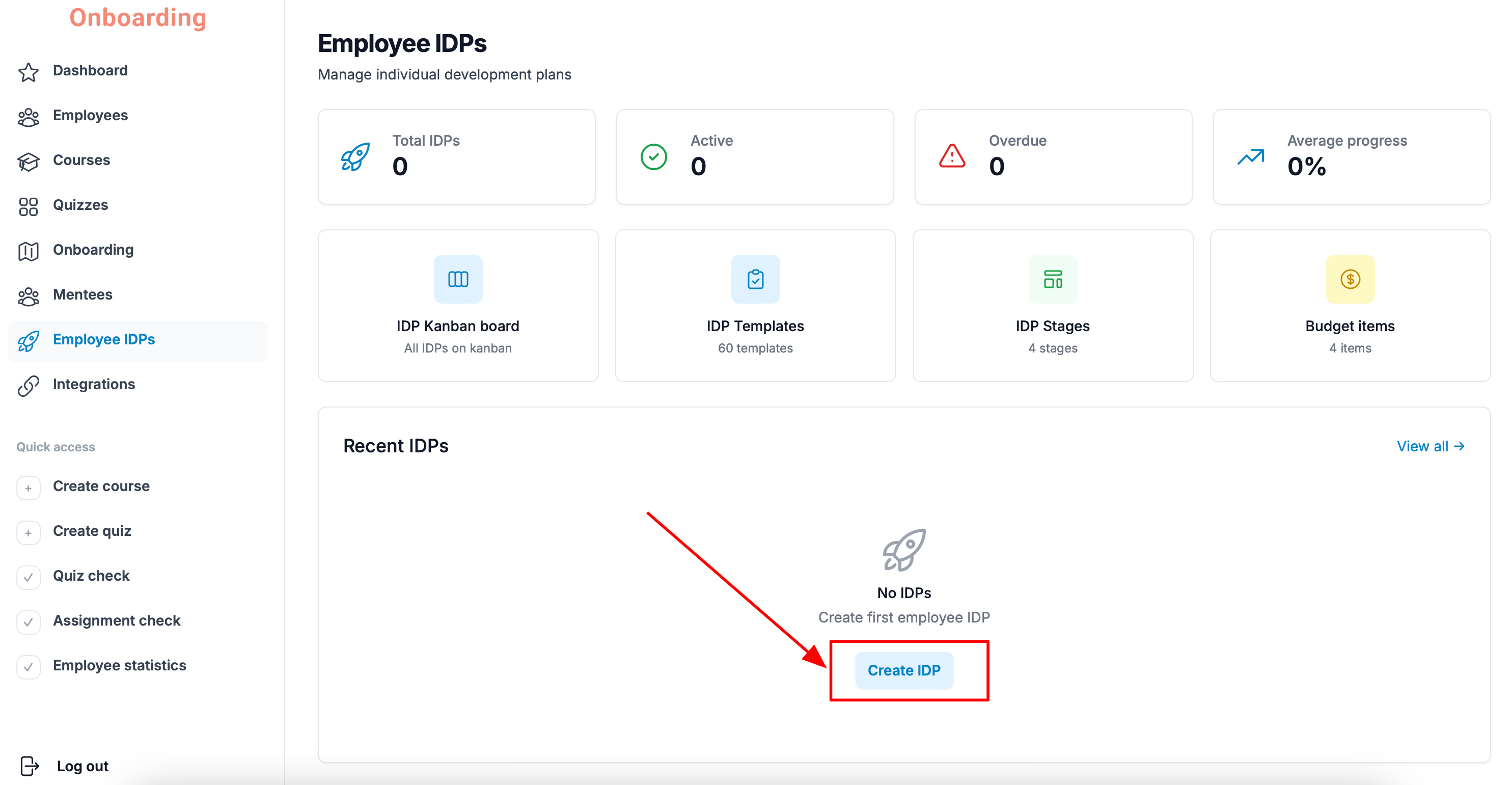
To create an IDP, open the «Employee IDPs» section and click «Create IDP» in the middle of the page.
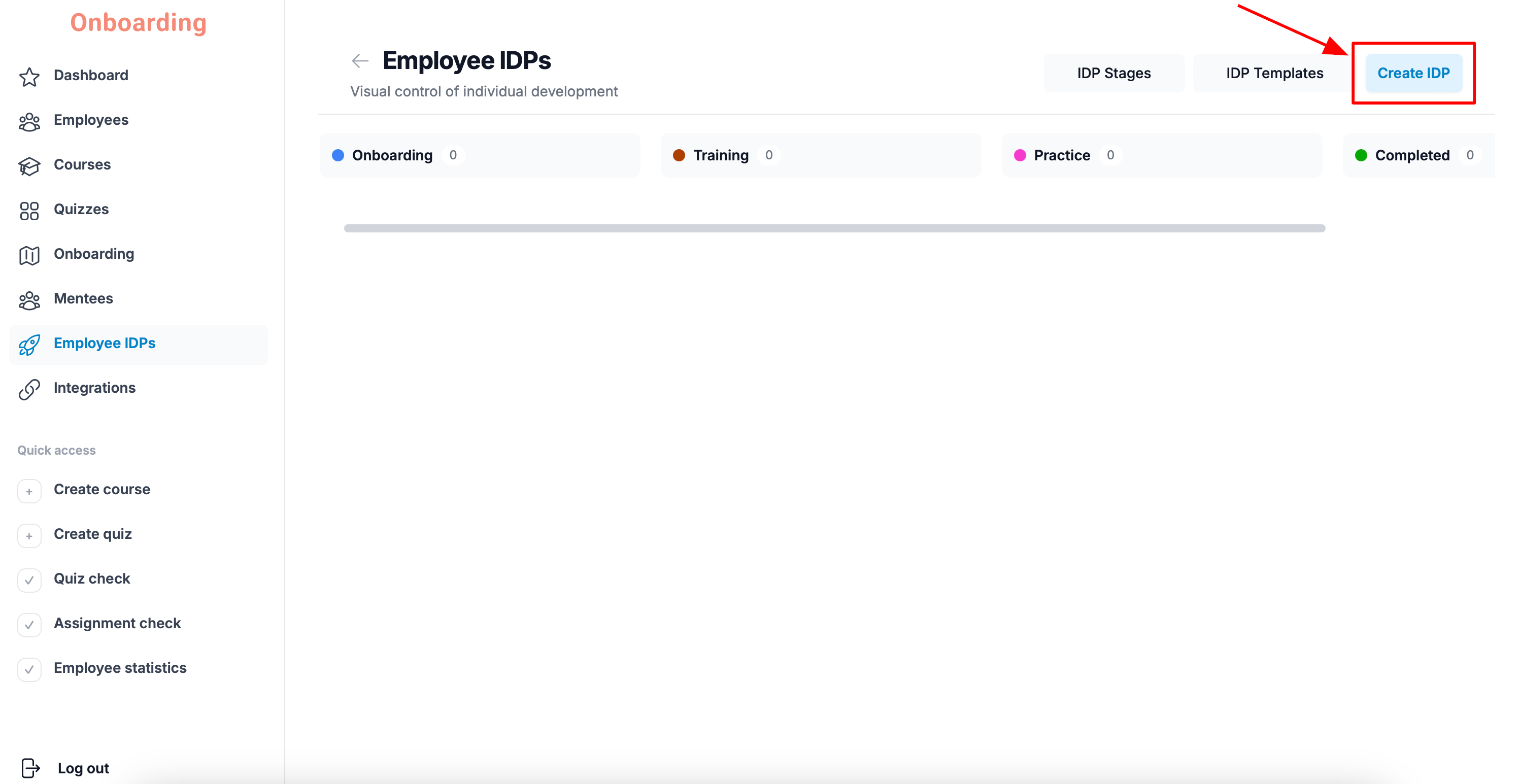
If you already have IDPs, you can create a new one from the «IDP Kanban board» page by clicking «Create IDP» in the top-right corner.
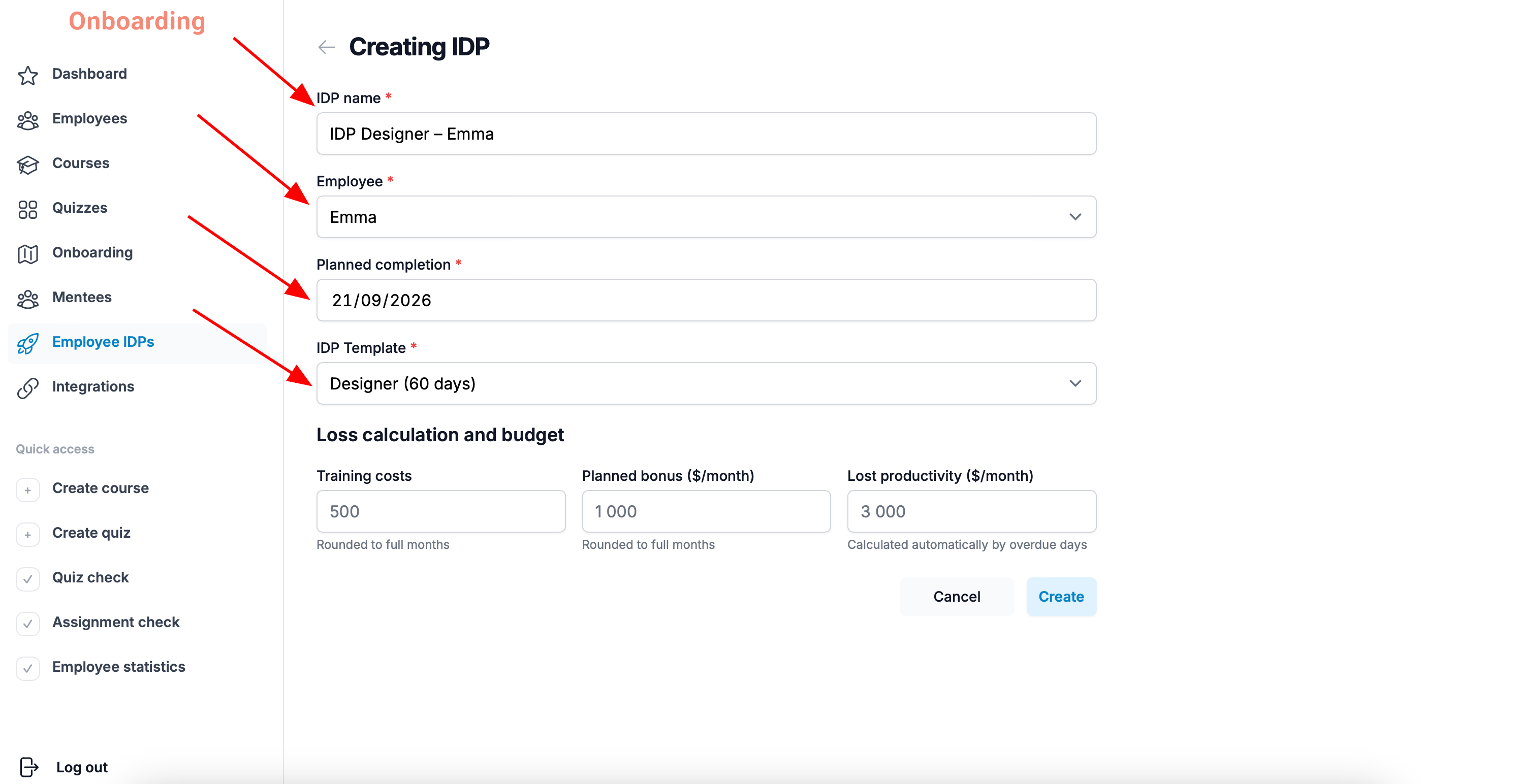
The IDP creation page opens.
Fill in the basic information:
- IDP name – the name the assigned employee will see.
- Employee – pick the employee the IDP is for.
- Planned completion – the date by which the employee should finish the IDP.
- IDP Template – pick one of the existing IDP templates.
An IDP can't be created without a template.
If none of the templates fit, create one first in the «IDP Templates» section, then come back to creating the IDP.
When you pick a template, its recommended completion time is shown as well.
If the date in the «Planned completion» field is earlier than the template allows, the platform will warn you that the IDP may run overdue.
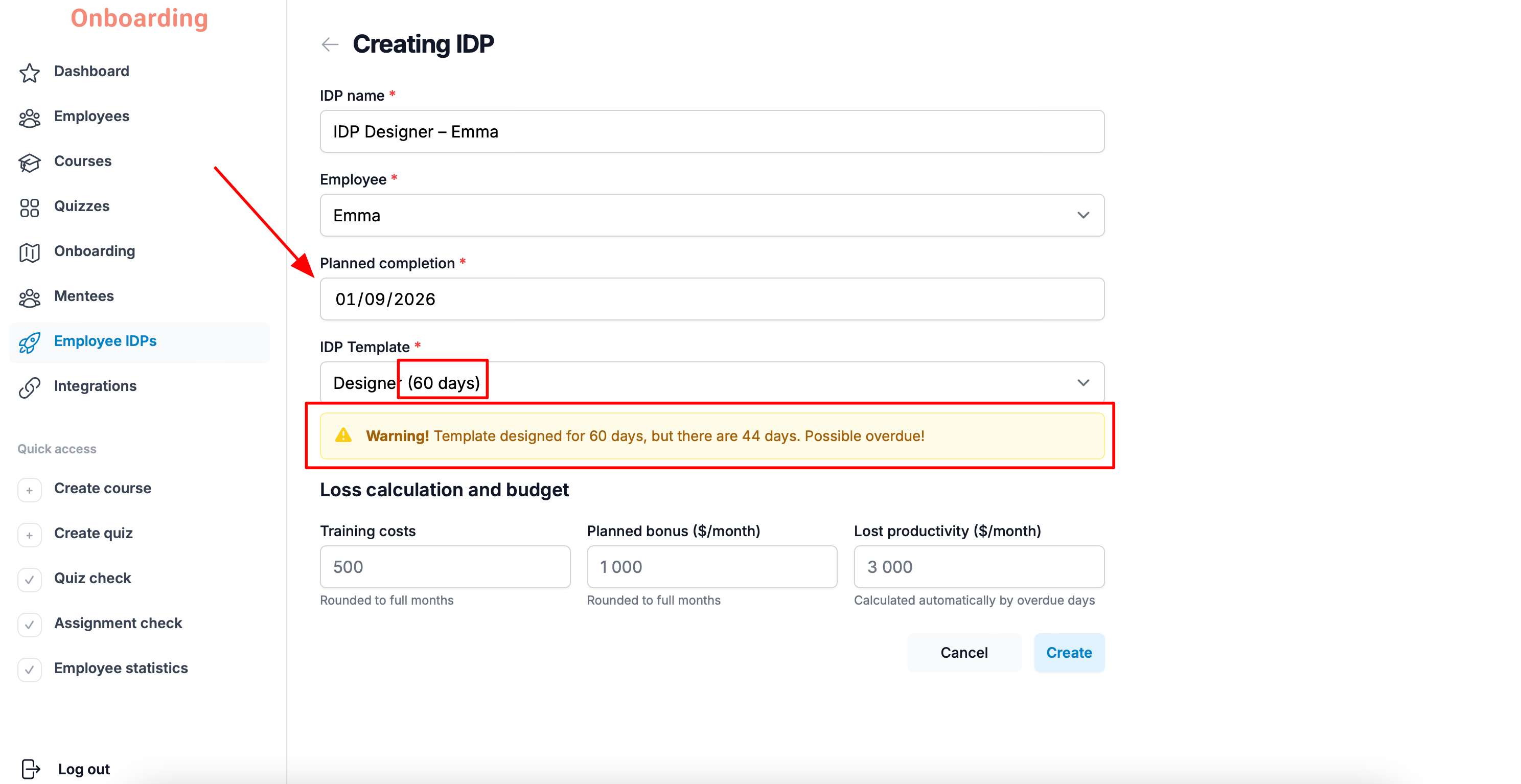
Below is the «Loss calculation and budget» block. Fill in these fields if you need them:
- Training costs – the planned spend on the employee's training within the IDP.
- Planned bonus ($/month) – the bonus the employee can receive after successfully completing the IDP.
- Lost productivity ($/month) – the estimated cost to the company if the IDP runs late.
The «Training costs» and «Planned bonus» fields are calculated in full months. The «Lost productivity» field is calculated automatically from the number of overdue days.
These fields are optional — fill them in only if you need them.
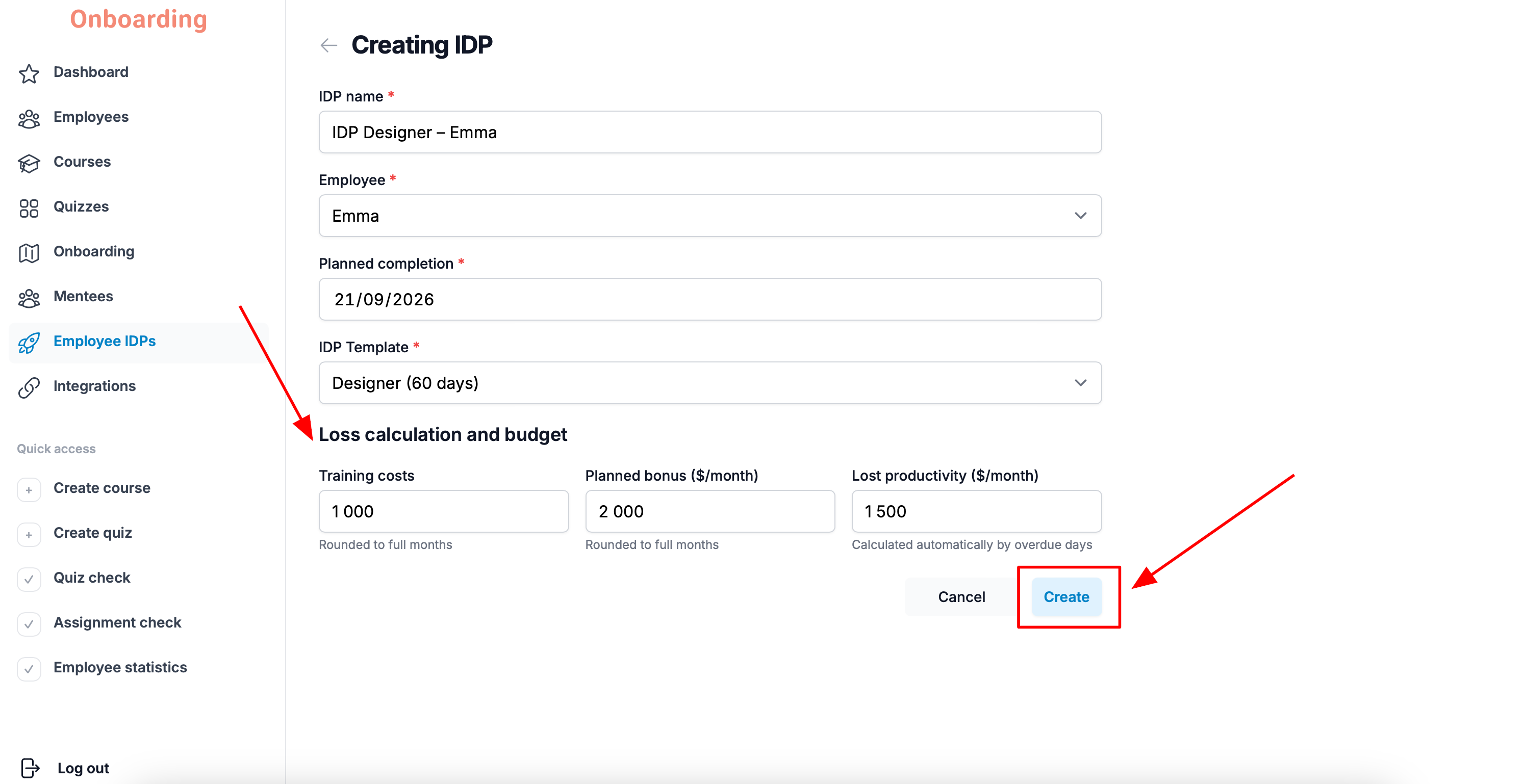
Once everything is filled in, click «Create».
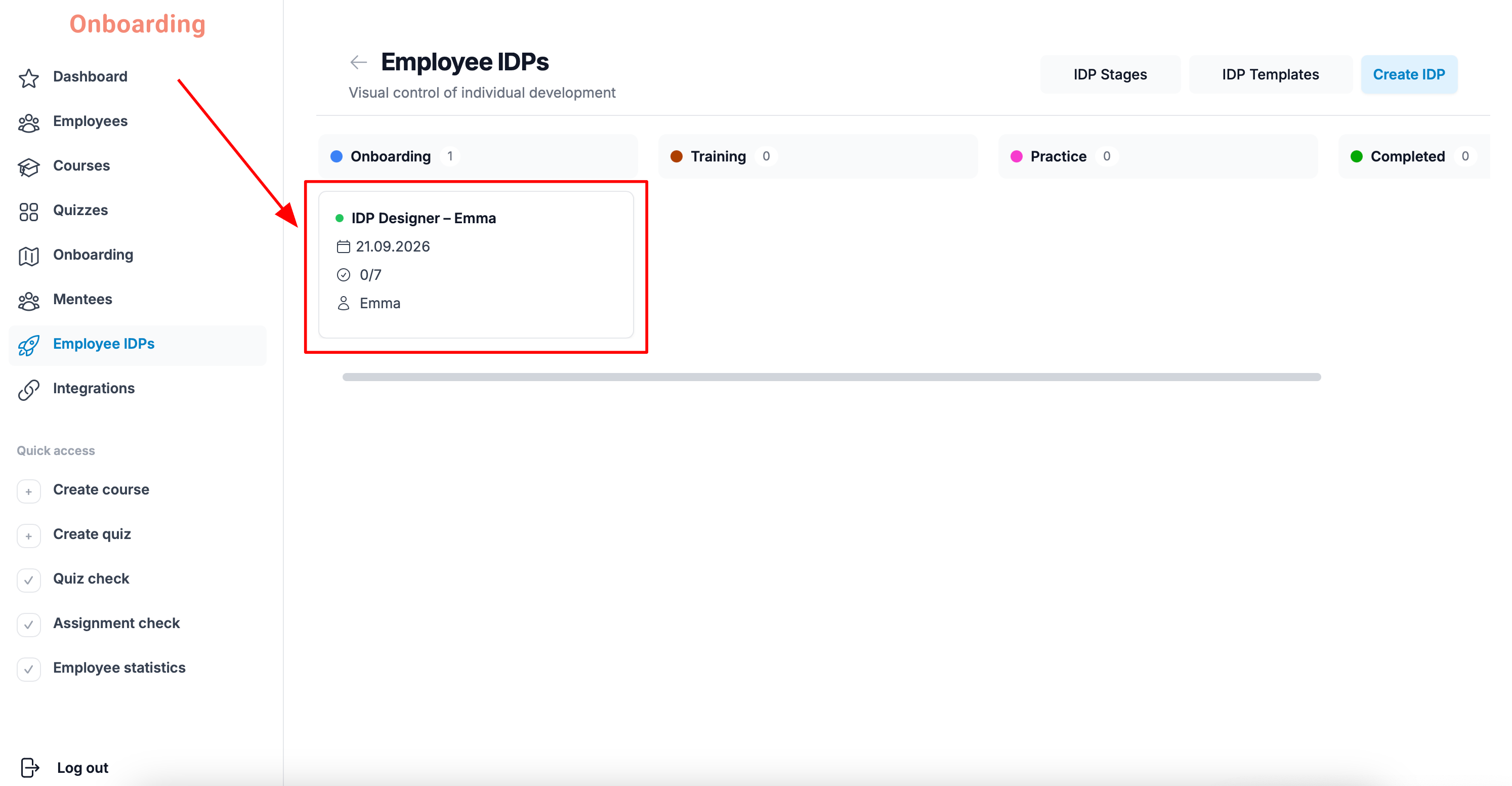
The IDP has been created and now appears on the Kanban board 🎉
At the same time, the IDP becomes available to the employee it's assigned to. From this moment they can start working through their development plan:
- completing tasks;
- checking off finished items;
- moving through the IDP stages.
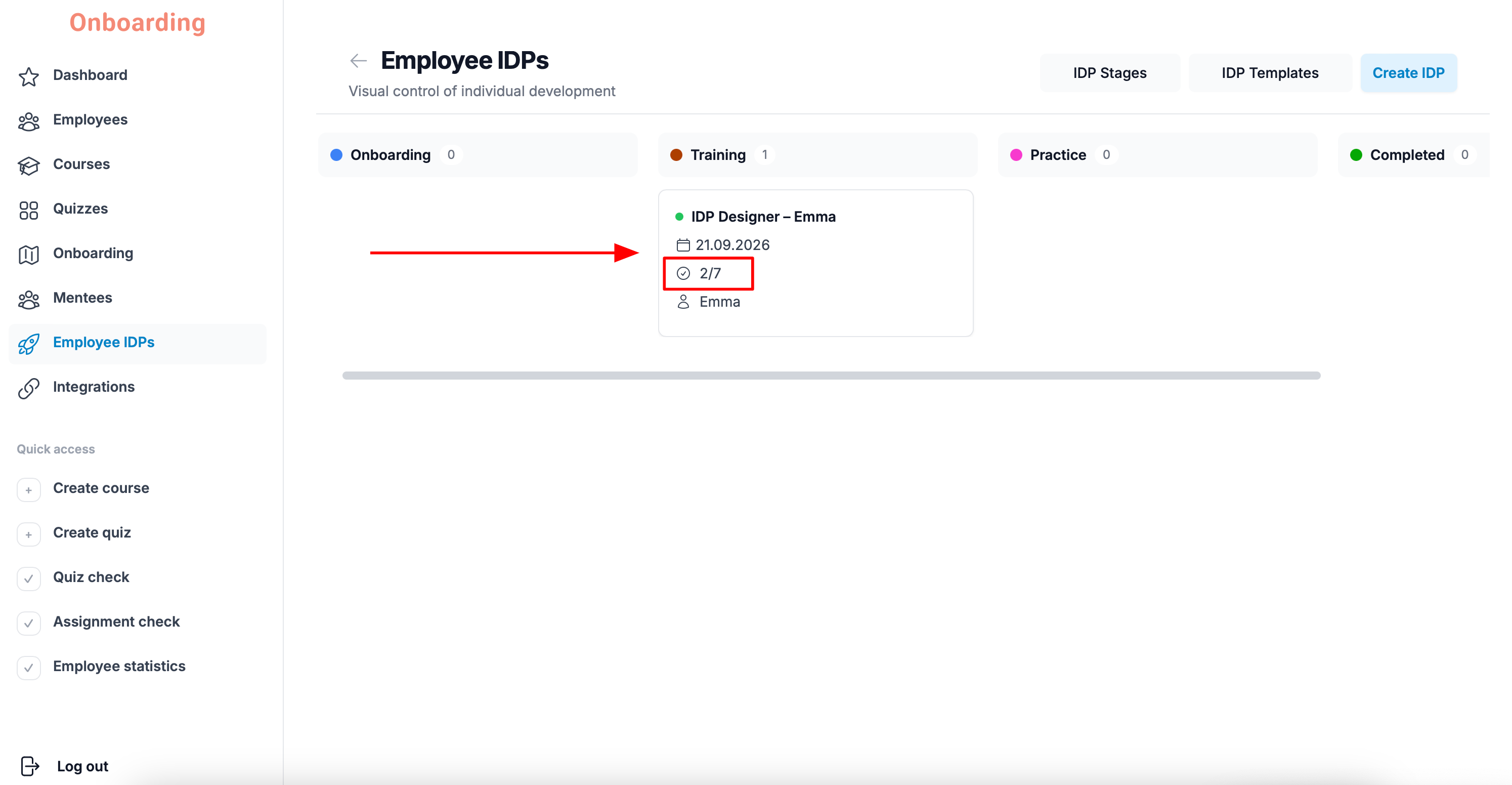
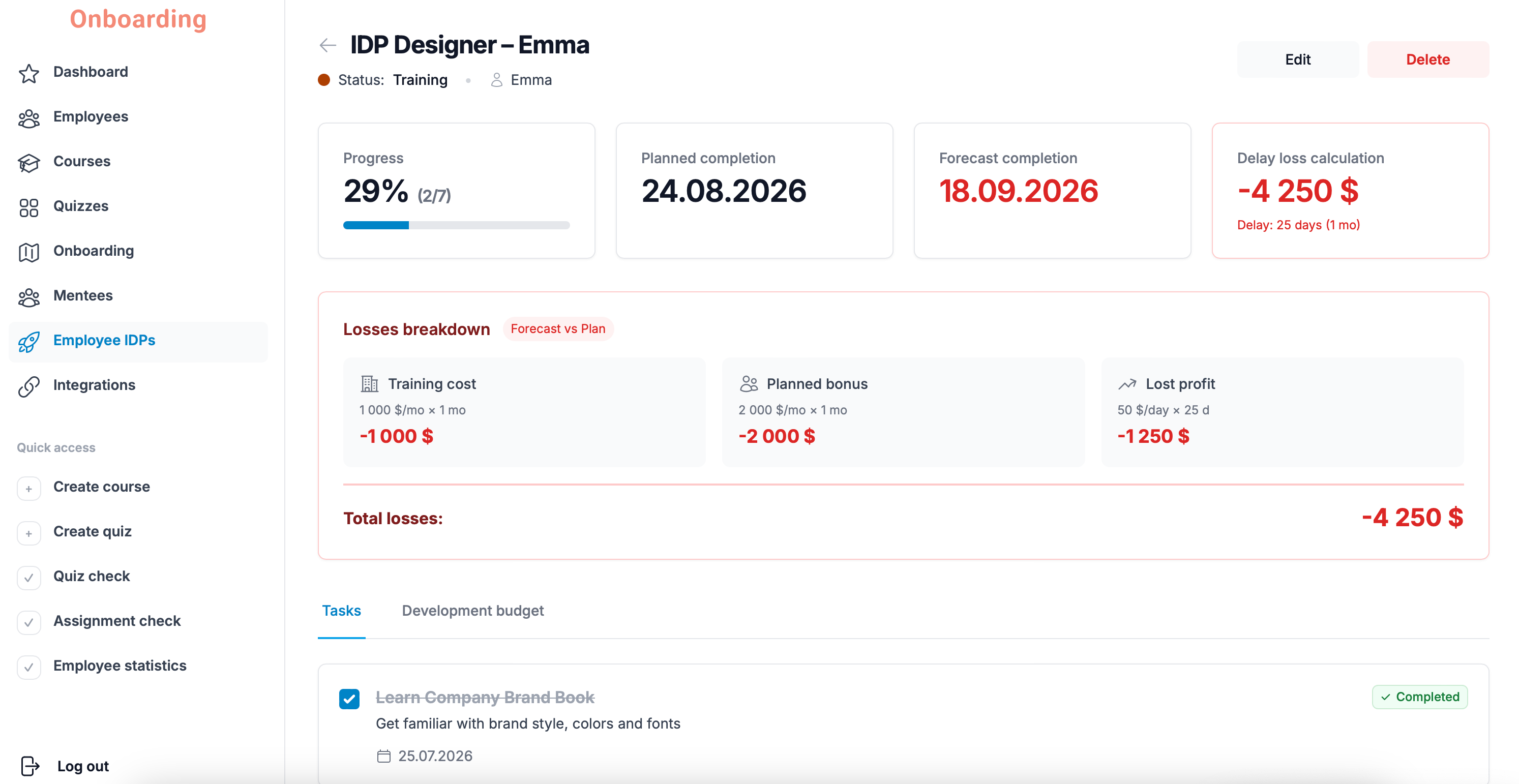
You can follow the employee's progress on the Kanban board, or click the IDP card to open it.
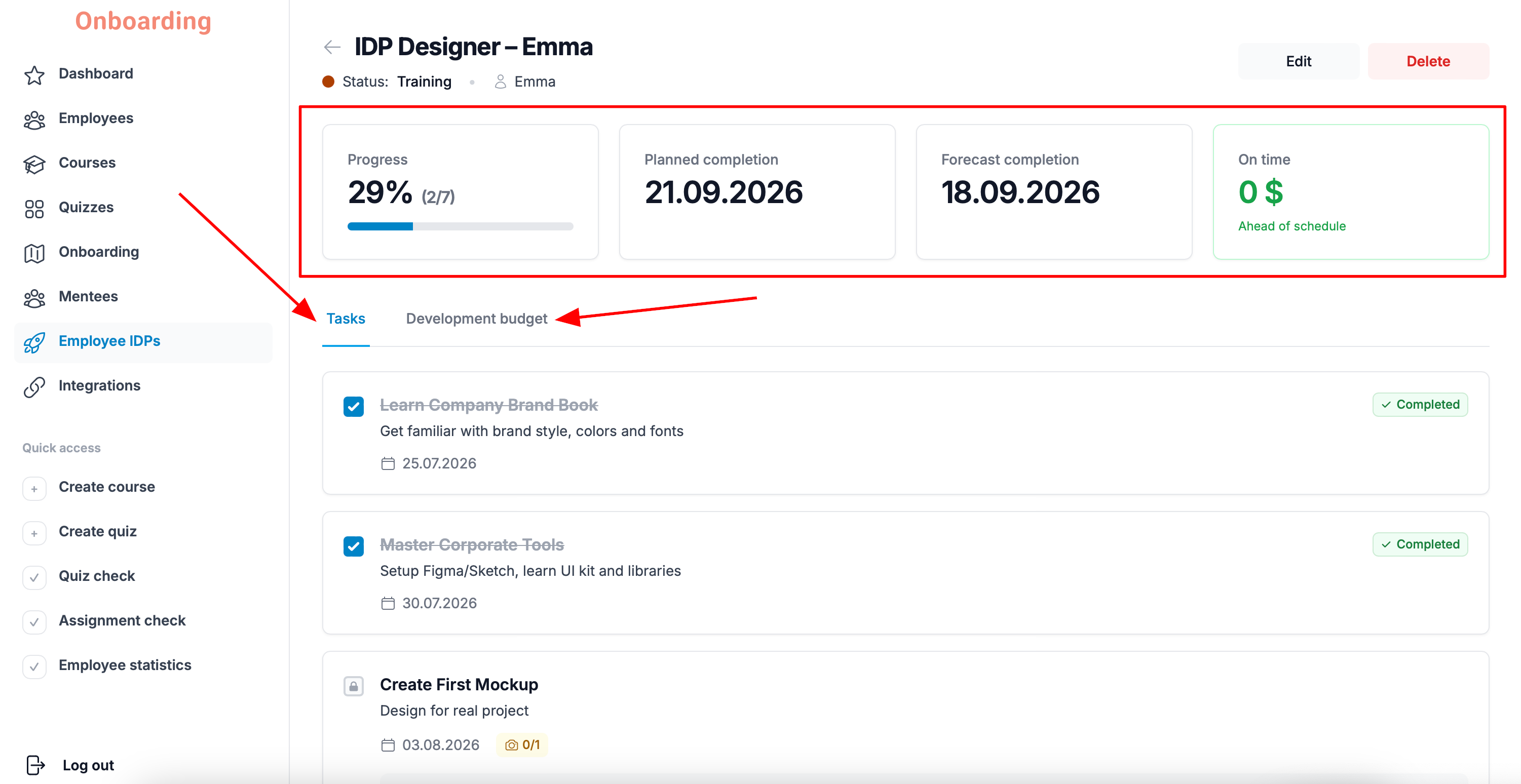
The IDP card shows the following information:
- completed and remaining tasks;
- current progress as a percentage;
- the planned completion date;
- the forecast completion date based on the IDP template;
- the amount of lost productivity (if the IDP is overdue);
- the budget categories tied to this IDP.