Signing up on the website
After you click «Start Free Trial» on the Onboarding.team website, the registration page opens. To get your 14-day free trial, fill in all the required fields and click «Create».
Setting up your platform takes 1–2 minutes.
Once registration is complete, check the email address you used to create the account. You'll receive a message with your login credentials.
Click «Go to the platform» and sign in with the username and password from the email.
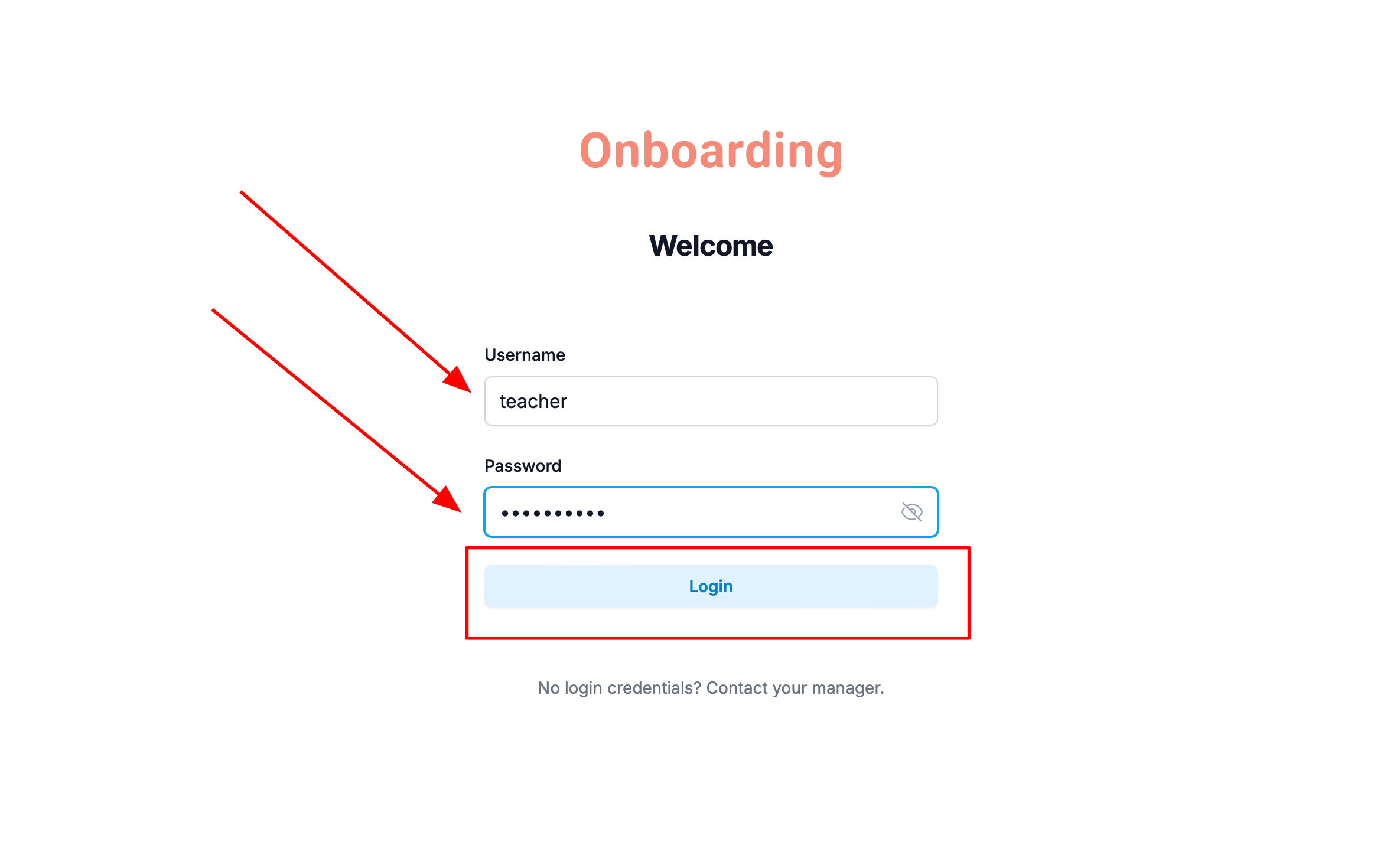
Company Setup
After signing in for the first time, you'll be taken to the Company Setup page. Here, you can add your company information and customize how it will appear across the platform and on mobile devices.
Fill in the following fields:
- Name — how your company will appear on the platform.
- App name — how the app will appear on the Home Screen after it's installed on a mobile device.
- Logo — upload the logo that will be used to personalize your account.
Below, you'll find a preview showing:
- how your logo will appear in the browser tab;
- how the app will look on a mobile device after installation.
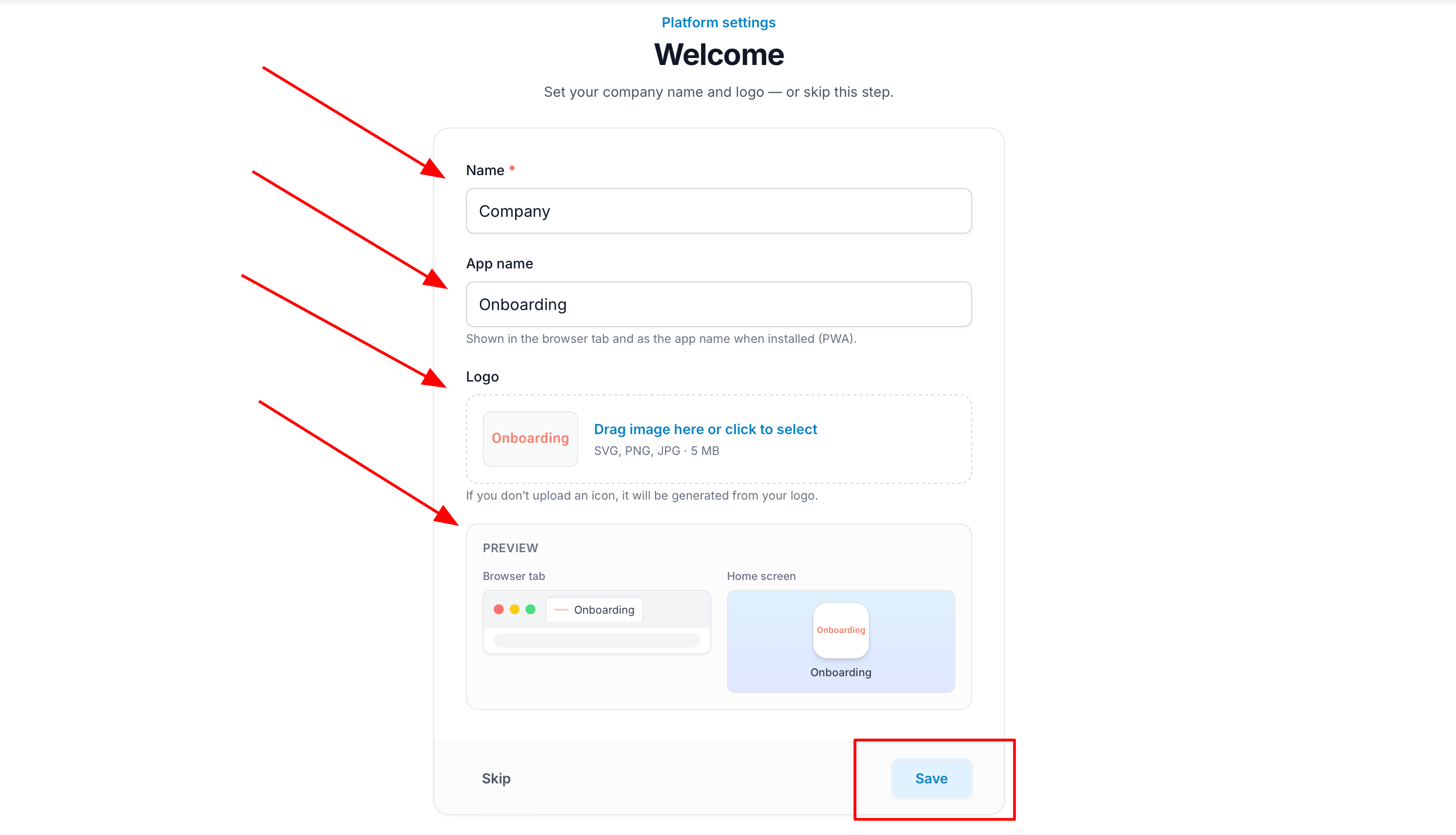
You can skip this step during the initial setup. Your company name, app name, and logo can be added or updated later in the account settings.
When you're done, click «Save».
Congratulations 🎉
You've successfully signed in to the Onboarding.team platform!
A tour of the home screen and menu sections
Home screen
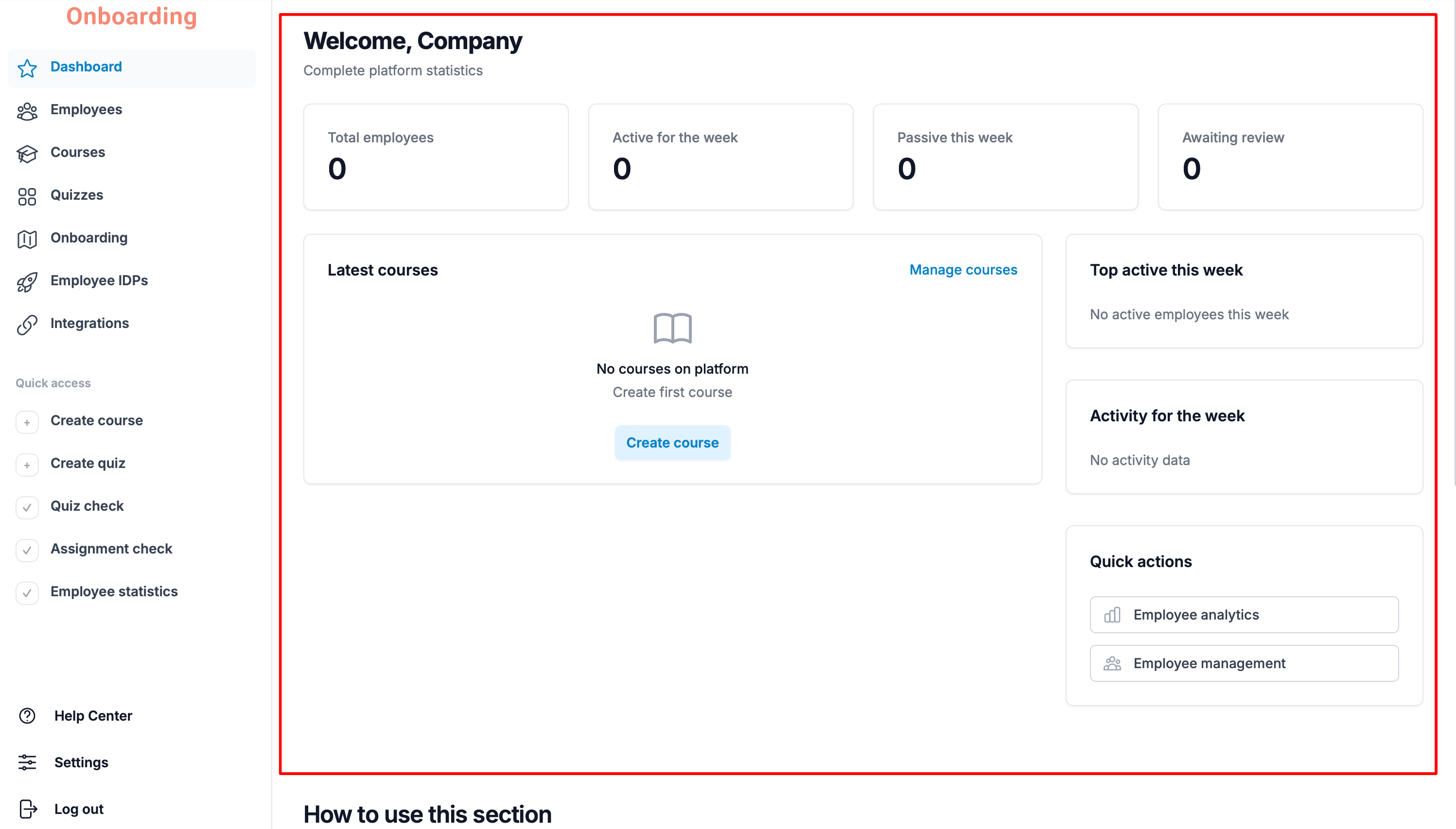
Hooray — you're in! 🎉
When you sign in, the platform opens on the home screen — the Dashboard. It brings together the key information about your training and onboarding processes.
The dashboard shows:
- employee statistics (total headcount, active and inactive employees);
- homework assignments and quizzes waiting for review;
- recently created courses;
- employee activity over the past week.
The dashboard helps you quickly assess where things stand and see which tasks need your attention.
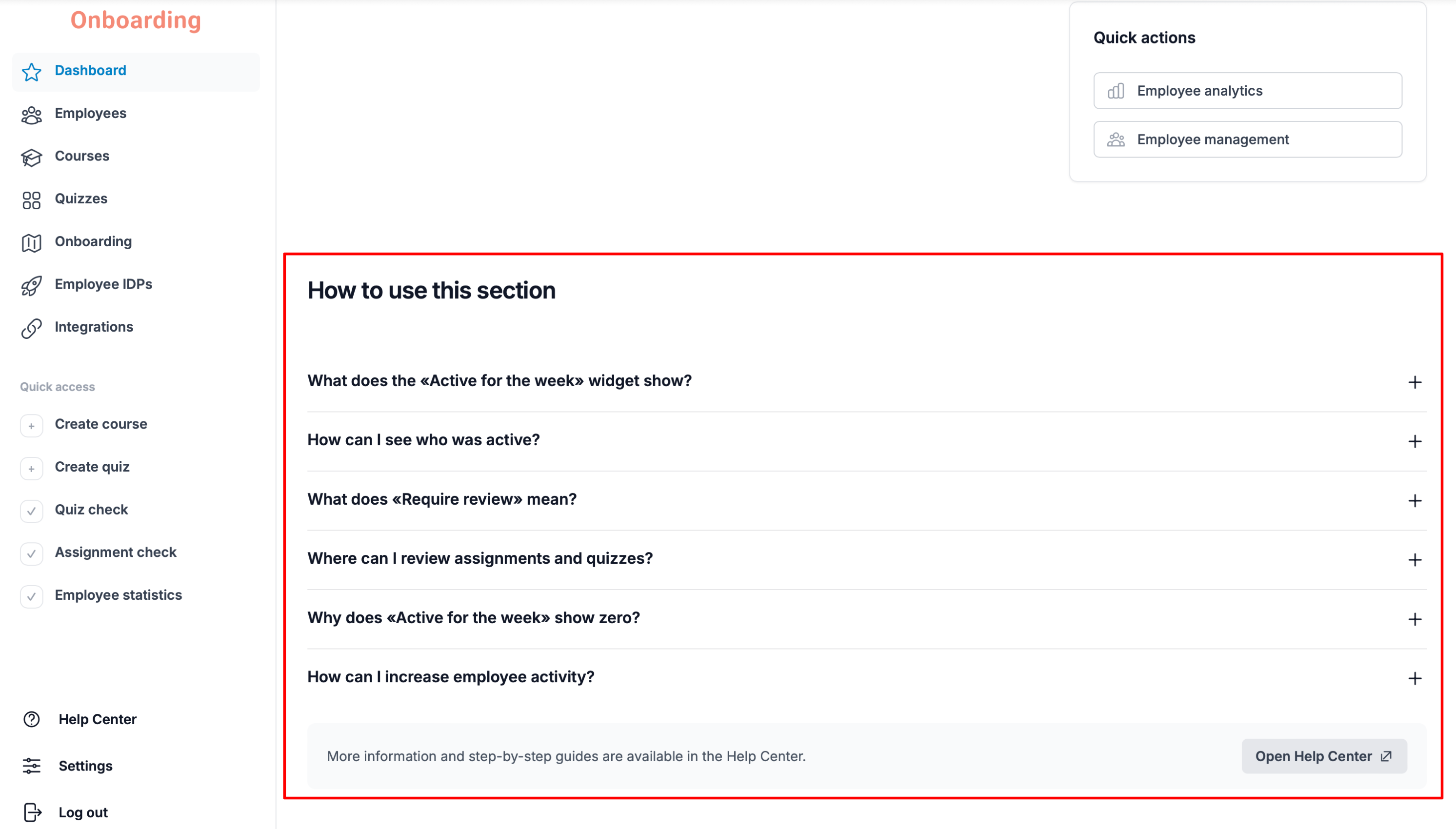
«How to use this section»
For your convenience, every section of the platform includes a built-in «How to use this section» block with answers to the most common questions and short how-to guides. You'll also find quick links to the Help Center and step-by-step video tutorials covering the section's features.
If you've forgotten how to do something, check there first — chances are the answer is already waiting for you.
A quick look at the menu sections
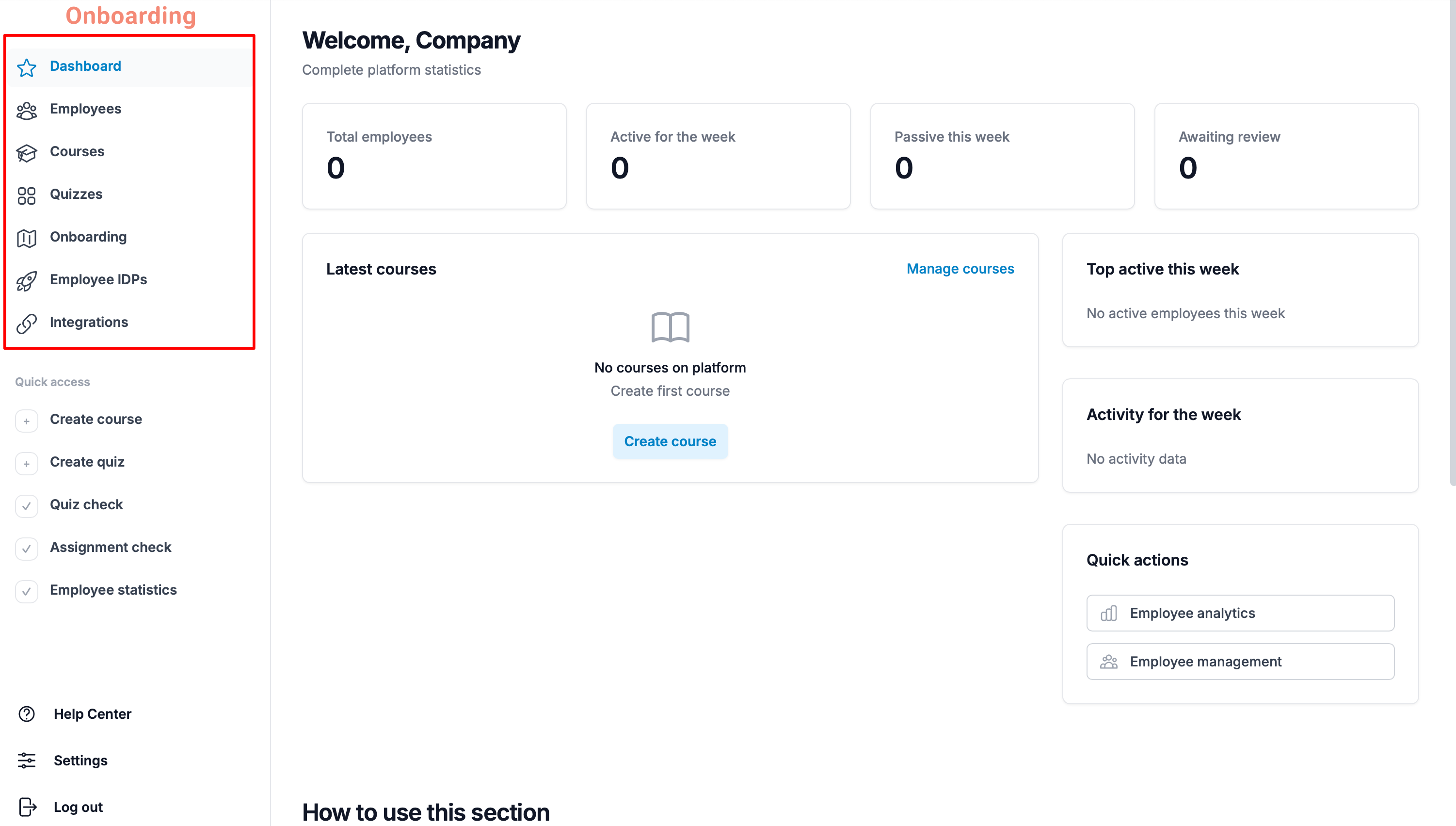
The main sections of the platform live in the left-hand sidebar menu.
- Dashboard – the platform's home page with key metrics and overall statistics.
- Employees – where you manage the platform's users. Create groups (by department, role, or any other category), invite employees, assign them to groups, and edit their details.
- Courses – create, edit, and manage training courses.
- Quizzes – build quizzes to check knowledge and track results.
- Onboarding – create and manage employee onboarding tracks that combine courses and mentor meetings.
- Mentees – the list of employees you mentor. Track their progress through their onboarding tracks here. If no mentees are assigned to you, this section is hidden.
- Employee IDPs – create and manage employees' individual development plans.
- Integrations – connect and configure integrations with external systems.
Quick access
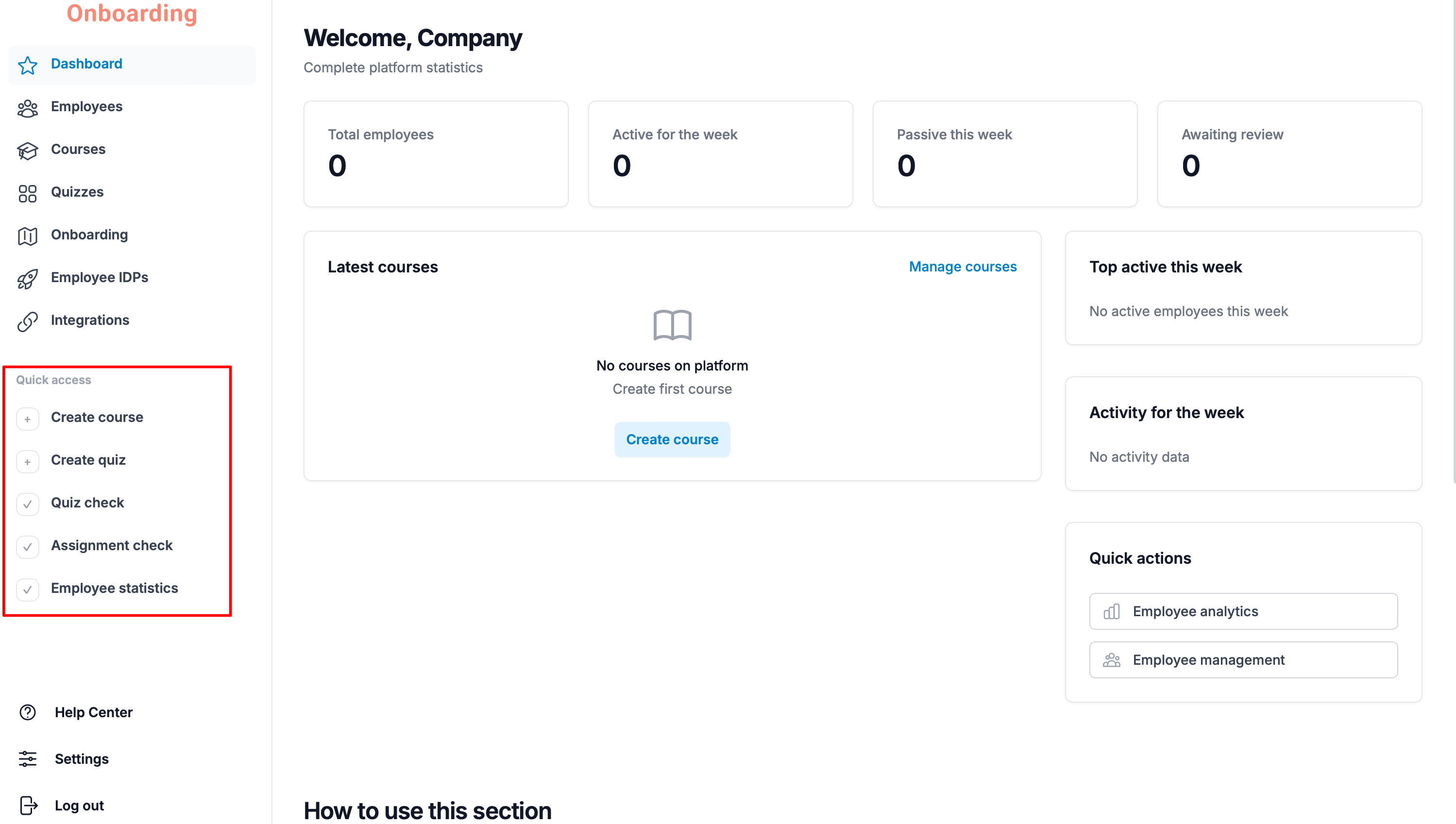
In the middle of the sidebar you'll find the «Quick access» block with shortcuts to the most common actions.
In a single click you can:
- create a new course;
- create a quiz;
- review quiz results;
- review homework assignments;
- open employee statistics.
The «Quick access» block lets you handle everyday actions without jumping between sections of the platform.
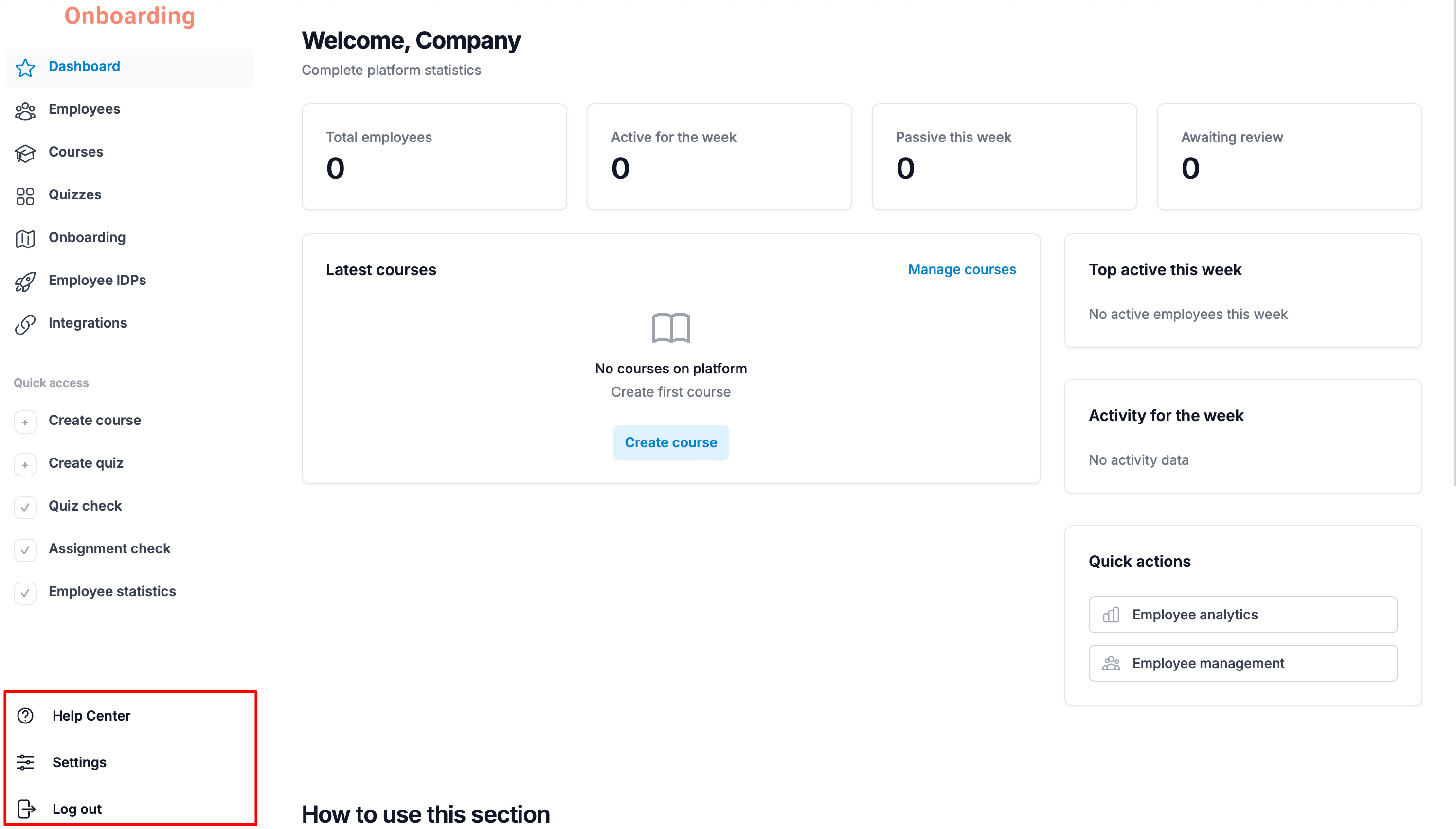
At the bottom of the sidebar, you'll find the following sections:
- Help Center — quick access to the Help Center home page..
- Settings — manage your account and company settings.
- Log Out — sign out of your account.
Settings
To open settings, click «Settings» at the bottom of the sidebar.
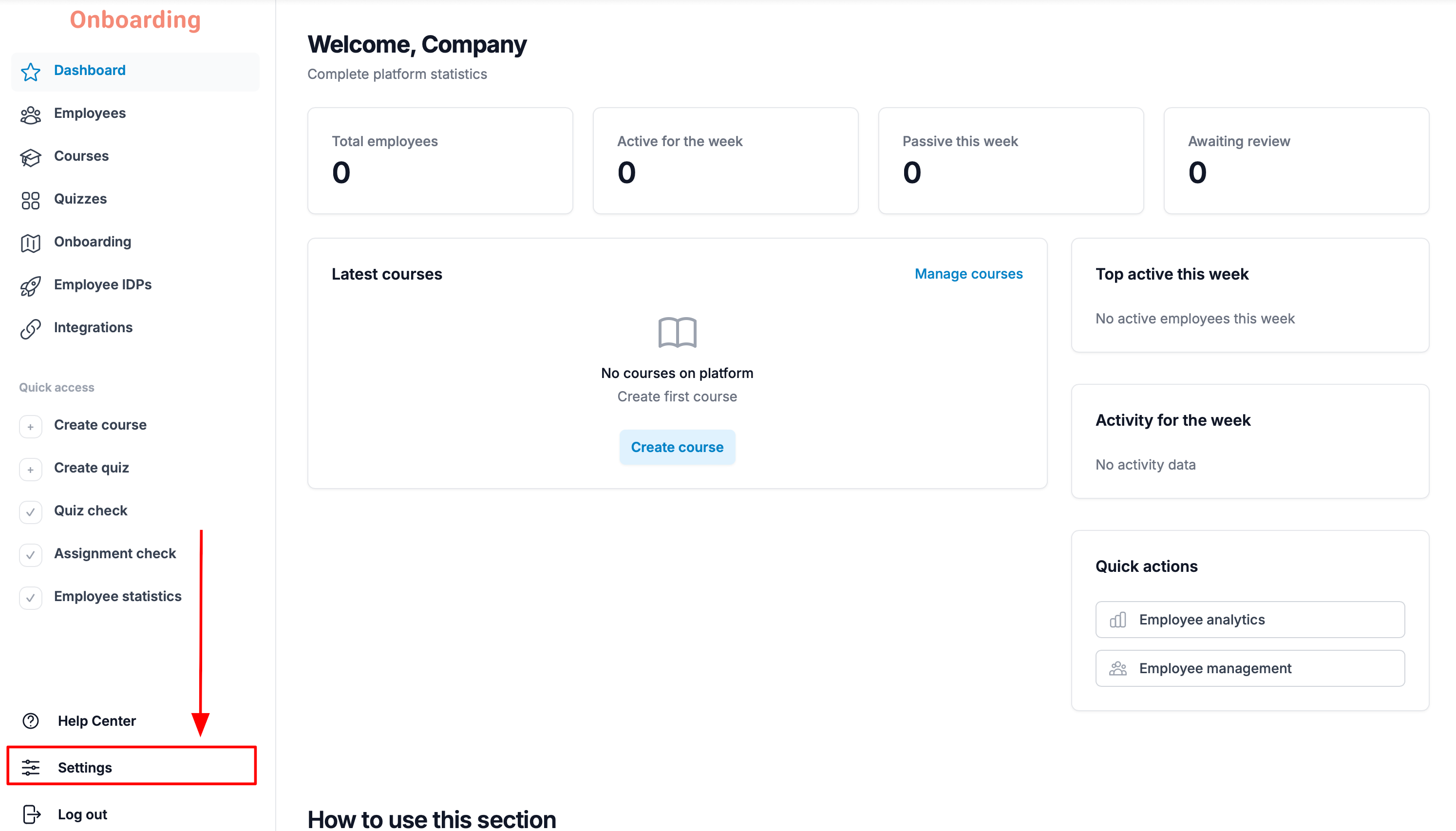
In this section, you can update your company information and account settings:
- Name — how your company appears on the platform.
- Login — the username used to sign in to the platform.
- Password / Repeat password — the password used to sign in to the platform.
- App name — how the app will appear on the Home Screen after it's installed on a mobile device.
- Platform language — the language used for the platform interface.
- Logo — the logo used to personalize your account on the platform.
- App icon — the logo displayed as the app icon after the application is installed on a mobile device.
Below, you'll find a preview showing:
- how your logo will appear in the browser tab;
- how the app icon will appear on the Home Screen of a mobile device.
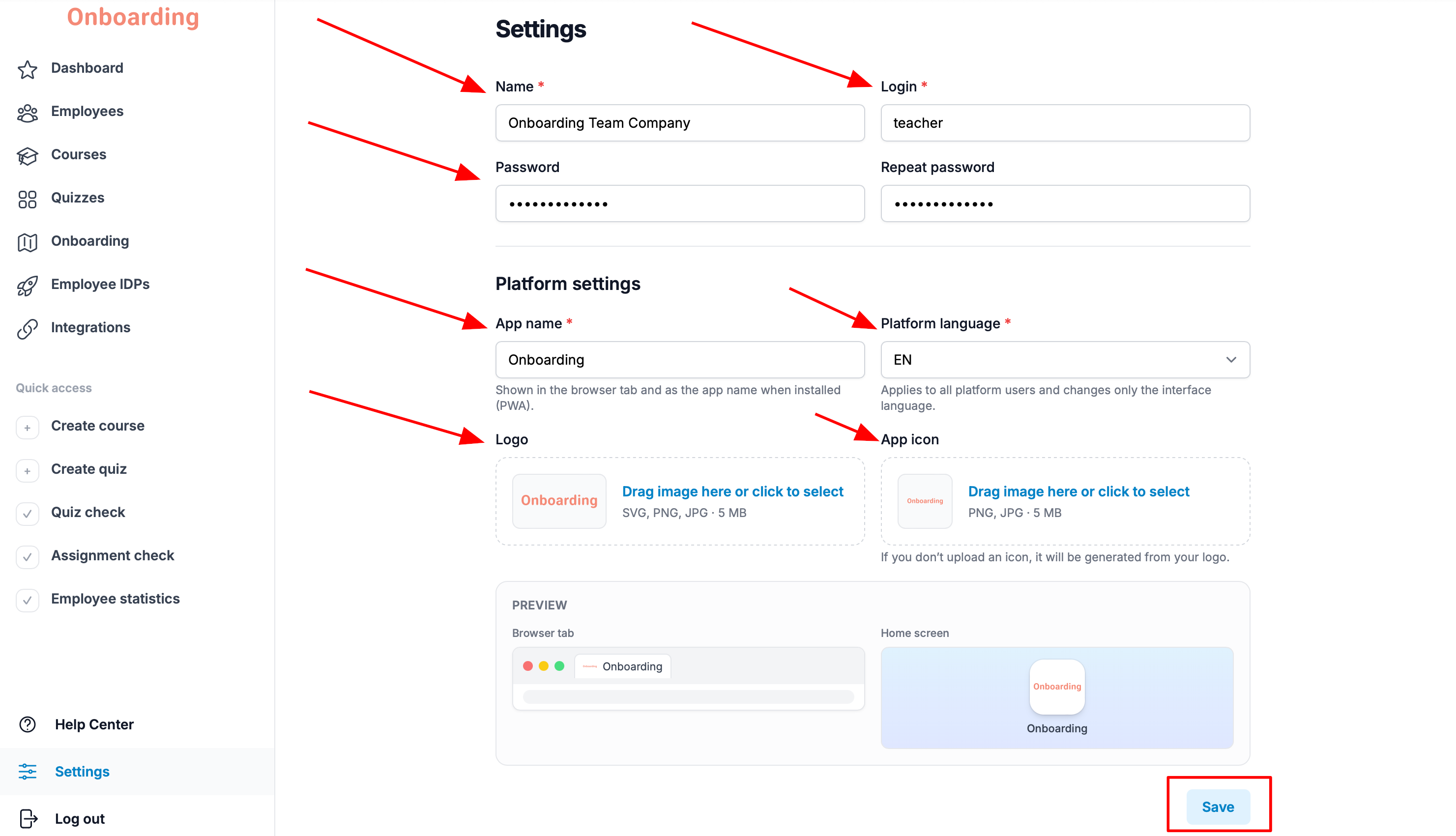
When you're done, click «Save».
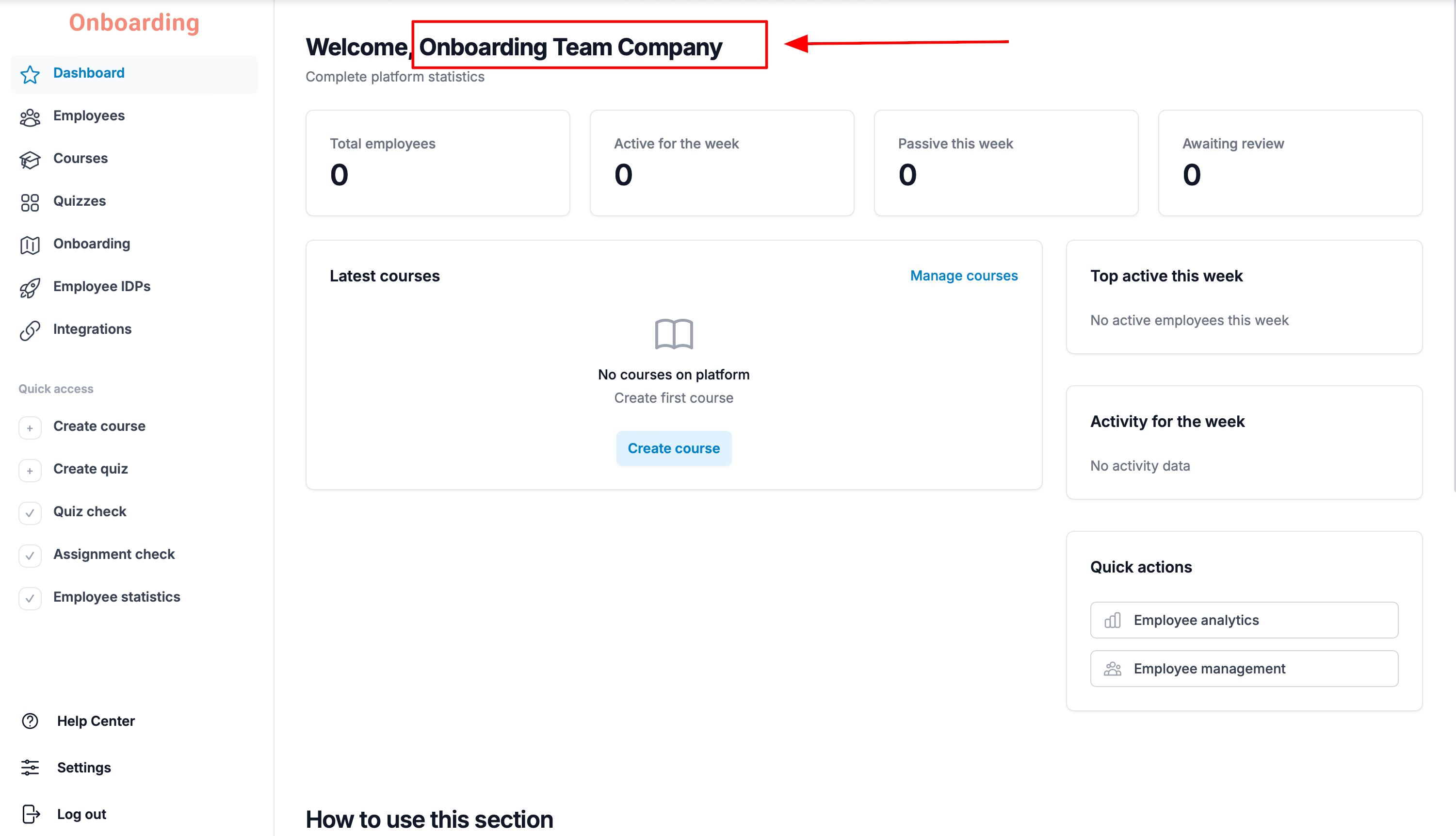
Your changes have been saved and are now available on the platform 🎉
What to do if something isn't working
If you run into a technical problem — say, the email with your login credentials never arrived, you can't sign in, or you can't create a workspace — write to us at hello@onboarding.team.
We'll look into your request carefully and do our best to resolve the issue as quickly as possible.