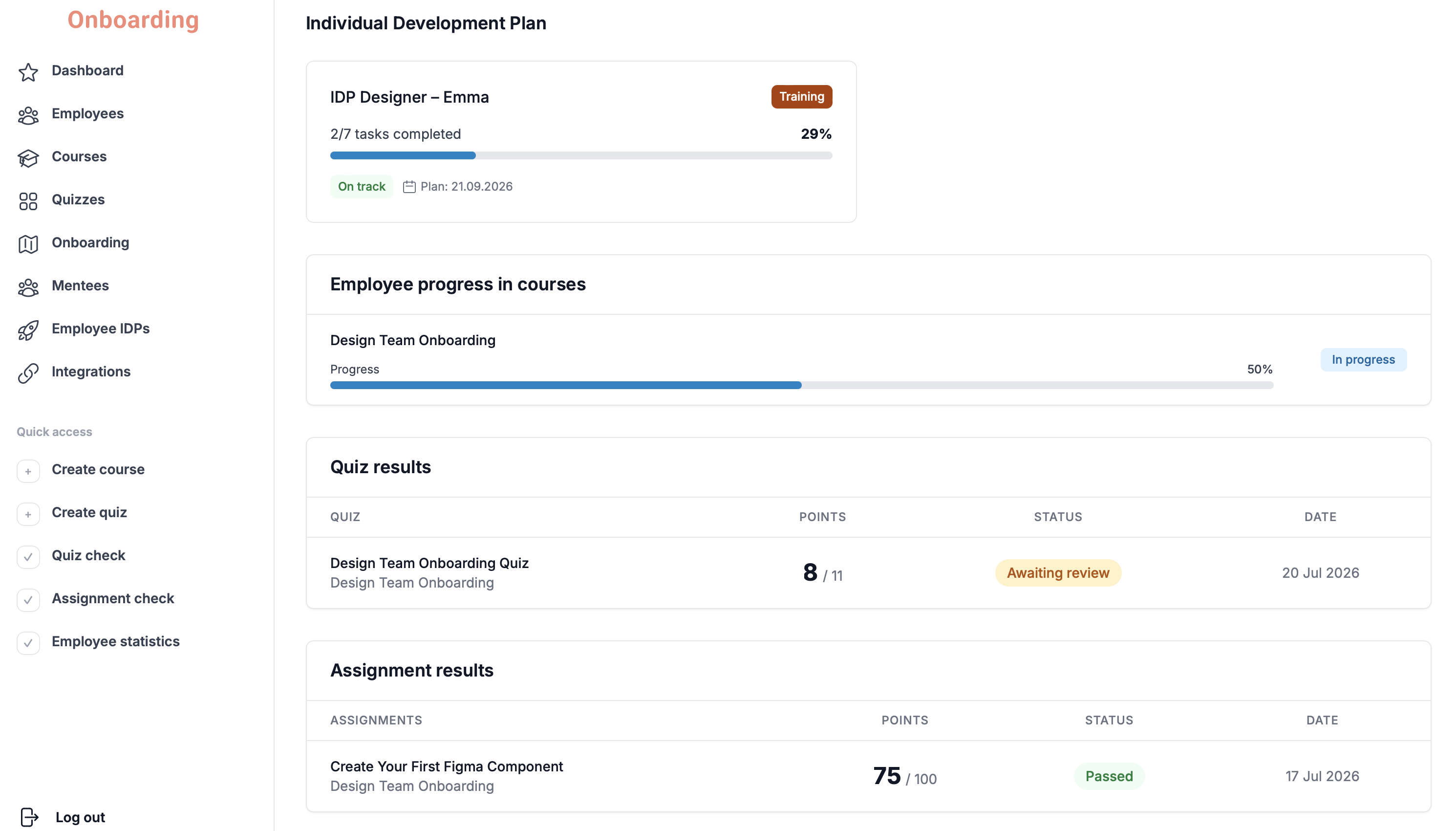
To see detailed analytics for an employee, open the «Employee statistics» section via the «Quick access» block in the sidebar menu.
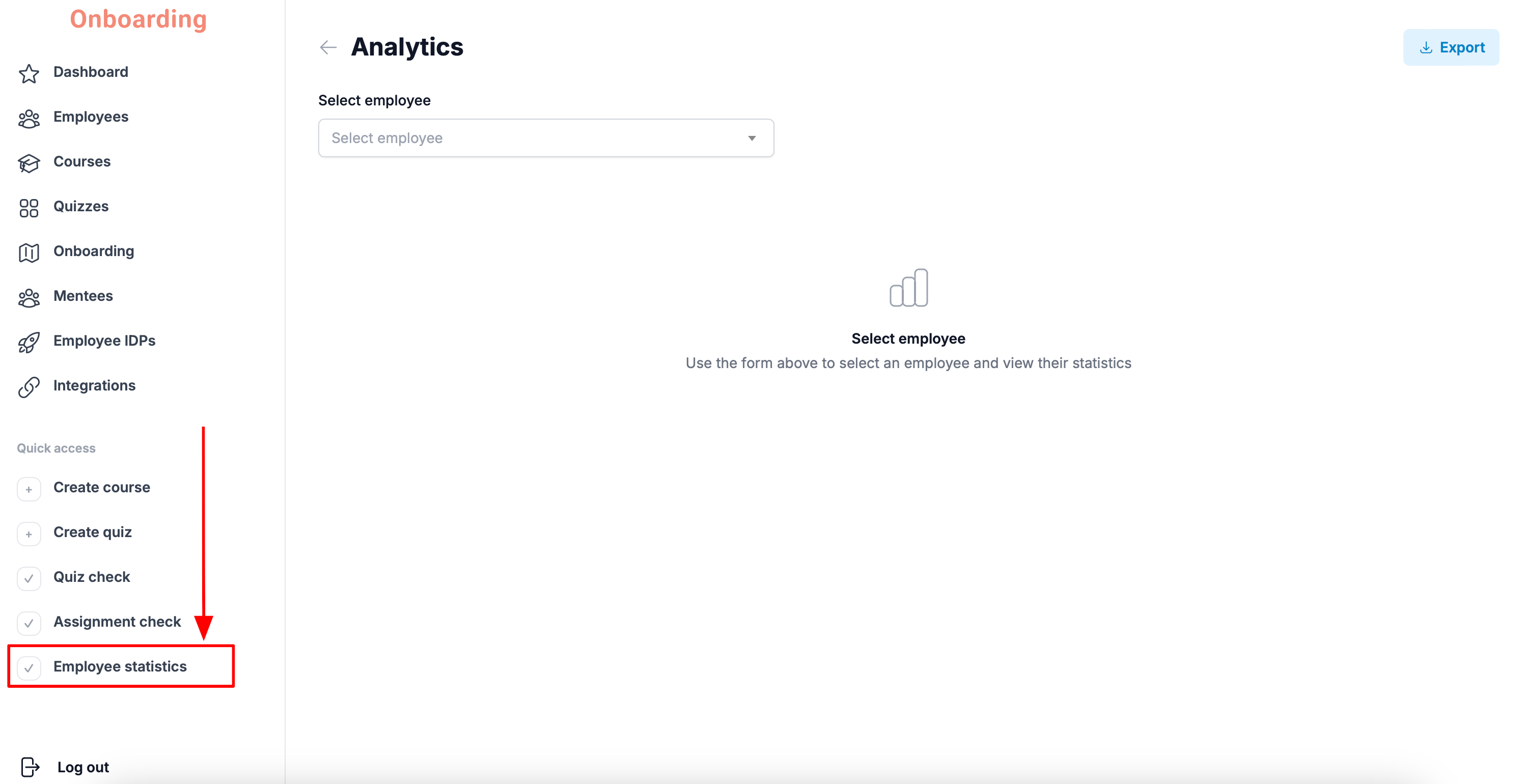
You can also get there from the «Dashboard» section by clicking the «Employee analytics» button.
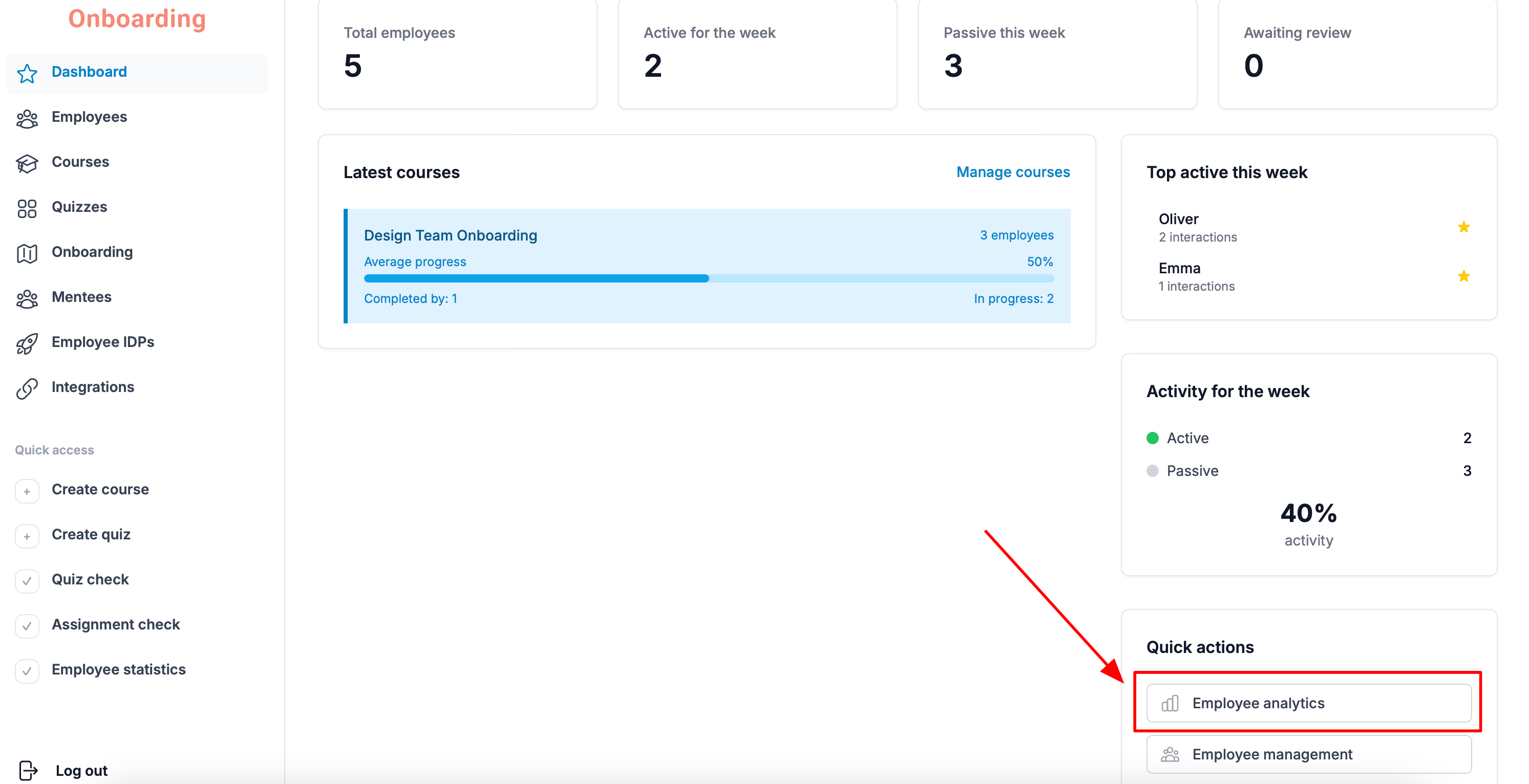
On the page that opens, type the name of the employee whose analytics you want to see into the search bar.
Important
The employee's name must be entered exactly as it appears in their profile on the platform.
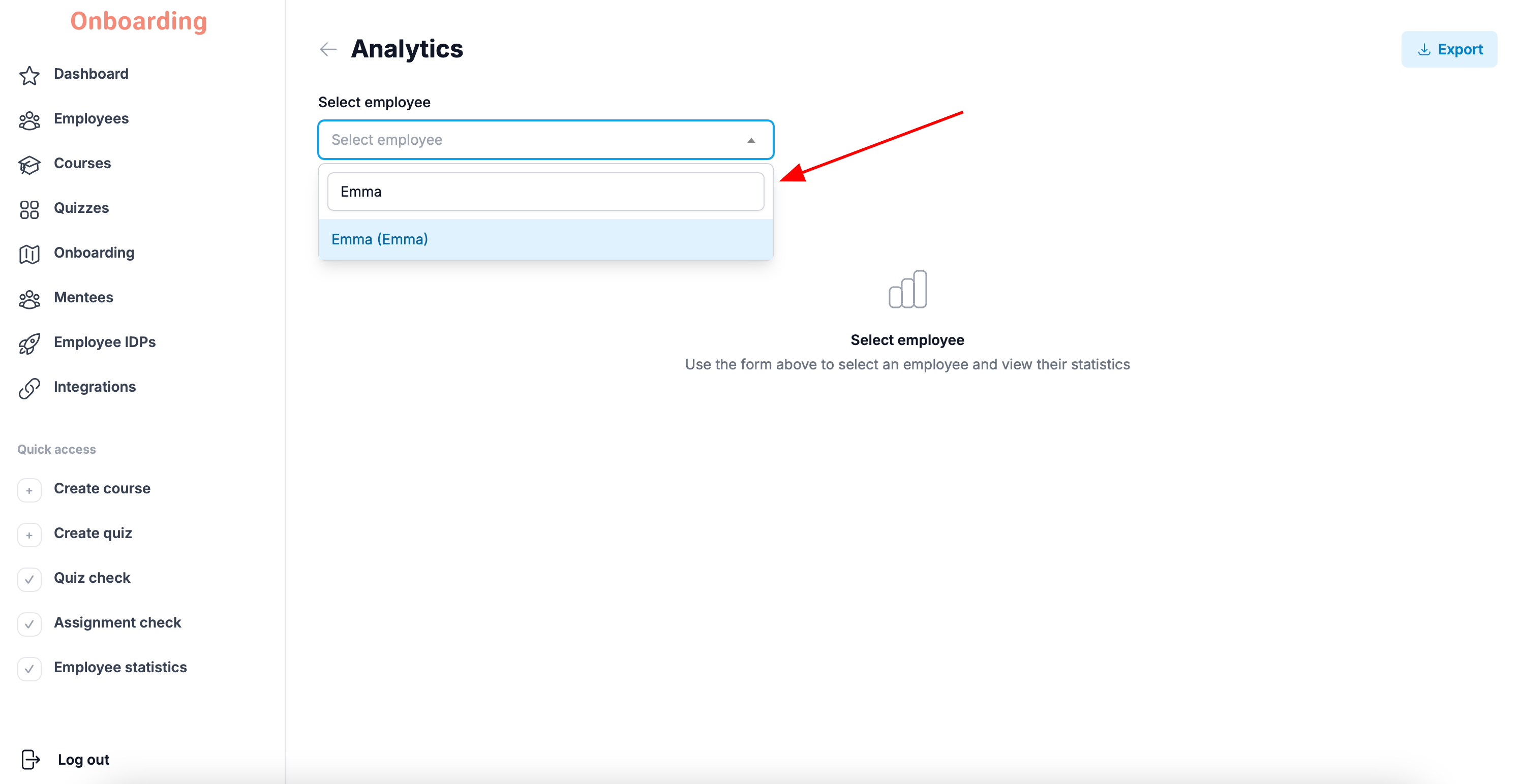
Once you select the employee, a training summary opens, including:
- courses completed – the number of courses finished out of the total assigned;
- average progress – the average completion rate across assigned courses;
- quizzes completed – the number of quizzes passed out of the total assigned;
- assignments submitted – the number of assignments completed successfully out of the total assigned;
- tracks completed — the number of onboarding tracks finished out of the total assigned.
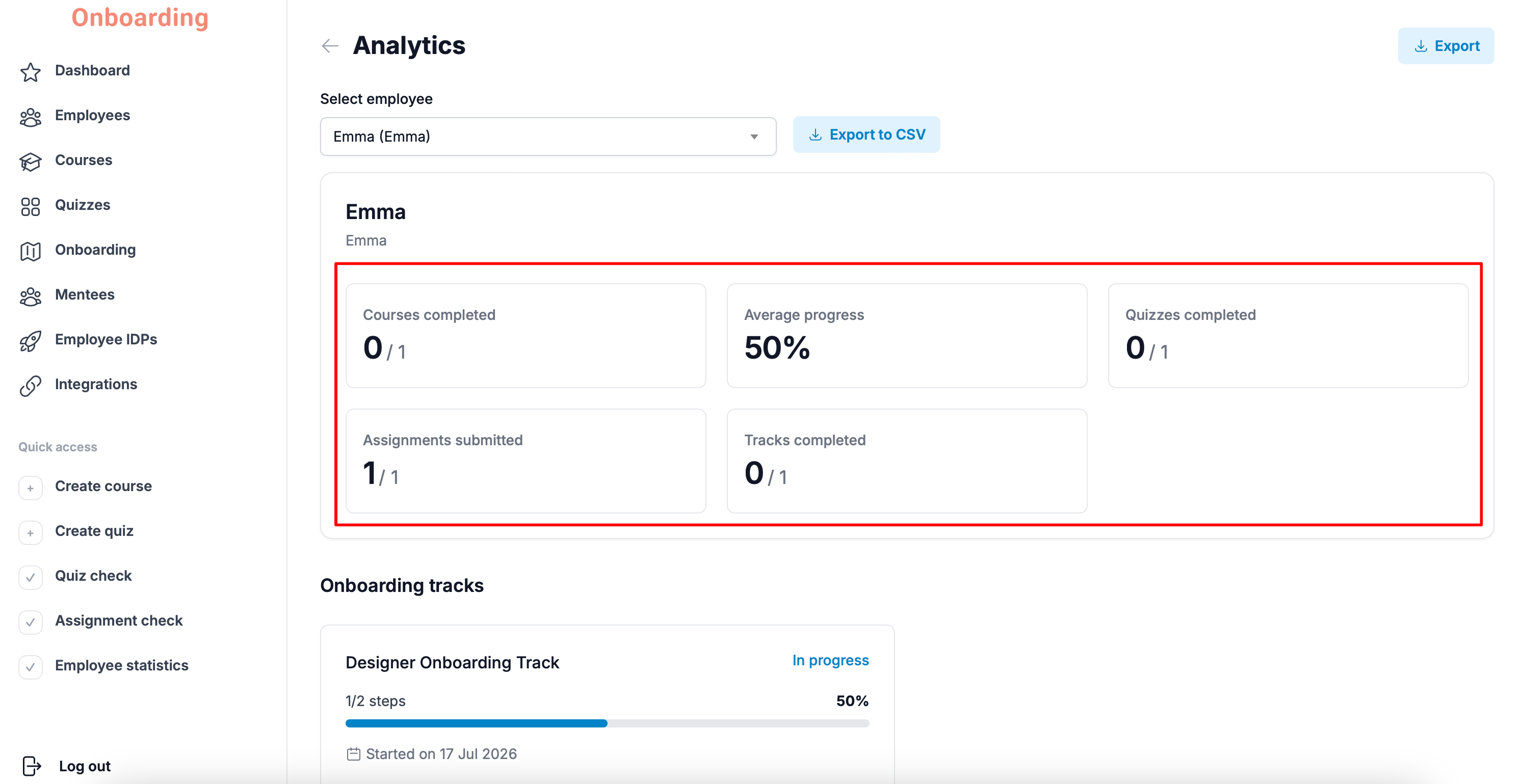
Below, you'll find a detailed picture of the employee's training:
- their assigned onboarding tracks and the current stage of each;
- their assigned IDPs and progress in each one;
- their assigned courses and progress in each one;
- their quiz and assignment results with the «Passed», «Failed», and «Awaiting review» statuses.